Free Shipping on Domestic Orders $75+

HP ProBook 440 G1 Wifi Card Replacement

What you need

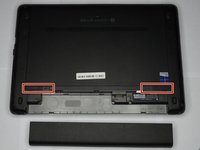
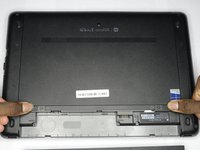
    1. HP ProBook 440 G1 Wifi Card Replacement, Battery: step 1, image 1 of 2 HP ProBook 440 G1 Wifi Card Replacement, Battery: step 1, image 2 of 2
      • Make sure the laptop is turned off before you start.

      • Push and hold the release tab on the right and left toward the center.

      Ask FixBot

      Add Comment

    2. HP ProBook 440 G1 Wifi Card Replacement: step 2, image 1 of 2 HP ProBook 440 G1 Wifi Card Replacement: step 2, image 2 of 2
      • Pull the battery out.

      Ask FixBot

      Add Comment

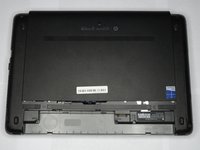
    1. HP ProBook 440 G1 Wifi Card Replacement, Backplate: step 3, image 1 of 3 HP ProBook 440 G1 Wifi Card Replacement, Backplate: step 3, image 2 of 3 HP ProBook 440 G1 Wifi Card Replacement, Backplate: step 3, image 3 of 3
      • Push and hold the release tabs on the right and left toward the center again.

      Ask FixBot

      Add Comment

    2. HP ProBook 440 G1 Wifi Card Replacement: step 4, image 1 of 1
      • Slide the backplate off.

      Ask FixBot

      Add Comment

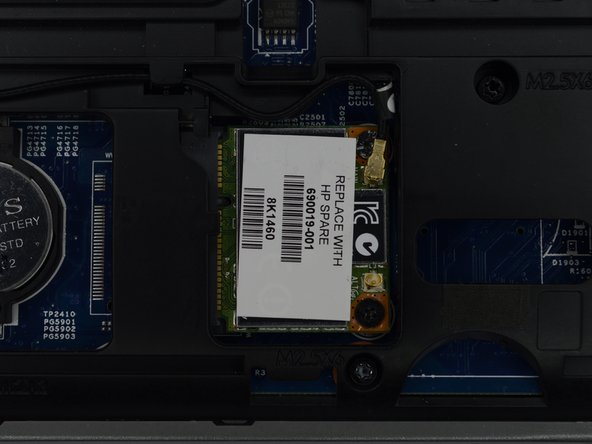
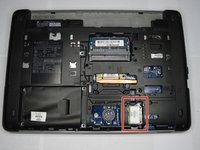
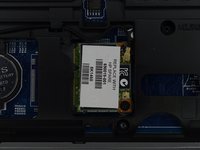
    1. HP ProBook 440 G1 Wifi Card Replacement, Wifi Card: step 5, image 1 of 2 HP ProBook 440 G1 Wifi Card Replacement, Wifi Card: step 5, image 2 of 2
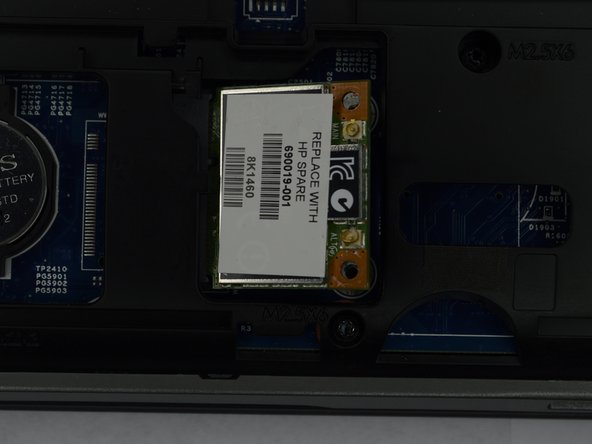
      • Locate the Wifi card, found opposite the battery and across from the hard drive.

      Ask FixBot

      Add Comment

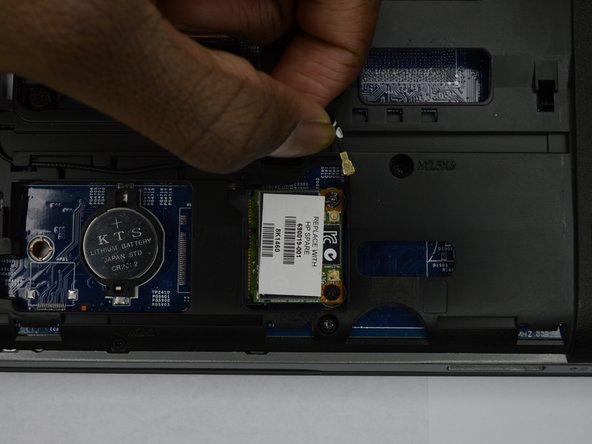
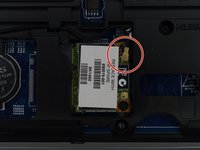
    2. HP ProBook 440 G1 Wifi Card Replacement: step 6, image 1 of 2 HP ProBook 440 G1 Wifi Card Replacement: step 6, image 2 of 2
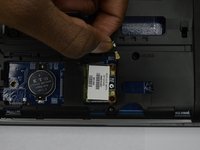
      • Remove the wire located near the screws on the wifi card.

      Ask FixBot

      Add Comment

    3. HP ProBook 440 G1 Wifi Card Replacement: step 7, image 1 of 2 HP ProBook 440 G1 Wifi Card Replacement: step 7, image 2 of 2
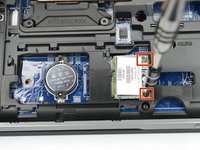
      • Remove the two Phillips #00 screws holding the wifi card in place.

      Ask FixBot

      Add Comment

    4. HP ProBook 440 G1 Wifi Card Replacement: step 8, image 1 of 1
      • Remove the wifi card.

      Ask FixBot

      Add Comment

Conclusion

To reassemble your device, follow these instructions in reverse order.

Cancel: I did not complete this guide.

0 Guide Comments

Add Comment

View Statistics:

Past 24 Hours: 0

Past 7 Days: 8

Past 30 Days: 35

All Time: 2,125