Free Shipping on Domestic Orders $75+

HP ProBook 430 G6 M.2 Hard Drive Upgrade

What you need

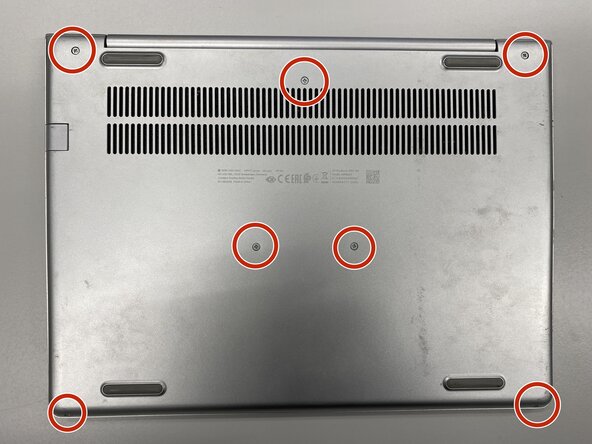
    1. HP ProBook 430 G6 M.2 Hard Drive Upgrade, Remove the screws from the base: step 1, image 1 of 1
      • Turn off the laptop and remove power cable.

      • Flip the laptop upside down.

      • Remove the labeled screws with Phillips #0 screwdriver.

      Ask FixBot

      Add Comment

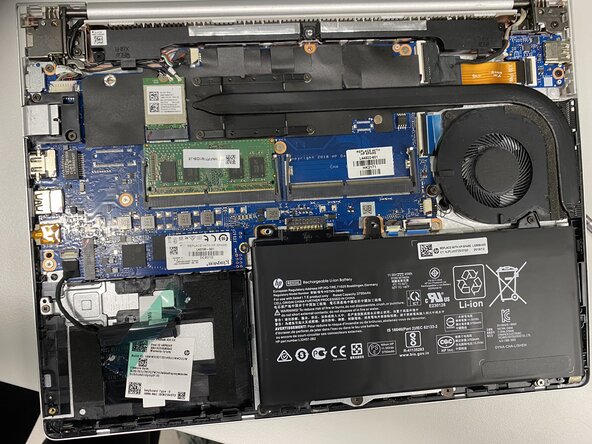
    2. HP ProBook 430 G6 M.2 Hard Drive Upgrade, Remove the base: step 2, image 1 of 1
      • Remove the metal base with iFixit Opening Tool or Opening Picks.

      Ask FixBot

      Add Comment

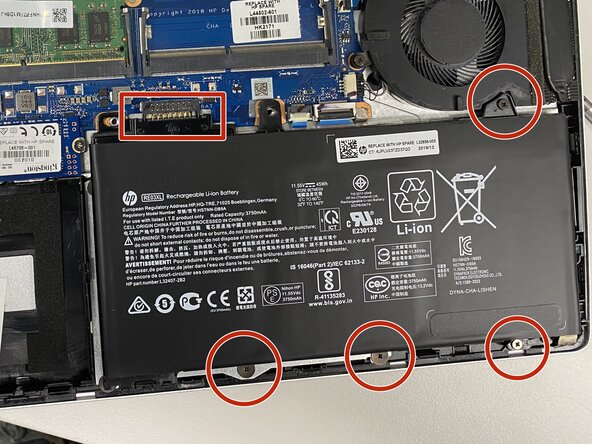
    3. HP ProBook 430 G6 M.2 Hard Drive Upgrade, Disconnect the battery: step 3, image 1 of 1
      • Disconnect the battery by removing the labeled screws and lifting the battery upwards from the box-labeled connector.

      • Battery disconnecting is very important to do before any replacements!

      Ask FixBot

      Add Comment

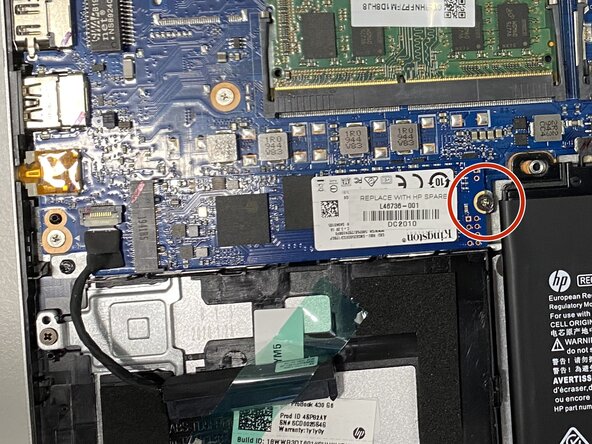
    1. HP ProBook 430 G6 M.2 Hard Drive Upgrade, Upgrade the M.2 hard drive: step 4, image 1 of 1
      • Remove the old M.2 hard drive by removing the labeled screw.

      • Insert a new M.2 hard drive by mounting the labeled screw.

      • Remember, that the laptop supports only M.2 SATA SSD hard drives, not M.2 NVMe SSD.

      Ask FixBot

      Add Comment

Finish Line

Cancel: I did not complete this guide.

One other person completed this guide.

Hiiri522

Member since: 08/10/25

593 Reputation

6 Guides authored

0 Guide Comments

Add Comment

View Statistics:

Past 24 Hours: 4

Past 7 Days: 13

Past 30 Days: 34

All Time: 216