Free Shipping on Domestic Orders $75+

HP Pavilion zv5000 Keyboard Replacement

What you need

    1. HP Pavilion zv5000 Keyboard Replacement, Battery: step 1, image 1 of 1
      • Make sure that your device is properly shut down and unplugged from any outlet.

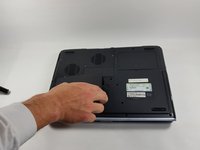
      • Flip Pavilion over so that the bottom faces up and locate the battery in the bottom left corner.

      Ask FixBot

      Add Comment

    2. HP Pavilion zv5000 Keyboard Replacement: step 2, image 1 of 2 HP Pavilion zv5000 Keyboard Replacement: step 2, image 2 of 2
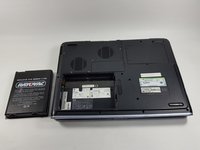
      • Press and slide up the battery release tab with your thumb until the battery pops out of place.

      Ask FixBot

      Add Comment

    3. HP Pavilion zv5000 Keyboard Replacement: step 3, image 1 of 2 HP Pavilion zv5000 Keyboard Replacement: step 3, image 2 of 2
      • Using two fingers, pry the rest of the battery out of the socket.

      Ask FixBot

      Add Comment

    1. HP Pavilion zv5000 Keyboard Replacement, Keyboard: step 4, image 1 of 2 HP Pavilion zv5000 Keyboard Replacement, Keyboard: step 4, image 2 of 2
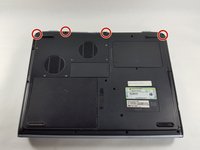
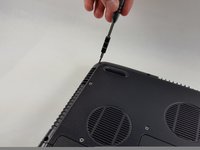
      • Using a Phillips #0 screwdriver, unscrew all four Phillips PM 2.5X13.0mm screws and place in a secure area until the end of the project.

      Ask FixBot

      Add Comment

    2. HP Pavilion zv5000 Keyboard Replacement: step 5, image 1 of 1
      • Flip laptop back over and open as far as it can go.

      Ask FixBot

      Add Comment

    3. HP Pavilion zv5000 Keyboard Replacement: step 6, image 1 of 1
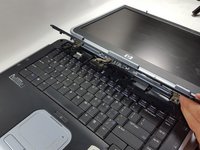
      • Use the flat edge of the plastic spudger inserted under the bottom of the strip cover and pry upwards to un-clip the cover, starting at the right and moving to the left.

      • If the plastic spudger is not doing the trick, try using the metal spudger careful to not pop any keys out.

      Ask FixBot

      Add Comment

    4. HP Pavilion zv5000 Keyboard Replacement: step 7, image 1 of 2 HP Pavilion zv5000 Keyboard Replacement: step 7, image 2 of 2
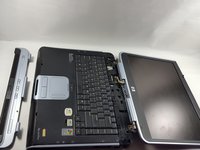
      • Use hands to completely lift off the strip cover and remove.

      Ask FixBot

      Add Comment

    5. HP Pavilion zv5000 Keyboard Replacement: step 8, image 1 of 1
      • Use the Phillips #0 screwdriver again, unscrew all four Phillips PM 2.5X13.0mm screws from the top of the keyboard and set aside.

      Ask FixBot

      Add Comment

    6. HP Pavilion zv5000 Keyboard Replacement: step 9, image 1 of 2 HP Pavilion zv5000 Keyboard Replacement: step 9, image 2 of 2
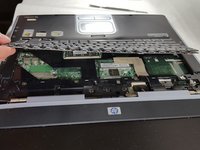
      • Using your hands, lift the keyboard up from the top towards yourself until the keyboard is resting in your hand.

      • Do not aggressively pull at the keyboard for risk of ripping the connector cable.

      Ask FixBot

      Add Comment

    7. HP Pavilion zv5000 Keyboard Replacement: step 10, image 1 of 2 HP Pavilion zv5000 Keyboard Replacement: step 10, image 2 of 2
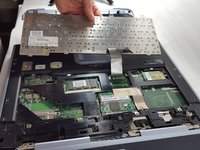
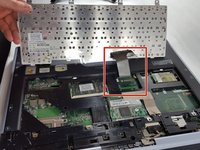
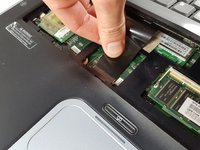
      • Gently slide out the connecting cable from the laptop to the keyboard.

      • Do not aggressively pull at the connecting cable.

      Ask FixBot

      Add Comment

    8. HP Pavilion zv5000 Keyboard Replacement: step 11, image 1 of 1
      • Completely remove the keyboard from the rest of the laptop.

      Ask FixBot

      Add Comment

Conclusion

To reassemble your device, follow these instructions in reverse order.

Cancel: I did not complete this guide.

Eliza Marks

Member since: 10/18/16

676 Reputation

5 Guides authored

Team

UMass Dartmouth, Team 4-6, Catania Fall 2016 Member of UMass Dartmouth, Team 4-6, Catania Fall 2016

UMASSD-CATANIA-F16S4G6

3 Members

60 Guides authored

0 Guide Comments

Add Comment

View Statistics:

Past 24 Hours: 2

Past 7 Days: 6

Past 30 Days: 32

All Time: 1,310