Introduction
This guide will provide a step by step instruction on how to replace the keyboard on your HP Pavilion g7-1365dx. Use this guide if keyboard has already been diagnosed that it is damage and there is no other solution other than replacing the the keyboard.
What you need
-
-
-
Flip the laptop so that it is upside down and opens away from you. This exposes the battery, it will be centered at the bottom of the laptop .
-
Push the switch above the battery towards the center of the laptop .
 Ask FixBot
-
-
-
While pushing the switch, lift the battery by the side closest to the switch up and away from the laptop.
-
-
-
-
-
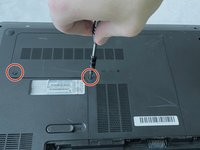
Using a Phillips size 0 screwdriver, unscrew the 2 Phillips screws.
-
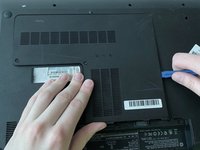
Use the opening tool around the edges of the service door to loosen it and remove it.
-
-
-
-
-
-
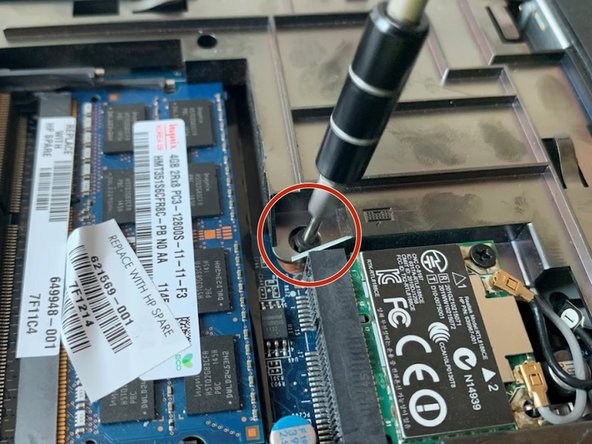
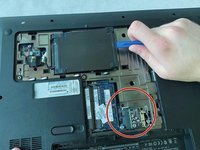
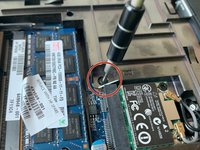
Remove the 4.7 mm screw that secures the keyboard to the computer using the Philips 00 screwdriver.
-
-
-
Rest the laptop on its side so the optical drive is pointing up.
-
Insert the hex 2.0 screwdriver into the screw hole that had the 4.7 mm screw, press till the keyboard pops out.
-
-
-
Turn the laptop right side up, facing you. Use the opening tool to help pull the keyboard towards you.
-
-





To reassemble your device, follow these instructions in reverse order.

Team

UMass Dartmouth, Team S1-G1, Simcock Spring 2019 Member of UMass Dartmouth, Team S1-G1, Simcock Spring 2019
UMASSD-SIMCOCK-S19S1G1
4 Members
96 Guides authored
