Free Shipping on Domestic Orders $75+

HP Pavilion dv7-1285dx RAM Replacement

What you need

  1. HP Pavilion dv7-1285dx RAM Replacement, Battery: step 1, image 1 of 1
    • Ensure the device is powered down and unplugged.

    • Turn the device upside down with the battery compartment facing you.

    • Slide the black slider to the right and lift the battery out of its compartment.

    Ask FixBot

    Add Comment

  2. HP Pavilion dv7-1285dx RAM Replacement, Back Plate: step 2, image 1 of 1
    • Locate and remove the six Phillips PM2.5×7.0 screws around the perimeter of the back plate.

    • These screws do not completely detach from the device when unscrewed.

    Ask FixBot

    Add Comment

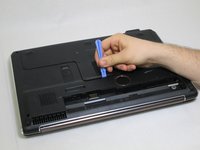
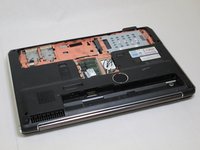
  3. HP Pavilion dv7-1285dx RAM Replacement: step 3, image 1 of 2 HP Pavilion dv7-1285dx RAM Replacement: step 3, image 2 of 2
    • Use the plastic opening tool to lift up the back plate and set it aside.

    Ask FixBot

    Add Comment

  4. HP Pavilion dv7-1285dx RAM Replacement, RAM: step 4, image 1 of 1
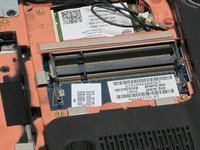
    • Rotate the device 90 degrees to the left.

    Ask FixBot

    Add Comment

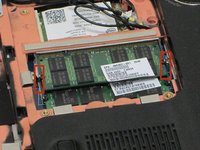
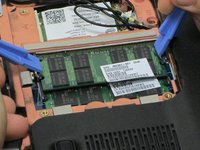
  5. HP Pavilion dv7-1285dx RAM Replacement: step 5, image 1 of 3 HP Pavilion dv7-1285dx RAM Replacement: step 5, image 2 of 3 HP Pavilion dv7-1285dx RAM Replacement: step 5, image 3 of 3
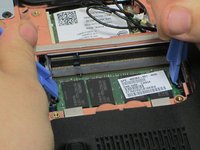
    • Locate the grey clips on the side of the RAM and pull the grey clips away from the RAM using the plastic opening tool.

    Ask FixBot

    Add Comment

  6. HP Pavilion dv7-1285dx RAM Replacement: step 6, image 1 of 3 HP Pavilion dv7-1285dx RAM Replacement: step 6, image 2 of 3 HP Pavilion dv7-1285dx RAM Replacement: step 6, image 3 of 3
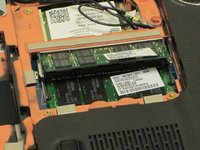
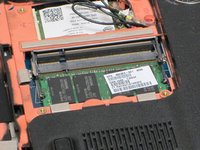
    • Unplug the RAM.

    • Repeat step 6 to remove the second piece of RAM.

    Ask FixBot

    Add Comment

  7. HP Pavilion dv7-1285dx RAM Replacement: step 7, image 1 of 2 HP Pavilion dv7-1285dx RAM Replacement: step 7, image 2 of 2
    • These steps are important in the replacement of the RAM, they will assist in ensuring the device is not damaged.

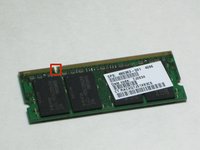
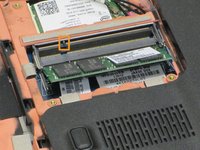
    • Align the notch in the new RAM with the peg on the plug

    • Ensure the RAM is fully inserted into the plug at a 45 degree angle such that the notch of the RAM lines up with the peg on the plug

    Ask FixBot

    Add Comment

  8. HP Pavilion dv7-1285dx RAM Replacement: step 8, image 1 of 2 HP Pavilion dv7-1285dx RAM Replacement: step 8, image 2 of 2
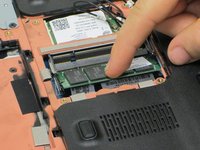
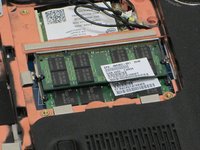
    • Push down gently on the RAM until the grey clips click.

    • Repeat steps 7 and 8 to replace the second piece of RAM.

    Ask FixBot

    Add Comment

Conclusion

To reassemble your device, follow these instructions in reverse order.

Cancel: I did not complete this guide.

2 other people completed this guide.

Jesse Quisido

Member since: 04/14/14

513 Reputation

3 Guides authored

Team

Cal Poly, Team 12-34, Maness Spring 2014 Member of Cal Poly, Team 12-34, Maness Spring 2014

CPSU-MANESS-S14S12G34

4 Members

7 Guides authored

0 Guide Comments

Add Comment

View Statistics:

Past 24 Hours: 4

Past 7 Days: 10

Past 30 Days: 25

All Time: 1,367