Introduction
This guide is made to assist a user in replacing an HP Pavilion dv7-1285dx keyboard.
What you need
-
-
-
Ensure the device is powered down and unplugged.
-
Turn the device upside down with the battery compartment facing you.
-
Slide the black slider to the right and lift the battery out of its compartment.
 Ask FixBot
-
-
-
-
-
Using a Phillips Screwdriver, remove the four Phillips M25x3.0 head screws.
-
-
-
Using a plastic opening tool on both the left and right sides to remove the upper portion of the top plate.
-
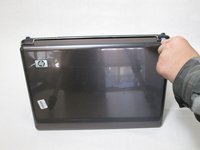
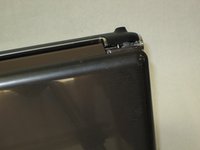
Orient the device such that it’s partially opened (a little less than a 45 degree angle) and the hinge faces up.
-
-
-
-
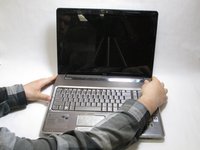
Orient the laptop so the screen is open and facing you.
-
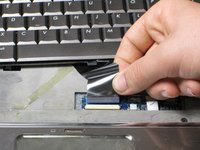
Grasp the top plate near the hinge and pull up.
-
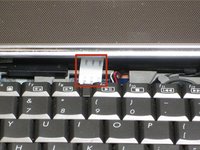
This should expose a white ribbon cable.
-
-
-
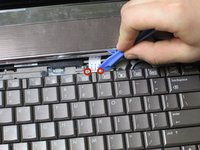
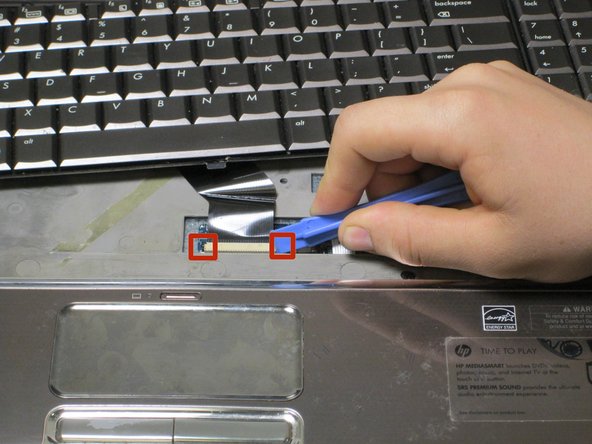
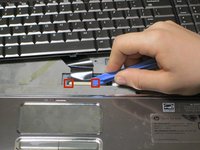
Locate the dark grey slide on the sides of the ribbon cable plug.
-
Using the plastic opening tool, push both sides of the dark gray slide towards the screen of the computer.
-
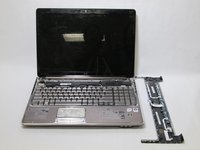
Unplug the ribbon cable and set the top plate aside.
-
-
-
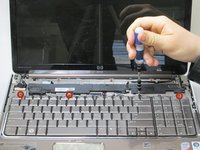
Locate the four Phillips M2.0x2 head screws at the top of the keyboard and remove them.
-
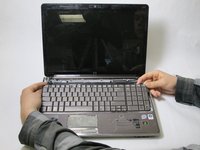
Gently lift the keyboard up from the screen side and pull the keyboard towards the screen.
-
-
-
Locate the black ribbon cable attaching the keyboard to the computer.
-
Find the grey slides on the side of the ribbon cable plug.
-
Use the plastic opening tool to move the grey slides toward the screen.
-
Unplug the black ribbon cable.
-
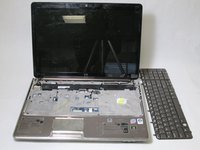
Remove the keyboard.
-
-










To reassemble your device, follow these instructions in reverse order.
Cancel: I did not complete this guide.
2 other people completed this guide.

Team

Cal Poly, Team 12-34, Maness Spring 2014 Member of Cal Poly, Team 12-34, Maness Spring 2014
CPSU-MANESS-S14S12G34
4 Members
84 Guides authored
