
HP Pavilion dv4000 Hard Drive Replacement

Chris Marshall and 3 other contributors
Last updated on Dec 21, 2016
Views: 2.5K
View statistics:
- Past 24 Hours:
- 2
- Past 7 Days:
- 19
- Past 30 Days:
- 99
- All Time:
- 2,473
Comments: 0
No one has left comments on this guide. Will you be first?
Go to guide commentsCompleted: 2 3
2 people have marked this guide "completed." Will you be next?
3 people have marked this guide "completed." Including you — great job!
Favorites: 0 1
No one has favorited (and subscribed to) this guide. Will you be the first?
1 person has favorited (and subscribed to) this guide — and that's you!
Introduction
Go to step 1 ↓The hard drive is a crucial component of your laptop (storing files and the operating system). It is also one of the most likely causes of issues with your machine. The hard drive can become corrupted with age or physical damage. Replacing your hard drive with a bigger one for more storage is a common practice as well.
What you need
Tools

-
-
-
-
-
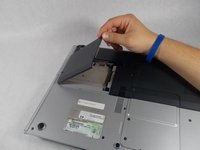
Lift the cover up by the tab near the screws.
-
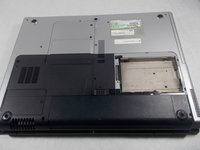
The cover can be removed from the laptop.
-
-
-
Grab the hard drive from the sides and slide it away from the connectors.
-
Lift and remove the hard drive from the laptop.
-

 Ask FixBot



To replace the hard drive, follow these instructions in reverse.
Cancel: I did not complete this guide.
2 other people completed this guide.

Team

UMass Dartmouth, Team 4-2, Catania Fall 2016 Member of UMass Dartmouth, Team 4-2, Catania Fall 2016
UMASSD-CATANIA-F16S4G2
3 Members
72 Guides authored
