Free Shipping on Domestic Orders $75+

HP Pavilion dv4-4141us Fan Replacement

What you need

    1. HP Pavilion dv4-4141us Fan Replacement, Back Panel: step 1, image 1 of 1
      • Lift up the back panel using a spudger, and remove it from the device.

      Ask FixBot

      Add Comment

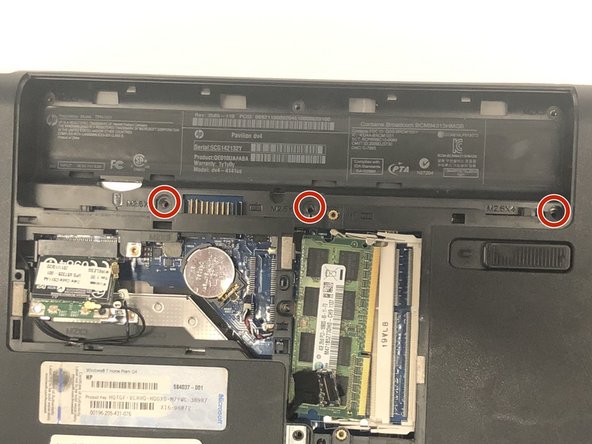
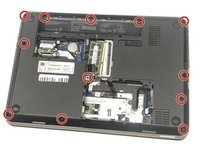
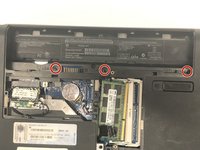
    2. HP Pavilion dv4-4141us Fan Replacement: step 2, image 1 of 3 HP Pavilion dv4-4141us Fan Replacement: step 2, image 2 of 3 HP Pavilion dv4-4141us Fan Replacement: step 2, image 3 of 3
      • Using the Phillips #1 screwdriver unscrew the panel from the computer.

      • Lift the panel up and remove it from the laptop.

      Ask FixBot

      Add Comment

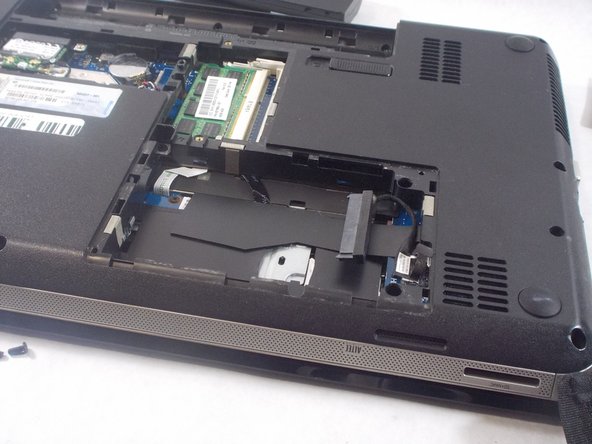
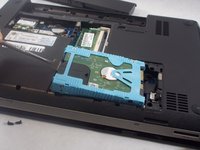
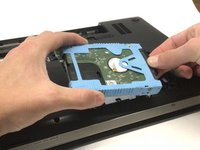
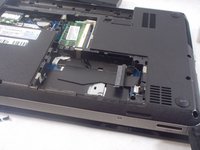
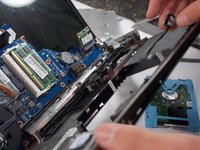
    1. HP Pavilion dv4-4141us Fan Replacement, Hard Drive: step 3, image 1 of 3 HP Pavilion dv4-4141us Fan Replacement, Hard Drive: step 3, image 2 of 3 HP Pavilion dv4-4141us Fan Replacement, Hard Drive: step 3, image 3 of 3
      • Use the spudger to lift the left side of the hard drive.

      • Unplug the hard drive and remove it from the device.

      Ask FixBot

      Add Comment

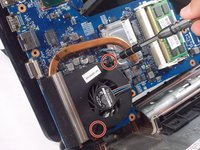
    1. HP Pavilion dv4-4141us Fan Replacement, Fan: step 4, image 1 of 2 HP Pavilion dv4-4141us Fan Replacement, Fan: step 4, image 2 of 2
      • Use a Phillips #1 Screwdriver to remove all the screws indicated in the pictures.

      Ask FixBot

      Add Comment

    2. HP Pavilion dv4-4141us Fan Replacement: step 5, image 1 of 1
      • Use opening tool to separate the Key board and mouse pad.

      • It would be best to find a tool that is small enough to fit and start on the bottom at either corner and slide across lifting the panel up.

      • Be careful not to push too far underneath to not damage the interior and also it is advised to not bend or crack the plastic back cover.

      Ask FixBot

      Add Comment

    3. HP Pavilion dv4-4141us Fan Replacement: step 6, image 1 of 1
      • Use a spudger to gently lift the white plastic flap and release the ribbon cable holding the keyboard in place.

      Ask FixBot

      Add Comment

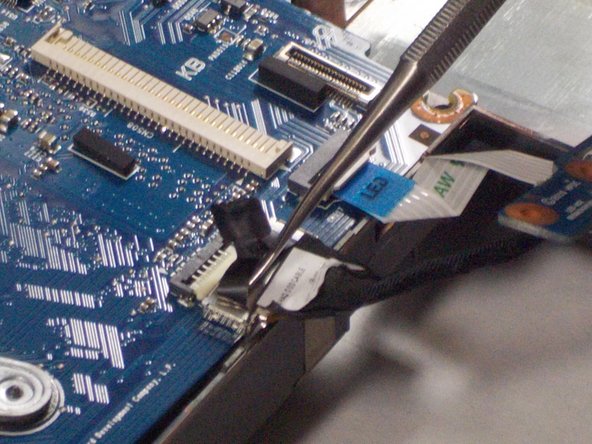
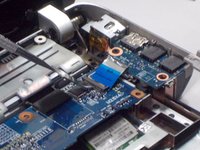
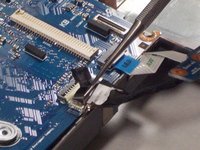
    4. HP Pavilion dv4-4141us Fan Replacement: step 7, image 1 of 2 HP Pavilion dv4-4141us Fan Replacement: step 7, image 2 of 2
      • Use the spudger to lift up the flap and release the cable for both of these two separate components.

      • Be extra careful not to break these clips as they are fragile and are a part of the motherboard.

      Ask FixBot

      Add Comment

    5. HP Pavilion dv4-4141us Fan Replacement: step 8, image 1 of 1
      • Unclip the last wire holding the motherboard in place. To do this pull down on the wire in the direction of the arrow.

      Ask FixBot

      Add Comment

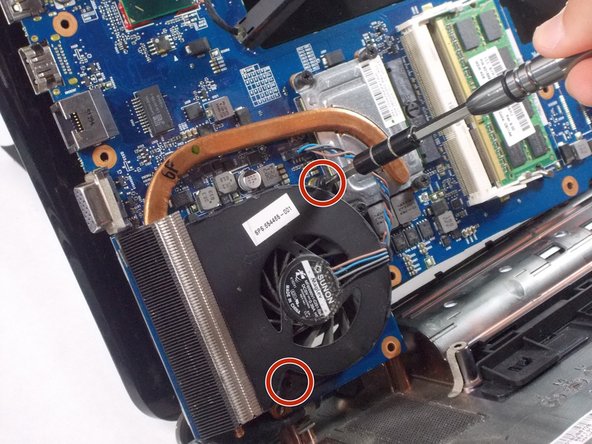
    6. HP Pavilion dv4-4141us Fan Replacement: step 9, image 1 of 2 HP Pavilion dv4-4141us Fan Replacement: step 9, image 2 of 2
      • Take out the mother board and flip it over so that you can access the fan.

      • Unscrew the two screws holding the fan in place.

      Ask FixBot

      Add Comment

    7. HP Pavilion dv4-4141us Fan Replacement: step 10, image 1 of 1
      • Release the fan from the motherboard by disconnecting the wire from the fan.

      Ask FixBot

      Add Comment

Conclusion

To reassemble your device, follow these instructions in reverse order.

Cancel: I did not complete this guide.

2 other people completed this guide.

Vincent Gardner

Member since: 10/25/21

390 Reputation

3 Guides authored

Team

UMass Dartmouth, Team 2-3, Sinclaire Fall 2021 Member of UMass Dartmouth, Team 2-3, Sinclaire Fall 2021

UMASSD-SINCLAIRE-F21S2G3

3 Members

84 Guides authored

1 Guide Comment

Thanks! I was able to upgrade my Intel Core i3 2330m to a considerably more powerful core i5 2410m! The instructions were very easy to follow. This fixed my problem!

Sam Watson - Reply Share

Add Comment

View Statistics:

Past 24 Hours: 0

Past 7 Days: 9

Past 30 Days: 36

All Time: 754