Free Shipping on Domestic Orders $75+

HP Pavilion dv1000 RAM Replacement

What you need

    1. HP Pavilion dv1000 RAM Replacement, Battery: step 1, image 1 of 1
      • Shut down the computer.

      • Disconnect all external devices and cables from the computer.

      Ask FixBot

      Add Comment

    2. HP Pavilion dv1000 RAM Replacement: step 2, image 1 of 1
      • Flip the laptop over.

      Ask FixBot

      Add Comment

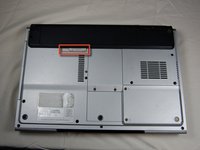
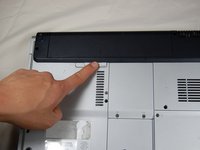
    3. HP Pavilion dv1000 RAM Replacement: step 3, image 1 of 2 HP Pavilion dv1000 RAM Replacement: step 3, image 2 of 2
      • Locate the gray sliding tab next to the black bar where the battery is located.

      • Slide the gray sliding tab to the left until you hear a distinct click.

      • The inside edge of the battery should pop up.

      Ask FixBot

      Add Comment

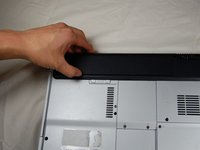
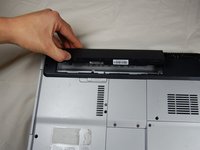
    4. HP Pavilion dv1000 RAM Replacement: step 4, image 1 of 3 HP Pavilion dv1000 RAM Replacement: step 4, image 2 of 3 HP Pavilion dv1000 RAM Replacement: step 4, image 3 of 3
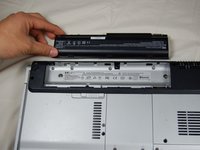
      • Grasp the inside edge of the battery.

      • Lift the inside edge of the battery up to detach the battery from the laptop.

      Ask FixBot

      Add Comment

    1. HP Pavilion dv1000 RAM Replacement, RAM: step 5, image 1 of 1
      • Locate RAM access door on the bottom side of the laptop.

      Ask FixBot

      Add Comment

    2. HP Pavilion dv1000 RAM Replacement: step 6, image 1 of 3 HP Pavilion dv1000 RAM Replacement: step 6, image 2 of 3 HP Pavilion dv1000 RAM Replacement: step 6, image 3 of 3
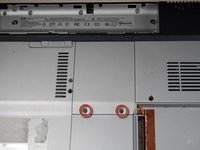
      • Locate the two screws holding down the RAM access cover

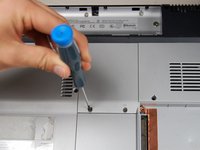
      • Unscrew the two screws with a size 00 Philips screwdriver.

      • Note: The screws do not detach from the cover.

      Ask FixBot

      Add Comment

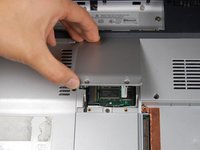
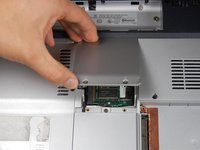
    3. HP Pavilion dv1000 RAM Replacement: step 7, image 1 of 2 HP Pavilion dv1000 RAM Replacement: step 7, image 2 of 2
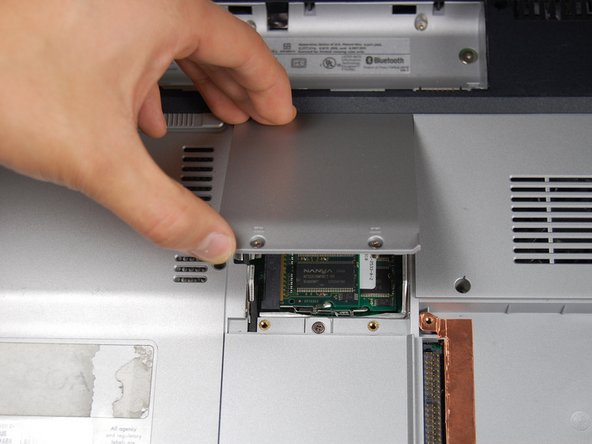
      • Lift up on the screw side of the RAM access cover to remove it.

      Ask FixBot

      Add Comment

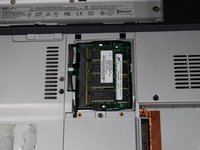
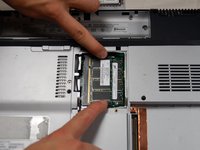
    4. HP Pavilion dv1000 RAM Replacement: step 8, image 1 of 2 HP Pavilion dv1000 RAM Replacement: step 8, image 2 of 2
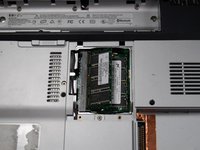
      • Gently pull apart the metal tabs located on both sides of the stick of RAM.

      • The RAM stick should tilt upwards.

      Ask FixBot

      Add Comment

    5. HP Pavilion dv1000 RAM Replacement: step 9, image 1 of 1
      • Gently lift the the RAM up and out of its seat.

      Ask FixBot

      Add Comment

    6. HP Pavilion dv1000 RAM Replacement: step 10, image 1 of 1
      • Repeat the previous two steps for the remaining stick of RAM.

      Ask FixBot

      Add Comment

Conclusion

To reassemble your device, follow these instructions in reverse order.

Cancel: I did not complete this guide.

5 other people completed this guide.

Henry OBrien

Member since: 04/04/11

104 Reputation

1 Guide authored

Team

Cal Poly, Team 10-37, Forte Spring 2011 Member of Cal Poly, Team 10-37, Forte Spring 2011

CPSU-FORTE-S11S10G37

5 Members

96 Guides authored

2 Guide Comments

THANKS - YOU'RE AWESOME!!!! Removing the hard drive was the fix it! the HP site never tells you this - imagine.......

marena - Reply Share

I had never dealt with laptop ram before and i used this guide sussusfully to remove the ram from my old HP Pavilliondv6-3055dx laptop. Thanks!

Andrew Lonero - Reply Share

Add Comment

View Statistics:

Past 24 Hours: 2

Past 7 Days: 12

Past 30 Days: 44

All Time: 9,526