
HP Pavilion dv1000 Media Keys Replacement

Tyler Latour and 6 other contributors
Last updated on Jun 6, 2017
Views: 1.3K
View statistics:
- Past 24 Hours:
- 4
- Past 7 Days:
- 23
- Past 30 Days:
- 98
- All Time:
- 1,256
Comments: 1
1 comment on steps.
Completed: 1 2
1 person has marked this guide "completed." Will you be next?
2 people have marked this guide "completed." Including you — great job!
Favorites: 2 3
2 people have favorited (and subscribed to) this guide. Will you be next?
3 people have favorited (and subscribed to) this guide — including you!
Needs Better Images
Better photos will improve this guide. Help out by taking, editing, or uploading new ones!
Action Shots
Be an action hero! This guide needs images that better demonstrate how to perform specific actions.
Missing Steps
Oops! This guide is currently missing one or more important steps.
Step Trimmer
This guide has unnecessary steps. Trim them to be more concise!
Markup Mishap
This guide needs better markups. Help out by correcting or making some markup annotations.
Better Introduction
Improve this guide by completing or revising its introduction.
What you need
Tools


-
-
-
Shut down the computer.
-
Disconnect all external devices and cables from the computer.
 Ask FixBot
-
-
-
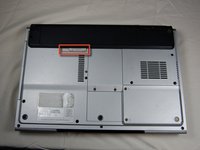
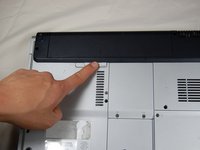
Locate the gray sliding tab next to the black bar where the battery is located.
-
Slide the gray sliding tab to the left until you hear a distinct click.
-
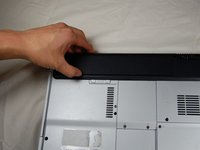
The inside edge of the battery should pop up.
-
-
-
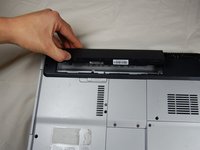
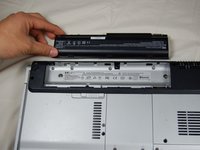
Grasp the inside edge of the battery.
-
Lift the inside edge of the battery up to detach the battery from the laptop.
-
-
-
-
-
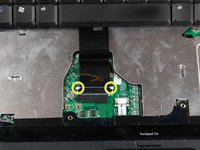
Remove the highlighted screws.
-
After removing the screws, flip the laptop over.
-
-
-
Open the laptop.
-
Use the spudger to lift the keyboard.
-
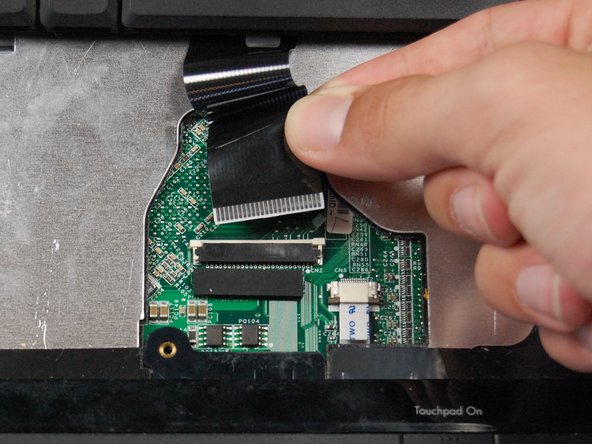
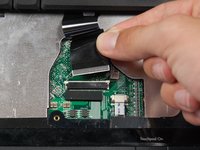
Press the two white clips forward with your fingers and gently pull the ribbon from the clips.
-
-
-
-
-
-
Turn the laptop right-side up. Open the screen and tilt it all the way back.
-
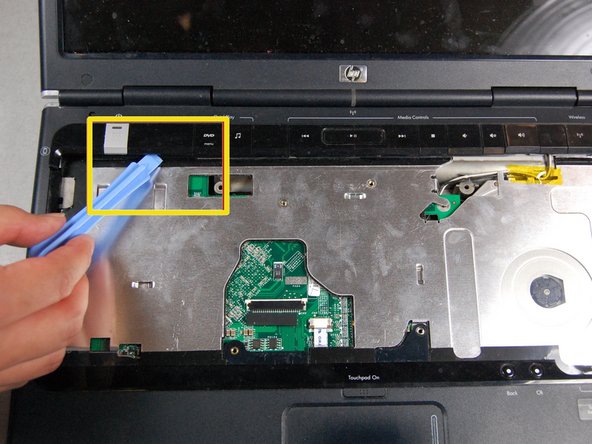
Locate the media keys.
-
Gently lift up the media key strip using the plastic pry tool.
-








To reassemble your device, follow these instructions in reverse order.
Cancel: I did not complete this guide.
One other person completed this guide.

Team

UMass Dartmouth, Team 6-7, Vijaybhaskar Spring 2014 Member of UMass Dartmouth, Team 6-7, Vijaybhaskar Spring 2014
UMASSD-VIJAYBHASKAR-S14S6G7
4 Members
36 Guides authored
