Free Shipping on Domestic Orders $75+

HP Pavilion Notebook 15-ab293cl Hard Drive Replacement

What you need

    1. HP Pavilion Notebook 15-ab293cl Hard Drive Replacement, Hard Drive: step 1, image 1 of 2 HP Pavilion Notebook 15-ab293cl Hard Drive Replacement, Hard Drive: step 1, image 2 of 2
      • Flip the laptop over so that the battery is facing upward.

      Ask FixBot
      Add Comment

    2. HP Pavilion Notebook 15-ab293cl Hard Drive Replacement: step 2, image 1 of 3 HP Pavilion Notebook 15-ab293cl Hard Drive Replacement: step 2, image 2 of 3 HP Pavilion Notebook 15-ab293cl Hard Drive Replacement: step 2, image 3 of 3
      • Slide both tab buttons inward to open the battery cover. Gently push the battery out to remove.

      Ask FixBot

      Add Comment

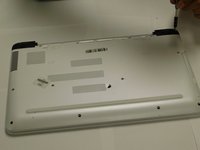
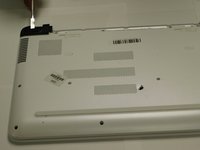
    3. HP Pavilion Notebook 15-ab293cl Hard Drive Replacement: step 3, image 1 of 2 HP Pavilion Notebook 15-ab293cl Hard Drive Replacement: step 3, image 2 of 2
      • Remove the black plastic hinge covers at the top corners of the laptop.

      • Use the Phillips #1 to remove the two 7.5mm screws.

      • Use the opening tool to pry the black covers off of the laptop.

      Ask FixBot
      Add Comment

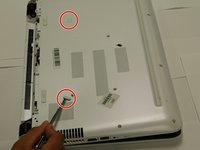
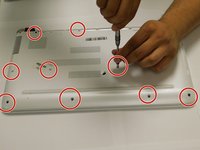
    4. HP Pavilion Notebook 15-ab293cl Hard Drive Replacement: step 4, image 1 of 3 HP Pavilion Notebook 15-ab293cl Hard Drive Replacement: step 4, image 2 of 3 HP Pavilion Notebook 15-ab293cl Hard Drive Replacement: step 4, image 3 of 3
      • Remember to remove the tabs shown in the second picture.

      • Remove all 16 - 7.5mm screws with the Phillips #1 screwdriver.

      • Pry and slide the CD/DVD drive out of the laptop case.

      Ask FixBot
      Add Comment

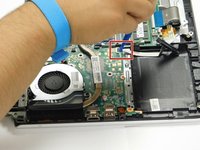
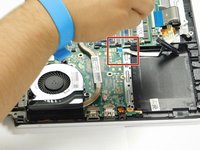
    5. HP Pavilion Notebook 15-ab293cl Hard Drive Replacement: step 5, image 1 of 1
      • Unscrew the two 3.5mm silver screws with the Phillips #000 and the Philips # 1.

      Ask FixBot
      Add Comment

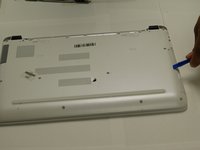
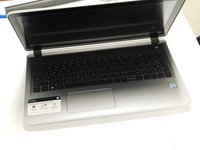
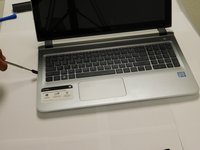
    6. HP Pavilion Notebook 15-ab293cl Hard Drive Replacement: step 6, image 1 of 3 HP Pavilion Notebook 15-ab293cl Hard Drive Replacement: step 6, image 2 of 3 HP Pavilion Notebook 15-ab293cl Hard Drive Replacement: step 6, image 3 of 3
      • Turn the computer so that the screen faces you.

      • Use the pry tool to pry off the edge of the keyboard side of laptop.

      Ask FixBot

      Add Comment

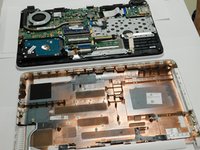
    7. HP Pavilion Notebook 15-ab293cl Hard Drive Replacement: step 7, image 1 of 3 HP Pavilion Notebook 15-ab293cl Hard Drive Replacement: step 7, image 2 of 3 HP Pavilion Notebook 15-ab293cl Hard Drive Replacement: step 7, image 3 of 3
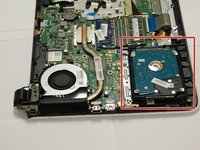
      • The hard drive is located in the bottom corner of the laptop.

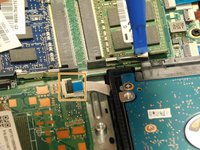
      • Gently lift up the hard drive and pry off the white tab to release the hard drive.

      Ask FixBot

      Add Comment

    8. HP Pavilion Notebook 15-ab293cl Hard Drive Replacement: step 8, image 1 of 2 HP Pavilion Notebook 15-ab293cl Hard Drive Replacement: step 8, image 2 of 2
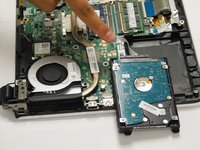
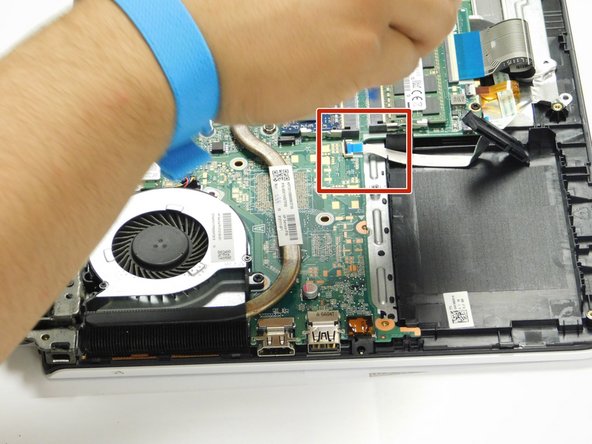
      • Once you release the white tab from the green board, remove the hard drive.

      Ask FixBot

      Add Comment

Conclusion

To reassemble your device, follow these instructions in reverse order.

Cancel: I did not complete this guide.

One other person completed this guide.

Efren Solis

Member since: 09/10/18

228 Reputation

1 Guide authored

Team

Gateway, Team S1-G2, Luster Fall 2018 Member of Gateway, Team S1-G2, Luster Fall 2018

GCC-LUSTER-F18S1G2

4 Members

48 Guides authored

0 Guide Comments

Add Comment

View Statistics:

Past 24 Hours: 1

Past 7 Days: 15

Past 30 Days: 81

All Time: 3,905