
HP Pavilion G7-2289wm Keyboard Replacement

Ryson Smith and 4 other contributors
Last updated on Feb 15, 2024
Views: 605
View statistics:
- Past 24 Hours:
- 2
- Past 7 Days:
- 17
- Past 30 Days:
- 69
- All Time:
- 605
Comments: 0
No one has left comments on this guide. Will you be first?
Go to guide commentsCompleted: 0 1
No one has marked this guide "completed." Will you be the first?
1 person has marked this guide "completed." It's you — great job!
Favorites: 0 1
No one has favorited (and subscribed to) this guide. Will you be the first?
1 person has favorited (and subscribed to) this guide — and that's you!
Needs More Images
A few more images would make this guide's procedures crystal clear.
Missing Prerequisites
This guide is missing information on how to start the process. Make a prerequisite guide!
Better Introduction
Improve this guide by completing or revising its introduction.
Introduction
Go to step 1 ↓This guide provides instruction on how to replace a damaged keyboard on the HP Pavilion G7-2289wm laptop.
What you need
Tools


-
-
-
Located on the bottom side of your laptop, slide the battery release latch to the left, towards the center of the laptop.
-
Lift the battery up, and pull towards the center of the laptop to remove it.
 Ask FixBot
-
-
-
-
-
Remove all the screw that secures the keyboard to the computer using a Phillips #0 screwdriver.
-
-
-
-
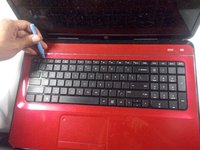
Flip your laptop around to the front, using an opening tool, pry around the perimeter of the keyboard.
-
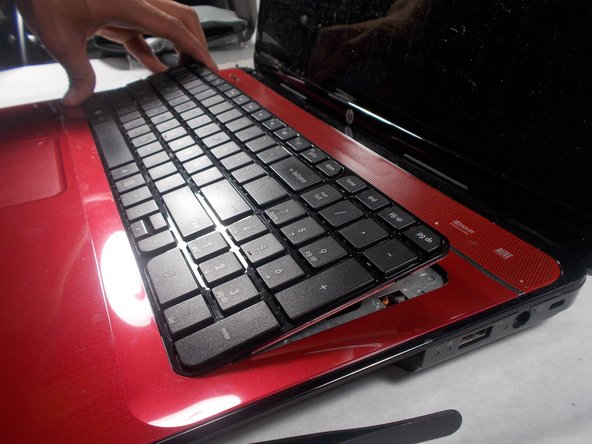
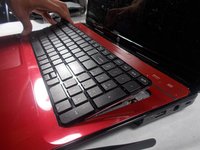
Lift the keyboard from the top backward towards the touch pad.
-
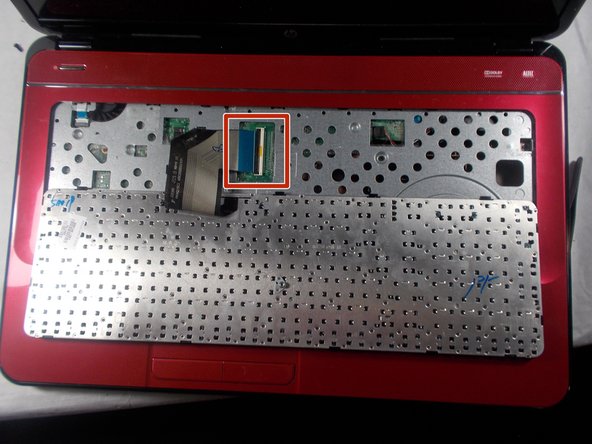
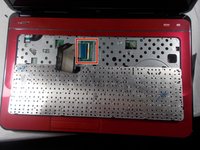
Unlatch the keyboard connector from the motherboard and remove the keyboard.
-
-


To reassemble your device, follow these instructions in reverse order.

Team

UMass Dartmouth, Team S8-G1, Valliere Spring 2018 Member of UMass Dartmouth, Team S8-G1, Valliere Spring 2018
UMASSD-VALLIERE-S18S8G1
3 Members
84 Guides authored
