Free Shipping on Domestic Orders $75+

HP Pavilion G60-120US Fan Replacement

What you need

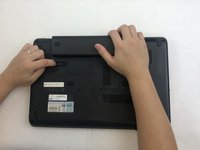
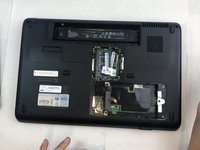
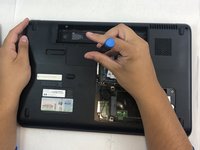
    1. HP Pavilion G60-120US Fan Replacement, Battery: step 1, image 1 of 1
      • Make sure the laptop is turned off.

      • Turn the laptop over to reveal the battery.

      Ask FixBot
      Add Comment

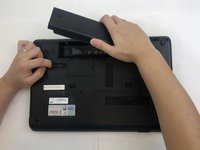
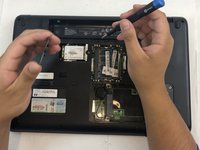
    2. HP Pavilion G60-120US Fan Replacement: step 2, image 1 of 2 HP Pavilion G60-120US Fan Replacement: step 2, image 2 of 2
      • Slide and hold the battery release switch to the left to release the battery from the device.

      Ask FixBot
      Add Comment

    3. HP Pavilion G60-120US Fan Replacement: step 3, image 1 of 2 HP Pavilion G60-120US Fan Replacement: step 3, image 2 of 2
      • While holding the battery release switch, grab the battery and pull it upward gently.

      Ask FixBot

      Add Comment

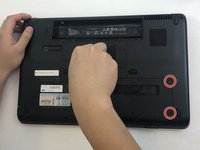
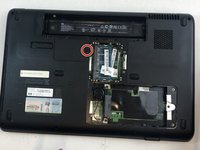
    1. HP Pavilion G60-120US Fan Replacement, Keyboard: step 4, image 1 of 1
      • Using the Phillips #0 screwdriver, remove the seven 4.0mm screws on the battery compartment of the laptop.

      Ask FixBot

      Add Comment

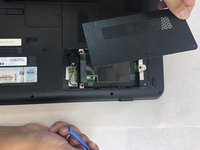
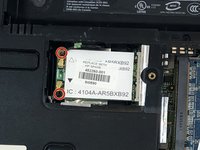
    2. HP Pavilion G60-120US Fan Replacement: step 5, image 1 of 2 HP Pavilion G60-120US Fan Replacement: step 5, image 2 of 2
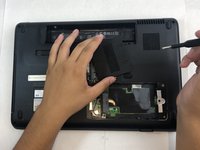
      • Using the Phillips #0 screwdriver, remove two 4.0mm screws from the hard disk cover.

      • Remove the hard disk cover.

      Ask FixBot
      Add Comment

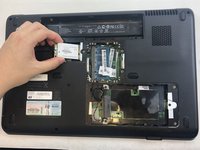
    3. HP Pavilion G60-120US Fan Replacement: step 6, image 1 of 2 HP Pavilion G60-120US Fan Replacement: step 6, image 2 of 2
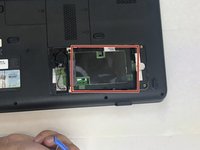
      • Remove the hard drive by pulling gently and disconnecting the hard drive from the laptop.

      • Gently pull on the black and red wiring on the bottom left to separate the wire from the component.

      Ask FixBot
      Add Comment

    4. HP Pavilion G60-120US Fan Replacement: step 7, image 1 of 1
      • Remove the two 4.0 mm Phillips #0 screws from the hard disk compartment.

      Ask FixBot

      Add Comment

    5. HP Pavilion G60-120US Fan Replacement: step 8, image 1 of 3 HP Pavilion G60-120US Fan Replacement: step 8, image 2 of 3 HP Pavilion G60-120US Fan Replacement: step 8, image 3 of 3
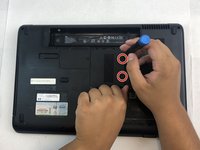
      • Using the Phillips #0 screwdriver, remove the two 4.0 mm screws from the memory card cover.

      • Remove the memory disk cover.

      Ask FixBot

      Add Comment

    6. HP Pavilion G60-120US Fan Replacement: step 9, image 1 of 3 HP Pavilion G60-120US Fan Replacement: step 9, image 2 of 3 HP Pavilion G60-120US Fan Replacement: step 9, image 3 of 3
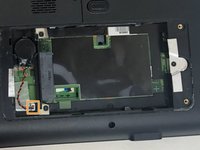
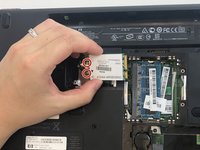
      • Using the Phillips #0 screwdriver, remove the 4.0 mm screw from the Wi-Fi chip cover.

      • Remove the Wi-Fi chip cover.

      Ask FixBot
      Add Comment

    7. HP Pavilion G60-120US Fan Replacement: step 10, image 1 of 2 HP Pavilion G60-120US Fan Replacement: step 10, image 2 of 2
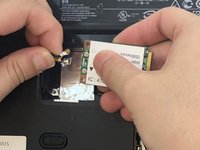
      • Using the Phillips #0 screwdriver, remove the two 3.0 mm screws securing the Wi-Fi chip in place.

      • Grab the Wi-Fi chip and pull up gently to the left to disconnect it from the laptop.

      Ask FixBot
      Add Comment

    8. HP Pavilion G60-120US Fan Replacement: step 11, image 1 of 2 HP Pavilion G60-120US Fan Replacement: step 11, image 2 of 2
      • Disconnect the two wires connecting the chip's base.

      • Remove the Wi-Fi chip.

      Ask FixBot

      Add Comment

    9. HP Pavilion G60-120US Fan Replacement: step 12, image 1 of 1
      • Using the Phillips #0 screwdriver, remove the seven 4.0 mm screws on the bottom of the laptop.

      Ask FixBot

      Add Comment

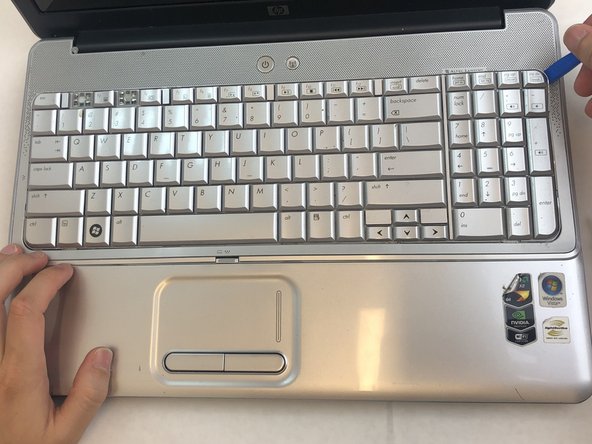
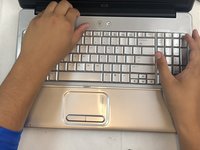
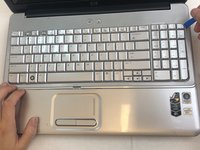
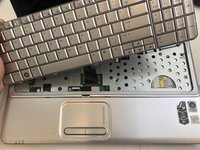
    10. HP Pavilion G60-120US Fan Replacement: step 13, image 1 of 3 HP Pavilion G60-120US Fan Replacement: step 13, image 2 of 3 HP Pavilion G60-120US Fan Replacement: step 13, image 3 of 3
      • Turn the laptop back to its upright state.

      • Insert an opening tool into the upper right corner of the keyboard and gently lift it to separate it from the laptop.

      • Be sure not to apply excessive pressure to prevent the bending and breaking of the keyboard.

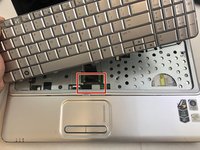
      • Do not pull the keyboard all the way out because there is a wiring connection under the keyboard.

      Ask FixBot

      Add Comment

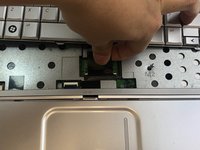
    11. HP Pavilion G60-120US Fan Replacement: step 14, image 1 of 3 HP Pavilion G60-120US Fan Replacement: step 14, image 2 of 3 HP Pavilion G60-120US Fan Replacement: step 14, image 3 of 3
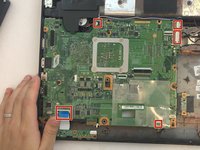
      • Grab the wiring and gently pull it out to disconnect it from the laptop.

      • Don't use excessive force.

      • Remove the keyboard.

      Ask FixBot
      Add Comment

    1. HP Pavilion G60-120US Fan Replacement, Display Assembly: step 15, image 1 of 2 HP Pavilion G60-120US Fan Replacement, Display Assembly: step 15, image 2 of 2
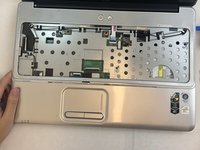
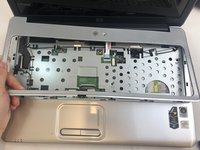
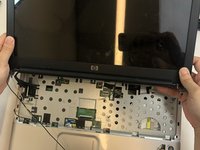
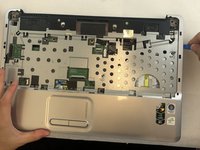
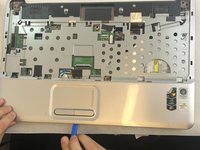
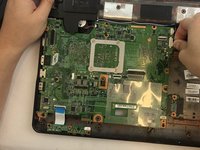
      • Insert an opening tool into the top right side of the corner, and gently lift the rest of the cover to separate if from the laptop.

      • Avoid using excessive force which may break the cover.

      • Do not completely pull out the cover; there is a wire still attached to the laptop.

      Ask FixBot
      Add Comment

    2. HP Pavilion G60-120US Fan Replacement: step 16, image 1 of 2 HP Pavilion G60-120US Fan Replacement: step 16, image 2 of 2
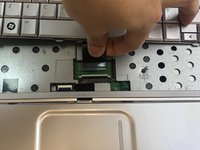
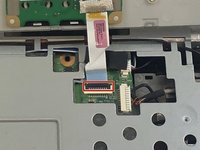
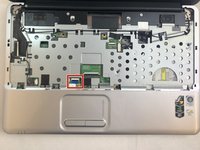
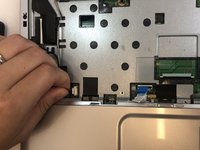
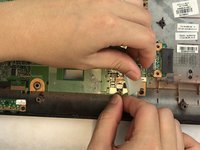
      • Using your fingertips, detach the ribbon cable by gently lifting up the black tab located on the bottom end of the cable.

      • Separate the cable and remove the cover.

      Ask FixBot
      Add Comment

    3. HP Pavilion G60-120US Fan Replacement: step 17, image 1 of 3 HP Pavilion G60-120US Fan Replacement: step 17, image 2 of 3 HP Pavilion G60-120US Fan Replacement: step 17, image 3 of 3
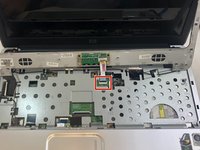
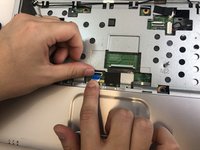
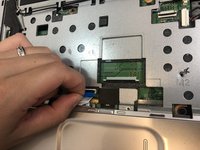
      • Remove the mouse and touchpad cable by lifting the black tab and gently pulling the cable out.

      Ask FixBot

      Add Comment

    4. HP Pavilion G60-120US Fan Replacement: step 18, image 1 of 3 HP Pavilion G60-120US Fan Replacement: step 18, image 2 of 3 HP Pavilion G60-120US Fan Replacement: step 18, image 3 of 3
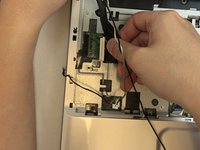
      • Detach the white screen wiring on the bottom left side by gently pulling out.

      • Detach two black screen cables on the middle left side by gently pulling out the cables.

      • Pull out the black cable on the upper right side of the laptop.

      • Use gentle pressure while removing the wires.

      Ask FixBot

      Add Comment

    5. HP Pavilion G60-120US Fan Replacement: step 19, image 1 of 3 HP Pavilion G60-120US Fan Replacement: step 19, image 2 of 3 HP Pavilion G60-120US Fan Replacement: step 19, image 3 of 3
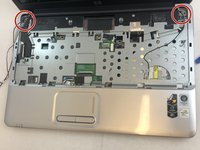
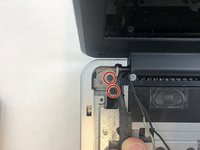
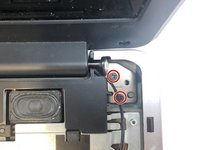
      • Using the Phillips #0 screwdriver, remove the four 4.0 mm screws on both hinges of the laptop's screen.

      Ask FixBot

      Add Comment

    6. HP Pavilion G60-120US Fan Replacement: step 20, image 1 of 2 HP Pavilion G60-120US Fan Replacement: step 20, image 2 of 2
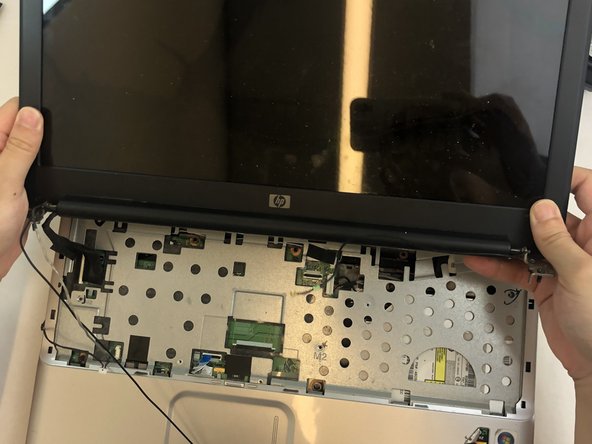
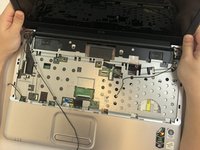
      • Gently lift and detach the display assembly from the laptop’s base.

      Ask FixBot
      Add Comment
    1. HP Pavilion G60-120US Fan Replacement, Midframe: step 21, image 1 of 1
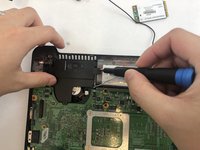
      • Using the Phillips #0 screwdriver, remove the four 4mm screws from the midframe.

      Ask FixBot

      Add Comment

    2. HP Pavilion G60-120US Fan Replacement: step 22, image 1 of 3 HP Pavilion G60-120US Fan Replacement: step 22, image 2 of 3 HP Pavilion G60-120US Fan Replacement: step 22, image 3 of 3
      • Using an opening tool, gently lift each corner of the midframe.

      • Use caution when applying pressure with the opening tool as it may break while attempting to lift the midframe.

      • Detach and remove the midframe from the main body of the laptop.

      Ask FixBot

      Add Comment

    1. HP Pavilion G60-120US Fan Replacement, Motherboard: step 23, image 1 of 3 HP Pavilion G60-120US Fan Replacement, Motherboard: step 23, image 2 of 3 HP Pavilion G60-120US Fan Replacement, Motherboard: step 23, image 3 of 3
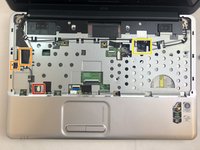
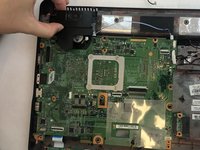
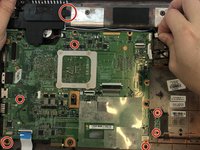
      • Gently detach the five wires that are connected to the motherboard.

      • Do not use excessive force when pulling on the wires.

      Ask FixBot

      Add Comment

    2. HP Pavilion G60-120US Fan Replacement: step 24, image 1 of 3 HP Pavilion G60-120US Fan Replacement: step 24, image 2 of 3 HP Pavilion G60-120US Fan Replacement: step 24, image 3 of 3
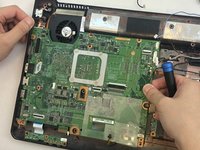
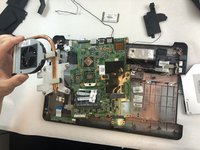
      • Remove seven 4mm Phillips #0 screws from the motherboard.

      • Remove the speaker from above the fan.

      Ask FixBot

      Add Comment

    3. HP Pavilion G60-120US Fan Replacement: step 25, image 1 of 2 HP Pavilion G60-120US Fan Replacement: step 25, image 2 of 2
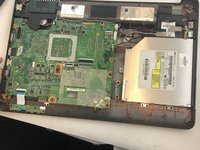
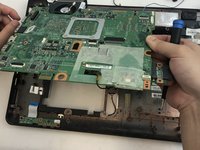
      • Gently lift the motherboard out of the laptop.

      Ask FixBot

      Add Comment

    1. HP Pavilion G60-120US Fan Replacement, Fan: step 26, image 1 of 1
      • Flip the motherboard to the bottom side.

      Ask FixBot

      Add Comment

    2. HP Pavilion G60-120US Fan Replacement: step 27, image 1 of 2 HP Pavilion G60-120US Fan Replacement: step 27, image 2 of 2
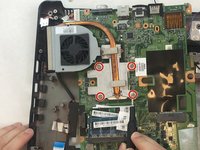
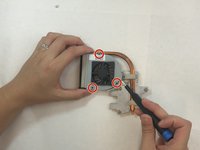
      • Remove four 4mm Phillips #0 screws from the heat sink.

      • Remove the fan and heat sink from the motherboard.

      Ask FixBot

      Add Comment

    3. HP Pavilion G60-120US Fan Replacement: step 28, image 1 of 3 HP Pavilion G60-120US Fan Replacement: step 28, image 2 of 3 HP Pavilion G60-120US Fan Replacement: step 28, image 3 of 3
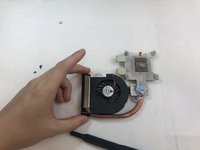
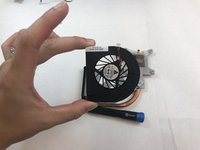
      • Turn to the bottom side of the fan and heat sink.

      • Remove three 2mm Phillips #0 screws from the fan cover.

      • Detach the fan and remove it from the heat sink.

      Ask FixBot

      Add Comment

Conclusion

To reassemble your device, follow these instructions in reverse order.

Cancel: I did not complete this guide.

0 Guide Comments

Add Comment

View Statistics:

Past 24 Hours: 2

Past 7 Days: 5

Past 30 Days: 14

All Time: 369