Introduction
If you hear 4 beeps from the computer, it means there is a memory issue. This guide focuses on replacing the RAM in this HP Pavilion. Through 4 easy steps, the RAM can be replaced in a timely manner.
What you need
-
-
-
Flip the computer so that the bottom side is facing up, and locate the battery above the screen hinges.
 Ask FixBot
-
-
-
-
-
-
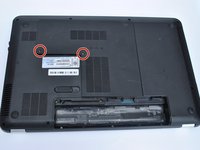
Unscrew the two silver screws holding the protective cover in place until they make a clicking noise.
-
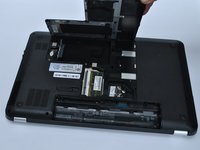
Unsnap the cover by lifting the edge along the battery compartment.
-
-
-
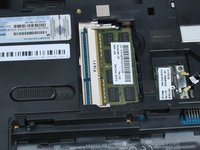
Push the two tabs on the sides of the RAM compartment away from the memory stick.
-
-
-
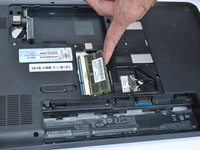
After the tabs are moved, the RAM stick will pop up, and you can pull the card straight out of its slot.
-
-




To reassemble your device, follow these instructions in reverse order.
Cancel: I did not complete this guide.
2 other people completed this guide.

Team

Linn Benton Community College, Team S2-G6, Johnson Spring 2018 Member of Linn Benton Community College, Team S2-G6, Johnson Spring 2018
LBCC-JOHNSON-S18S2G6
4 Members
96 Guides authored
