Free Shipping on Domestic Orders $75+

HP Pavilion DV1000 Screen Replacement

What you need

    1. HP Pavilion DV1000 Screen Replacement, Battery: step 1, image 1 of 1
      • Shut down the computer.

      • Disconnect all external devices and cables from the computer.

      Ask FixBot

      Add Comment

    2. HP Pavilion DV1000 Screen Replacement: step 2, image 1 of 1
      • Flip the laptop over.

      Ask FixBot

      Add Comment

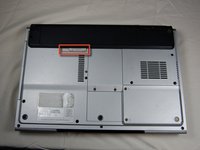
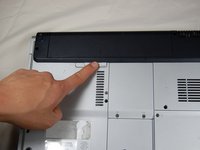
    3. HP Pavilion DV1000 Screen Replacement: step 3, image 1 of 2 HP Pavilion DV1000 Screen Replacement: step 3, image 2 of 2
      • Locate the gray sliding tab next to the black bar where the battery is located.

      • Slide the gray sliding tab to the left until you hear a distinct click.

      • The inside edge of the battery should pop up.

      Ask FixBot

      Add Comment

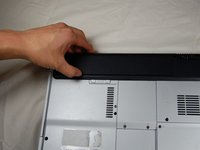
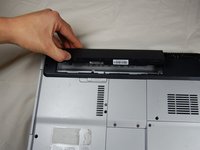
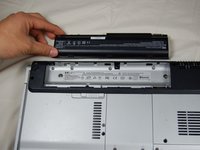
    4. HP Pavilion DV1000 Screen Replacement: step 4, image 1 of 3 HP Pavilion DV1000 Screen Replacement: step 4, image 2 of 3 HP Pavilion DV1000 Screen Replacement: step 4, image 3 of 3
      • Grasp the inside edge of the battery.

      • Lift the inside edge of the battery up to detach the battery from the laptop.

      Ask FixBot

      Add Comment

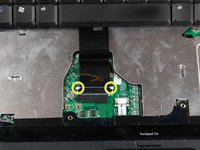
    1. HP Pavilion DV1000 Screen Replacement, Keyboard: step 5, image 1 of 1
      • Remove the highlighted screws.

      • After removing the screws, flip the laptop over.

      Ask FixBot

      Add Comment

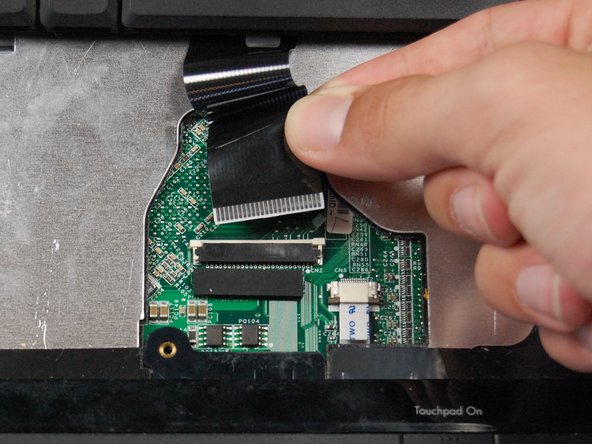
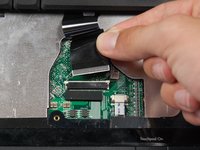
    2. HP Pavilion DV1000 Screen Replacement: step 6, image 1 of 2 HP Pavilion DV1000 Screen Replacement: step 6, image 2 of 2
      • Open the laptop.

      • Use the spudger to lift the keyboard.

      • Do not pull the keyboard up and away from the computer, because it is still attached by a ribbon cable.

      • Press the two white clips forward with your fingers and gently pull the ribbon from the clips.

      Ask FixBot

      Add Comment

    1. HP Pavilion DV1000 Screen Replacement, Media Keys: step 7, image 1 of 1
      • Turn the laptop upside-down again.

      • Remove the highlighted screws.

      Ask FixBot

      Add Comment

    2. HP Pavilion DV1000 Screen Replacement: step 8, image 1 of 2 HP Pavilion DV1000 Screen Replacement: step 8, image 2 of 2
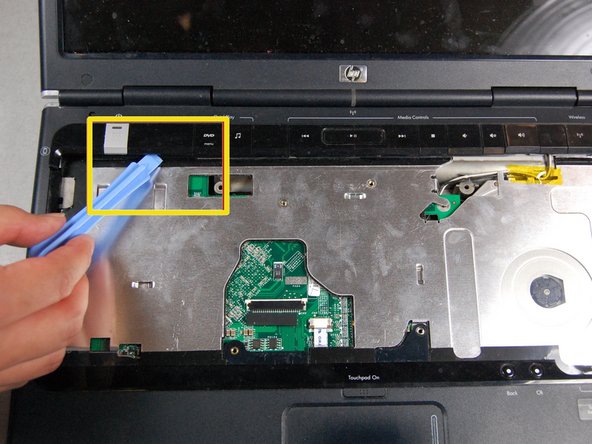
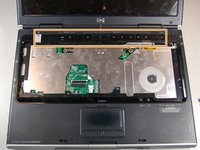
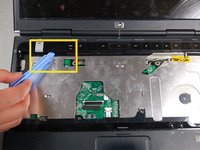
      • Turn the laptop right-side up. Open the screen and tilt it all the way back.

      • Locate the media keys.

      • Gently lift up the media key strip using the plastic pry tool.

      • If there is too much resistance when prying, stop and search for cause of the resistance. Do not force the media keys.

      Ask FixBot

      Add Comment

    1. HP Pavilion DV1000 Screen Replacement, Screen: step 9, image 1 of 1
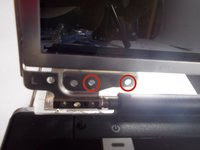
      • Remove the rubber inserts with the spudger.

      • Note: When reassembling, notice that the two lower rubber pieces are flatter than the four rubber pieces located at the top of the screen.

      • Remove the screws behind the rubber inserts.

      Ask FixBot

      Add Comment

    2. HP Pavilion DV1000 Screen Replacement: step 10, image 1 of 2 HP Pavilion DV1000 Screen Replacement: step 10, image 2 of 2
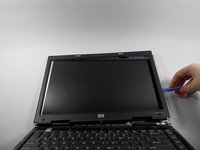
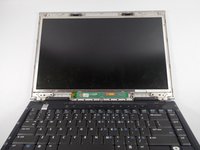
      • Carefully pry loose the screen casing with a plastic prying tool.

      Ask FixBot

      Add Comment

    3. HP Pavilion DV1000 Screen Replacement: step 11, image 1 of 2 HP Pavilion DV1000 Screen Replacement: step 11, image 2 of 2
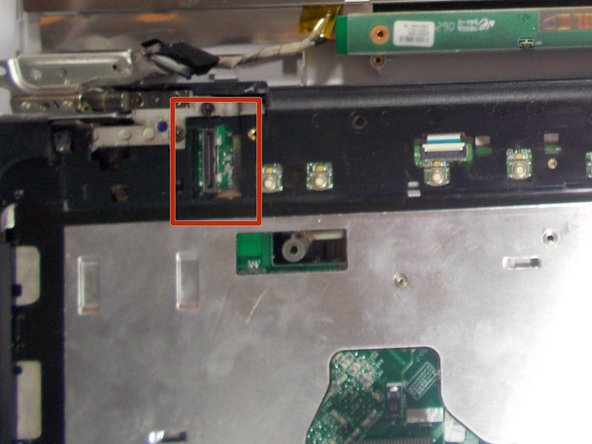
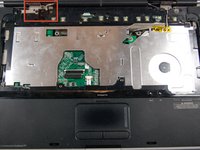
      • Remove the plug by prying it loose with the spudger.

      • Pulling the plug with your fingers could be potentially dangerous unless you are wearing work gloves.

      Ask FixBot

      Add Comment

    4. HP Pavilion DV1000 Screen Replacement: step 12, image 1 of 1
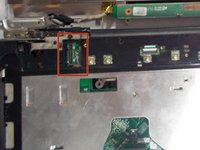
      • Remove the single screw marked in the image.

      • Be careful not to break the clips or pull any wires.

      Ask FixBot

      Add Comment

    5. HP Pavilion DV1000 Screen Replacement: step 13, image 1 of 3 HP Pavilion DV1000 Screen Replacement: step 13, image 2 of 3 HP Pavilion DV1000 Screen Replacement: step 13, image 3 of 3
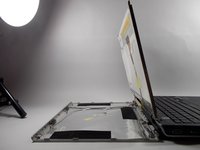
      • Remove the 4 screws marked in the picture.

      • Support the back cover and set it down on the desk. Do not pull off the back cover.

      Ask FixBot

      Add Comment

    6. HP Pavilion DV1000 Screen Replacement: step 14, image 1 of 2 HP Pavilion DV1000 Screen Replacement: step 14, image 2 of 2
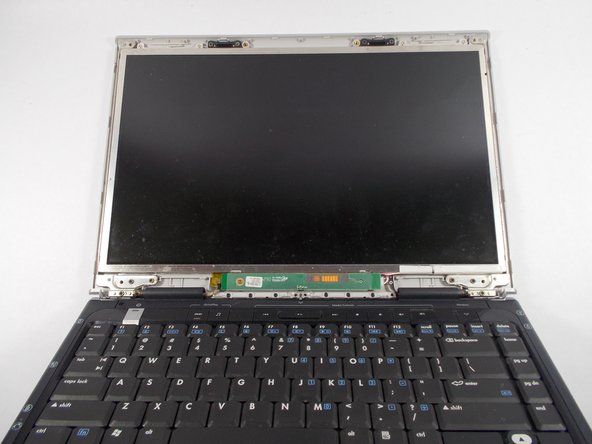
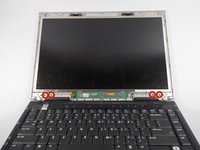
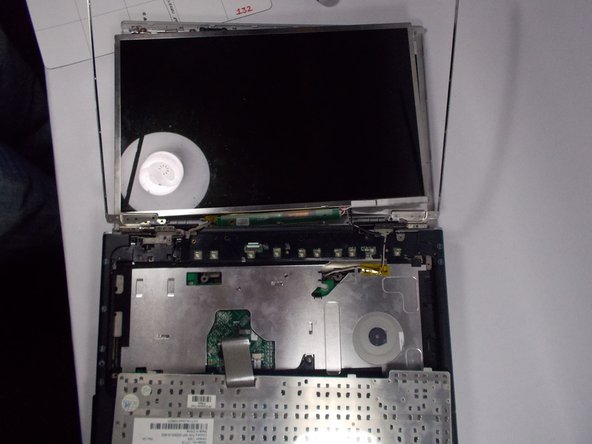
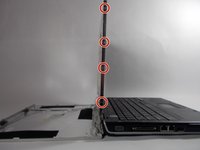
      • Remove the screws on each side of the screen. There are four screws on each side.

      • Remove the screen.

      Ask FixBot

      Add Comment

Conclusion

To reassemble your device, follow these instructions in reverse order.

Cancel: I did not complete this guide.

4 other people completed this guide.

Tyler Latour

Member since: 03/12/14

275 Reputation

3 Guides authored

Team

0 Guide Comments

Add Comment

View Statistics:

Past 24 Hours: 0

Past 7 Days: 12

Past 30 Days: 48

All Time: 4,025