Free Shipping on Domestic Orders $75+

HP Pavilion 17-e146us Charger Port Replacement

What you need

    1. HP Pavilion 17-e146us Charger Port Replacement, Battery: step 1, image 1 of 1
      • Turn the device over.

      Ask FixBot

      Add Comment

    2. HP Pavilion 17-e146us Charger Port Replacement: step 2, image 1 of 2 HP Pavilion 17-e146us Charger Port Replacement: step 2, image 2 of 2
      • Move the battery lock switch to the right to unlock. The battery release button will unlock the battery from the computer.

      • The battery release button is located above the the battery.

      Ask FixBot
      Add Comment

    3. HP Pavilion 17-e146us Charger Port Replacement: step 3, image 1 of 1
      • The battery will unlock from the computer.

      • Remove the unlocked battery from the computer.

      Ask FixBot
      Add Comment

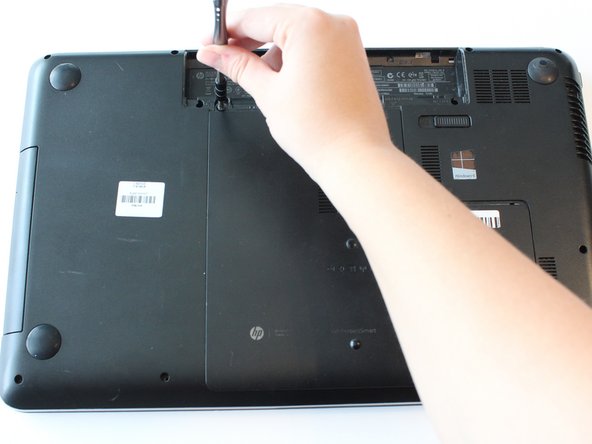
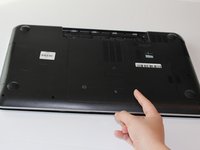
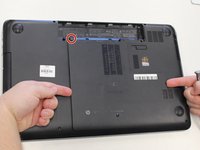
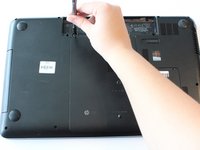
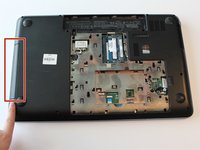
    1. HP Pavilion 17-e146us Charger Port Replacement, Keyboard: step 4, image 1 of 3 HP Pavilion 17-e146us Charger Port Replacement, Keyboard: step 4, image 2 of 3 HP Pavilion 17-e146us Charger Port Replacement, Keyboard: step 4, image 3 of 3
      • Remove the 6.25 mm screw in the left-lower hand corner of the battery port using a Phillips head screw driver.

      Ask FixBot
      Add Comment

    2. HP Pavilion 17-e146us Charger Port Replacement: step 5, image 1 of 1
      • Remove the HP protect smart ventilation case.

      • The smart ventilation is a part of the back cover of the device

      Ask FixBot

      Add Comment

    3. HP Pavilion 17-e146us Charger Port Replacement: step 6, image 1 of 1
      • Remove seven 6.5 mm screws using a Phillips #0 screwdriver.

      • Remove four 3.0 mm screws located in the charger port using a Phillips #0 screwdriver.

      Ask FixBot

      Add Comment

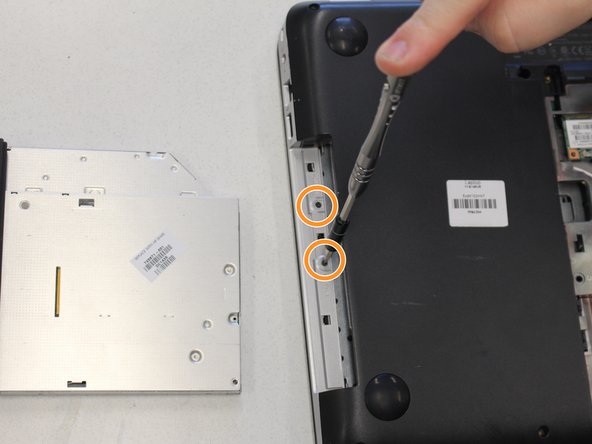
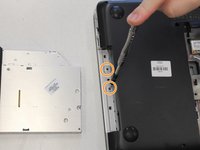
    4. HP Pavilion 17-e146us Charger Port Replacement: step 7, image 1 of 2 HP Pavilion 17-e146us Charger Port Replacement: step 7, image 2 of 2
      • Pull and remove the disk drive.

      • The disk drive is located on the left side of the device when it is turned over.

      • Remove two 3.00 mm screws on the inside of the disk drive using a Phillips screwdriver.

      Ask FixBot

      Add Comment

    5. HP Pavilion 17-e146us Charger Port Replacement: step 8, image 1 of 1
      Tool used on this step:
      Tweezers
      $4.99
      Buy
      • Apply firm pressure inside the release port using a narrow tool such as a screw driver or tweezers.

      • The release port releases the keyboard.

      Ask FixBot

      Add Comment

    6. HP Pavilion 17-e146us Charger Port Replacement: step 9, image 1 of 1
      • Flip device over so that the cover is facing towards you

      Ask FixBot

      Add Comment

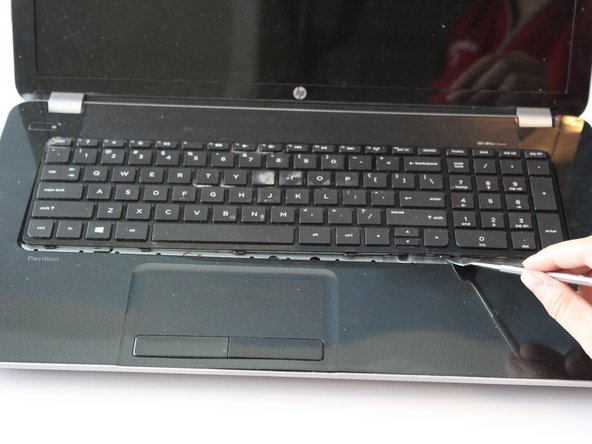
    7. HP Pavilion 17-e146us Charger Port Replacement: step 10, image 1 of 3 HP Pavilion 17-e146us Charger Port Replacement: step 10, image 2 of 3 HP Pavilion 17-e146us Charger Port Replacement: step 10, image 3 of 3
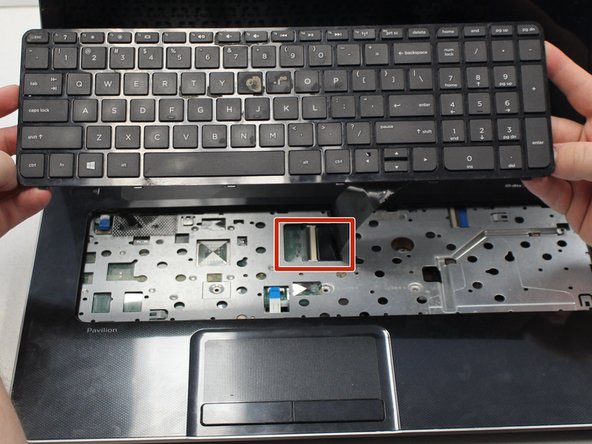
      • Open device. The keyboard should be separate from the inside panel.

      • If the keyboard does not automatically pop out, use a spudger or opening tool along the edge of the front panel and the keyboard to pop the keyboard out.

      • Detach the keyboard's cable connector from the motherboard.

      Ask FixBot

      Add Comment

    1. HP Pavilion 17-e146us Charger Port Replacement, Motherboard: step 11, image 1 of 1
      • Remove three 6.5 mm Phillips screws located underneath the keyboard using a Phillips #0 screwdriver.

      Ask FixBot

      Add Comment

    2. HP Pavilion 17-e146us Charger Port Replacement: step 12, image 1 of 1
      • Place wedge tool in-between the front panel and the cover underneath the keyboard

      • Use wedge tool to pop the two covers apart.

      • This may require some force.

      Ask FixBot

      Add Comment

    3. HP Pavilion 17-e146us Charger Port Replacement: step 13, image 1 of 2 HP Pavilion 17-e146us Charger Port Replacement: step 13, image 2 of 2
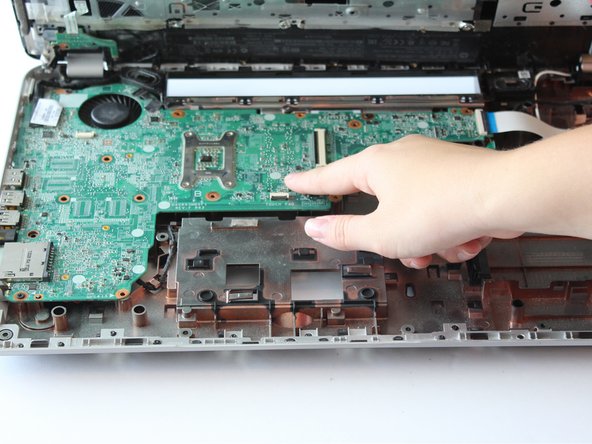
      • Remove the motherboard using your hands

      • The motherboard is large green portion located inside the device

      Ask FixBot

      Add Comment

    1. HP Pavilion 17-e146us Charger Port Replacement, Charger Port: step 14, image 1 of 2 HP Pavilion 17-e146us Charger Port Replacement, Charger Port: step 14, image 2 of 2
      • The charging port is attached to the motherboard and is on the right side of the device if it is facing you.

      • Remove the charging port from motherboard by hand.

      • Be careful not to break the motherboard during removal

      Ask FixBot

      Add Comment

Conclusion

To reassemble your device, follow these instructions in reverse order.

Cancel: I did not complete this guide.

0 Guide Comments

Add Comment

View Statistics:

Past 24 Hours: 1

Past 7 Days: 10

Past 30 Days: 42

All Time: 1,306