Free Shipping on Domestic Orders $75+

HP Pavilion 15-p Palmrest Replacement

What you need

  1. HP Pavilion 15-p Palmrest Replacement, Change note: step 1, image 1 of 2 HP Pavilion 15-p Palmrest Replacement, Change note: step 1, image 2 of 2
    Tool used on this step:
    Essential Electronics Toolkit
    $29.95
    Buy
    • Due to the EET missing several components present in the Pro Tech Go and only being $20 cheaper, the EET has been removed. The EET will work for this guide as-is, but if you are shopping for a new toolkit to complete this guide, the Pro Tech Go (new or refurbished, refurbished is ~$32 cheaper), or Pro Tech ($79 new/~$59.95 refurb) is the current recommended toolkit for this guide.

    • If you are interested in a refurbished kit stock levels change frequently but can be found here.

  2. HP Pavilion 15-p Palmrest Replacement, Prepare the laptop: step 2, image 1 of 3 HP Pavilion 15-p Palmrest Replacement, Prepare the laptop: step 2, image 2 of 3 HP Pavilion 15-p Palmrest Replacement, Prepare the laptop: step 2, image 3 of 3
    • Shut the laptop down until it is hibernated or shut off. Do not remove power until both lights turn off.

  3. HP Pavilion 15-p Palmrest Replacement, Unlock the  battery: step 3, image 1 of 3 HP Pavilion 15-p Palmrest Replacement, Unlock the  battery: step 3, image 2 of 3 HP Pavilion 15-p Palmrest Replacement, Unlock the  battery: step 3, image 3 of 3
    • Once the computer is off, remove the battery. Switch the locking tab to the unlocked position.

  4. HP Pavilion 15-p Palmrest Replacement, Remove the battery: step 4, image 1 of 2 HP Pavilion 15-p Palmrest Replacement, Remove the battery: step 4, image 2 of 2
    • Remove the battery. Pull the battery forward and remove it from the laptop.

  5. HP Pavilion 15-p Palmrest Replacement, Remove the optical drive: step 5, image 1 of 3 HP Pavilion 15-p Palmrest Replacement, Remove the optical drive: step 5, image 2 of 3 HP Pavilion 15-p Palmrest Replacement, Remove the optical drive: step 5, image 3 of 3
    • EET owners: Your kit has this bit. No purchase needed.

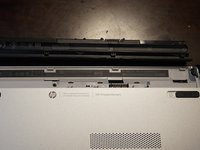
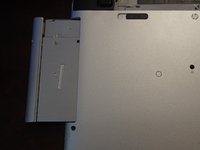
    • Remove the screw that holds the optical drive in. To do this, use a Phillips #0 screwdriver. Slide the optical drive out once the screw is removed.

  6. HP Pavilion 15-p Palmrest Replacement, Remove the screws under the optical drive: step 6, image 1 of 1
    • EET owners: Your kit has this bit. No purchase needed.

    • The system used in the guide only came with one screw. If yours came with three, sort accordingly.

    • With the palmrest screws removed, remove the screws under the optical drive. Use a Phillips #000 screwdriver.

  7. HP Pavilion 15-p Palmrest Replacement, Remove the bottom screws: step 7, image 1 of 1
    • EET owners: Your kit has this bit. No purchase needed.

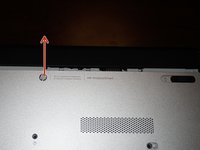
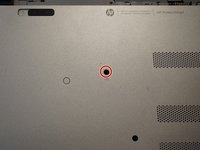
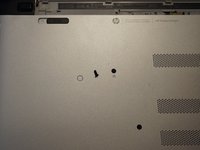
    • Once the battery and optical drive are removed, remove the 11 Phillips #0 screws that secure the palmrest.

    • This screw is hidden by a sticker. If lost/damaged, it is cosmetic.

    • Not found on all models. On some models, there are screws in this area. If you see screws here, they must be removed.

  8. HP Pavilion 15-p Palmrest Replacement, Remove the hinge caps: step 8, image 1 of 3 HP Pavilion 15-p Palmrest Replacement, Remove the hinge caps: step 8, image 2 of 3 HP Pavilion 15-p Palmrest Replacement, Remove the hinge caps: step 8, image 3 of 3
    • EET owners: Your kit has this bit. No purchase needed.

    • If you choose to reuse the original pads, stick them to the hinge caps to preserve the adhesive.

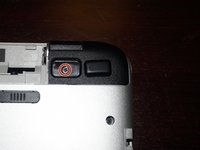
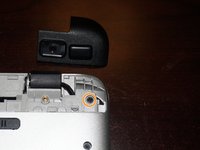
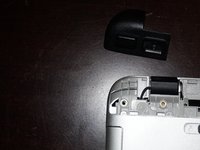
    • Remove the hinge caps. To do this, remove the rubber pads. Use a Phillps #0 screwdriver.

    • Remove the screws under the hinge caps. To do this, use a Phillps #0 screwdriver.

  9. HP Pavilion 15-p Palmrest Replacement, Unsnap the palmrest: step 9, image 1 of 3 HP Pavilion 15-p Palmrest Replacement, Unsnap the palmrest: step 9, image 2 of 3 HP Pavilion 15-p Palmrest Replacement, Unsnap the palmrest: step 9, image 3 of 3
    • EET owners: Your kit has the needed picks. No purchase needed.

    • Do not fully remove the palmrest - the power button is still connected to the motherboard.

    • If you are having trouble removing the palmrest, try using a guitar pick.

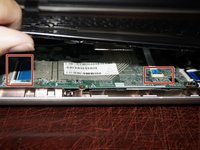
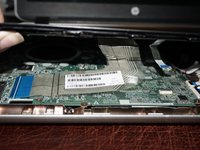
    • Run a plastic tool around all 3 sides of the palmrest. Once they are loose, disconnect the keyboard and trackpad. Flip the black plastic tabs on the connectors up and disconnect the cables.

    • Once the keyboard and trackpad are disconnected, the palmrest can be lifted up. In some cases, further prying may be needed.

  10. HP Pavilion 15-p Palmrest Replacement, Disconnect the power button: step 10, image 1 of 3 HP Pavilion 15-p Palmrest Replacement, Disconnect the power button: step 10, image 2 of 3 HP Pavilion 15-p Palmrest Replacement, Disconnect the power button: step 10, image 3 of 3
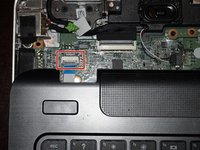
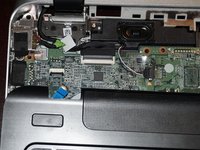
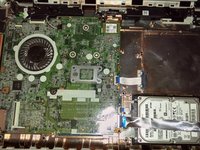
    • With the keyboard and trackpad disconnected, disconnect the power button. Flip the black tab up with a spudger and remove the palmrest.

Conclusion

To reassemble your device, follow these instructions in reverse order.

7 other people completed this guide.

Nick

Member since: 11/10/09

103,020 Reputation

67 Guides authored

6 Guide Comments

My power button is bad and my mouse track stopped working. I couldn't find a replacement for it. What can I do?

Trevor Gilbert - Reply Share

hi where can i source a replacement palm rest assembly for my hp pavilion 15 2015. its the same as the first laptop picture

Oche Ejiga - Reply Share

You have the US ENG keyboard most likely. I posted the parts list as new steps (762529-001 or 762530-001). Verify it based on the part number sticker to be absolutely sure though but that is likely a match.

Nick - Reply Share

Hi my hinge broke off and so was some of my speaker. Plus, its making my screen close on its own and I can't keep it still. :( Where can I get a replacement for the palmrest, keyboard, and touchpad? My model for my hp pavillion laptop is: 3C310UA#ABA

thecrowrules1982 - Reply Share

Parts laptop, or a junk laptop with a bad motherboard (BIOS lock or dead power). The bare part tends to be ~$150+ if it's available and will only get worse as they become hard to find.

Nick - Reply Share

Add Comment

View Statistics:

Past 24 Hours: 7

Past 7 Days: 32

Past 30 Days: 137

All Time: 8,378