
HP Pavilion 15-p Optical drive Replacement

Nick and one other contributor
Last updated on Aug 31, 2025
Views: 8.7K
View statistics:
- Past 24 Hours:
- 1
- Past 7 Days:
- 32
- Past 30 Days:
- 133
- All Time:
- 8,724
Comments: 2
2 comments on steps.
Completed: 3 4
3 people have marked this guide "completed." Will you be next?
4 people have marked this guide "completed." Including you — great job!
Favorites: 1 2
1 person has favorited (and subscribed to) this guide. Will you be next?
2 people have favorited (and subscribed to) this guide — including you!
Community-Contributed Guide
An awesome member of our community made this guide. It was not created by iFixit staff.
Introduction
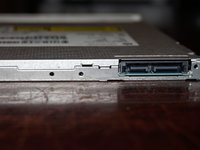
Go to step 1 ↓If the optical drive in your HP Pavilion 15 has failed or you do not need it (and want to install a blank or hard drive optical drive caddy), this guide will show you how to remove the optical drive, screw bracket and faceplate.
Guide notes
- The replacement component must be 9.5mm. This system does not accept 12.7mm optical drives.
- The optical drive must use SATA. This system does not accept IDE optical drives.
What you need
Parts
-
SATA optical drive (9.5mm)
Any SATA drive will work. HP Spare: 700577-6C2
Tools
-
Pro Tech Go Toolkit$49.954.9
The bits in the EET will suffice for this guide, but the additional tools could be useful in future repairs.

-
-
Tool used on this step:Essential Electronics Toolkit$29.95
-
If you are interested in a refurbished kit stock levels change frequently but can be found here.
 Ask FixBot
-
-
-
-
-
Shut the laptop down until it is hibernated or shut off. Do not remove power until both lights turn off.
-
-
-
Once the computer is off, remove the battery. Switch the locking tab to the unlocked position.
-
-
-
Remove the battery. Pull the battery forward and remove it from the laptop.
-
-
-
-
-
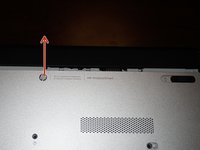
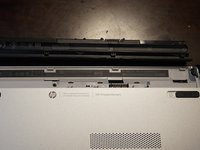
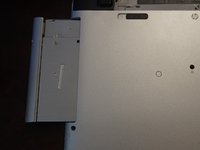
Remove the screw that holds the optical drive in. To do this, use a Phillips #0 screwdriver. Slide the optical drive out once this screw is removed.
-
-
-
-
EET owners: Your kit has this bit. No purchase needed.
-
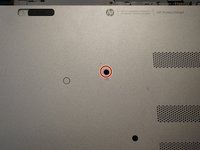
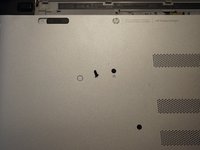
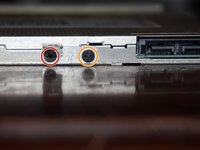
Remove the screws holding the optical drive bracket onto the drive. To do this, use a Phillips #0 screwdriver.
-
-
-
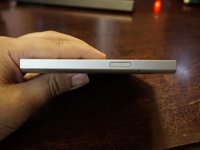
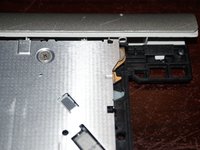
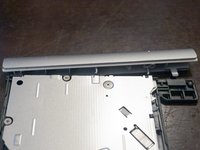
To remove the faceplate, open the optical drive with a paper clip. Once the tray is released, use a flat tool to release the visible clip on the faceplate. Once done, the faceplate should come off.
-
-








To reassemble your device, follow these instructions in reverse order.
Cancel: I did not complete this guide.
3 other people completed this guide.


