Free Shipping on Domestic Orders $75+

HP Pavilion 15-n210dx Fan Replacement

What you need

    1. HP Pavilion 15-n210dx Fan Replacement, Battery: step 1, image 1 of 1
      • Turn the laptop over.

      Ask FixBot
      Add Comment

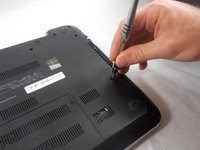
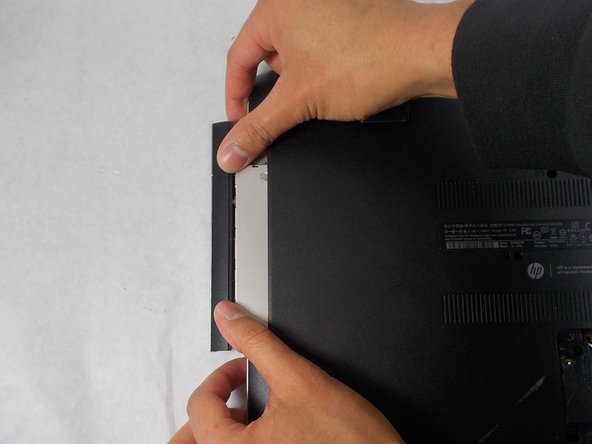
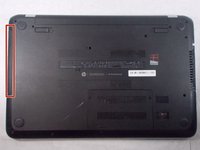
    2. HP Pavilion 15-n210dx Fan Replacement: step 2, image 1 of 3 HP Pavilion 15-n210dx Fan Replacement: step 2, image 2 of 3 HP Pavilion 15-n210dx Fan Replacement: step 2, image 3 of 3
      • Push the pins towards each other using your thumbs. The battery will pop out a little bit. Remove it using your hand.

      Ask FixBot
      Add Comment

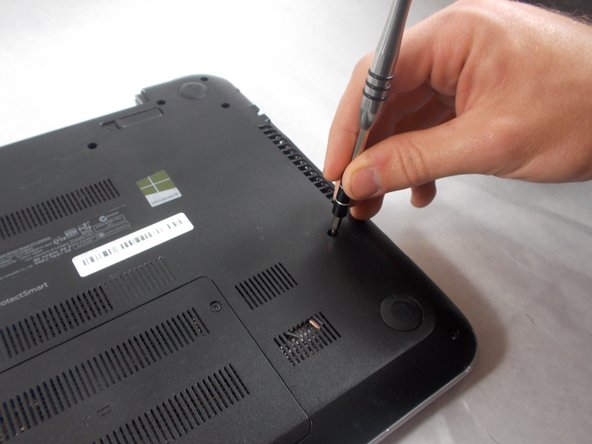
    1. HP Pavilion 15-n210dx Fan Replacement, Keyboard: step 3, image 1 of 1
      • Turn over the laptop and remove the single screw using a Tri-point Y0 screwdriver.

      Ask FixBot

      Add Comment

    2. HP Pavilion 15-n210dx Fan Replacement: step 4, image 1 of 1
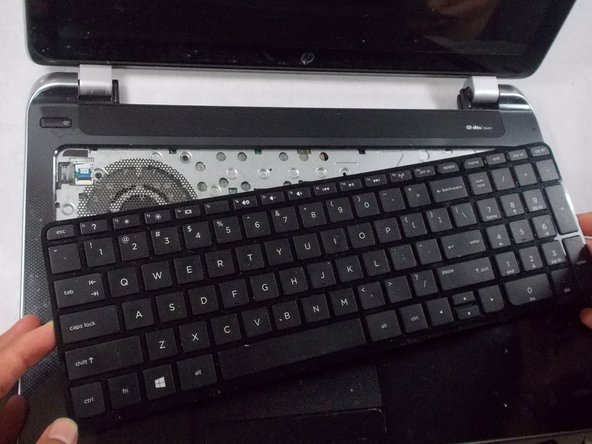
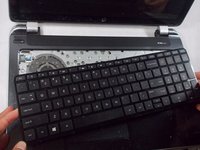
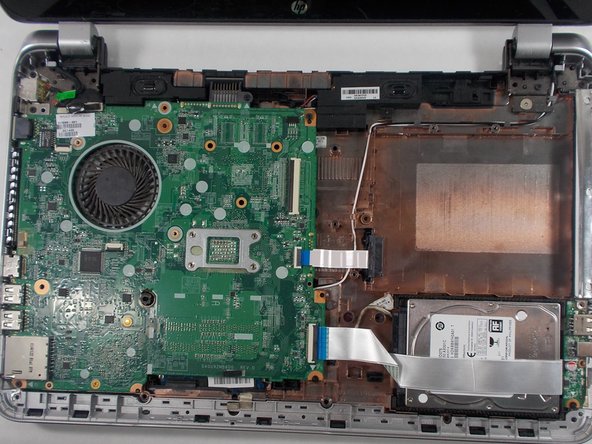
      • Open the laptop and use a spudger gently to get under the keyboard. Loosen the keyboard on all sides and then lift it up.

      Ask FixBot
      Add Comment

    3. HP Pavilion 15-n210dx Fan Replacement: step 5, image 1 of 2 HP Pavilion 15-n210dx Fan Replacement: step 5, image 2 of 2
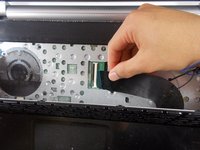
      • Use the spudger to unhinge the fastener and remove the connector.

      • The keyboard should be completely detached from the computer now.

      Ask FixBot
      Add Comment

    1. HP Pavilion 15-n210dx Fan Replacement, Motherboard: step 6, image 1 of 1
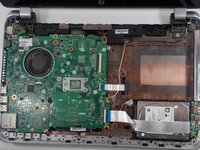
      • Use the Tri-point Y0 screwdriver to remove all the screws on the metal sheet.

      Ask FixBot
      Add Comment

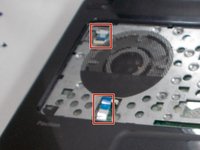
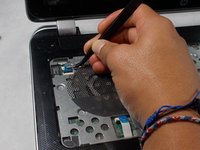
    2. HP Pavilion 15-n210dx Fan Replacement: step 7, image 1 of 2 HP Pavilion 15-n210dx Fan Replacement: step 7, image 2 of 2
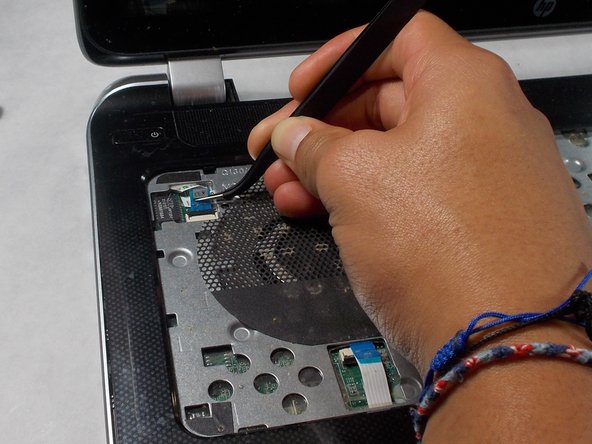
      • Lift up flaps to disconnect the blue connectors.

      • You can use your fingers or a tweezer to lift up the flap.

      Ask FixBot

      Add Comment

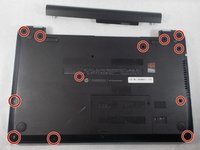
    3. HP Pavilion 15-n210dx Fan Replacement: step 8, image 1 of 2 HP Pavilion 15-n210dx Fan Replacement: step 8, image 2 of 2
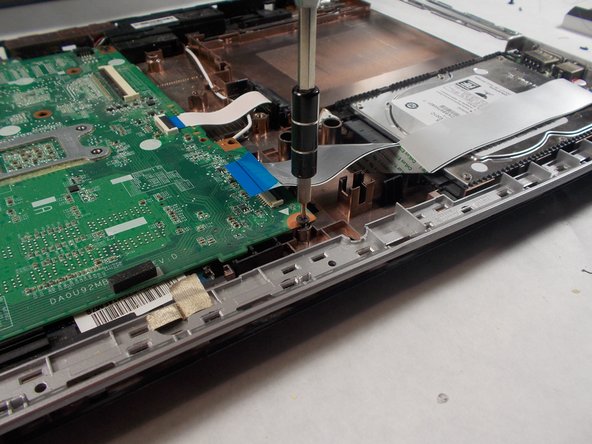
      • Using the Phillips #0 screwdriver, remove twelve (12) screws from the back panel.

      Ask FixBot
      Add Comment

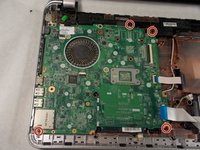
    4. HP Pavilion 15-n210dx Fan Replacement: step 9, image 1 of 2 HP Pavilion 15-n210dx Fan Replacement: step 9, image 2 of 2
      • Remove the optic drive by pushing the flap with your thumbs. Once enough of the optic drive is exposed for fingers to grasp it, remove it entirely by using your hand.

      • A spudger can assist in initiating the separation. Insert the spudger between where the flap meets the body of the computer and push the spudger against the flap.

      Ask FixBot
      Add Comment

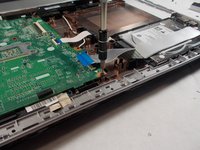
    5. HP Pavilion 15-n210dx Fan Replacement: step 10, image 1 of 1
      • Using the Phillips #0 screwdriver, remove the screws that become exposed after the removal of the optic drive.

      Ask FixBot
      Add Comment

    6. HP Pavilion 15-n210dx Fan Replacement: step 11, image 1 of 2 HP Pavilion 15-n210dx Fan Replacement: step 11, image 2 of 2
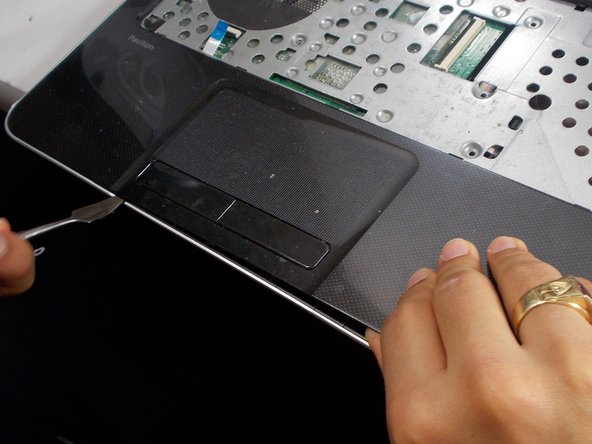
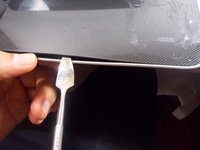
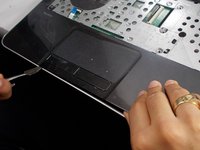
      • Insert a medal spudger between where the black plastic meets the silver plastic to loosing and eventually separate the two plastic parts.

      • Slide the spudger along where the two plastics meet to increase the separation. Use your other hand to stabilize the computer.

      • Avoid using the metal spudger unless for serious prying power. If used incorrectly, the metal spudger may damage the internal components of your device.

      Ask FixBot

      Add Comment

    7. HP Pavilion 15-n210dx Fan Replacement: step 12, image 1 of 2 HP Pavilion 15-n210dx Fan Replacement: step 12, image 2 of 2
      • After separating the two parts, they should look like this.

      Ask FixBot

      Add Comment

    8. HP Pavilion 15-n210dx Fan Replacement: step 13, image 1 of 2 HP Pavilion 15-n210dx Fan Replacement: step 13, image 2 of 2
      • Using the Phillips #0 screwdriver, remove the four black screws.

      Ask FixBot

      Add Comment

    9. HP Pavilion 15-n210dx Fan Replacement: step 14, image 1 of 1
      • Flip the black flap up to sperate the strap.

      Ask FixBot

      Add Comment

    10. HP Pavilion 15-n210dx Fan Replacement: step 15, image 1 of 2 HP Pavilion 15-n210dx Fan Replacement: step 15, image 2 of 2
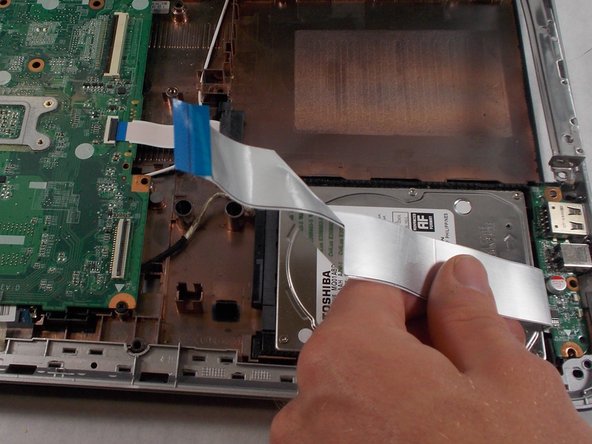
      • Lift up the blue flaps with a finger and detach the sliver straps.

      Ask FixBot

      Add Comment

    11. HP Pavilion 15-n210dx Fan Replacement: step 16, image 1 of 1
      • Lift the motherboard up.

      • You might have to jiggle it around to loosen it before lifting it up and removing it from the base of the laptop.

      Ask FixBot

      Add Comment

    12. HP Pavilion 15-n210dx Fan Replacement: step 17, image 1 of 1
      • Pull the black plug-in to detach it from the bottom of the motherboard.

      • The motherboard should be completely detached from the computer.

      Ask FixBot

      Add Comment

    1. HP Pavilion 15-n210dx Fan Replacement, Fan: step 18, image 1 of 1
      • After removing the motherboard, turn it over and place it on a flat surface.

      Ask FixBot

      Add Comment

    2. HP Pavilion 15-n210dx Fan Replacement: step 19, image 1 of 2 HP Pavilion 15-n210dx Fan Replacement: step 19, image 2 of 2
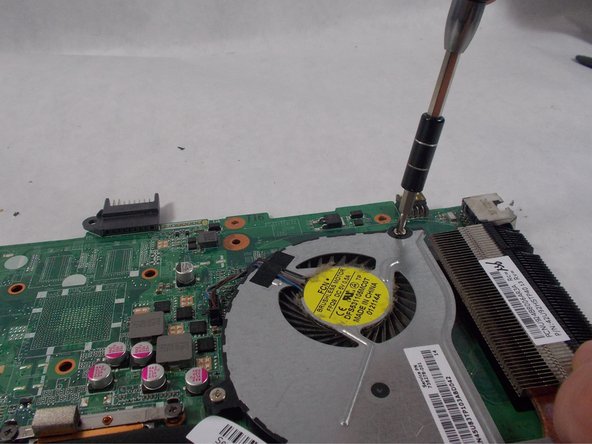
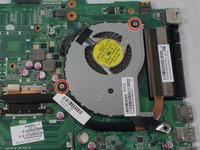
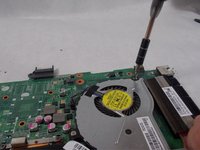
      • Remove the two screws using the Phillips #0 screwdriver.

      Ask FixBot

      Add Comment

    3. HP Pavilion 15-n210dx Fan Replacement: step 20, image 1 of 2 HP Pavilion 15-n210dx Fan Replacement: step 20, image 2 of 2
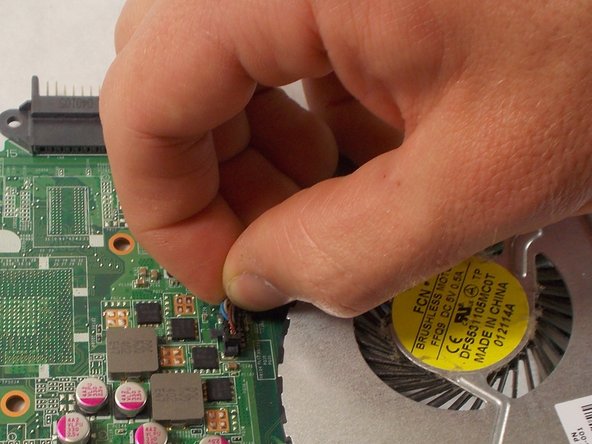
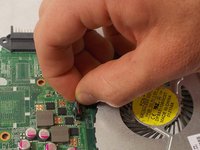
      • Using your thumb and index finger, grasp the wires closes to the motherboard and pull up to detach them from the motherboard.

      Ask FixBot

      Add Comment

    4. HP Pavilion 15-n210dx Fan Replacement: step 21, image 1 of 1
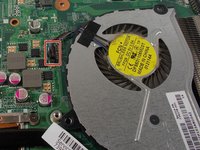
      • Remove the fan from the motherboard.

      Ask FixBot

      Add Comment

Conclusion

To reassemble your device, follow these instructions in reverse order.

Cancel: I did not complete this guide.

One other person completed this guide.

JT Vasconcellos

Member since: 10/25/21

566 Reputation

3 Guides authored

Team

UMass Dartmouth, Team 3-8, Sinclaire Fall 2021 Member of UMass Dartmouth, Team 3-8, Sinclaire Fall 2021

UMASSD-SINCLAIRE-F21S3G8

4 Members

72 Guides authored

0 Guide Comments

Add Comment

View Statistics:

Past 24 Hours: 1

Past 7 Days: 8

Past 30 Days: 30

All Time: 594