Free Shipping on Domestic Orders $75+

HP Pavilion 15-cs3079nr Fan Replacement

What you need

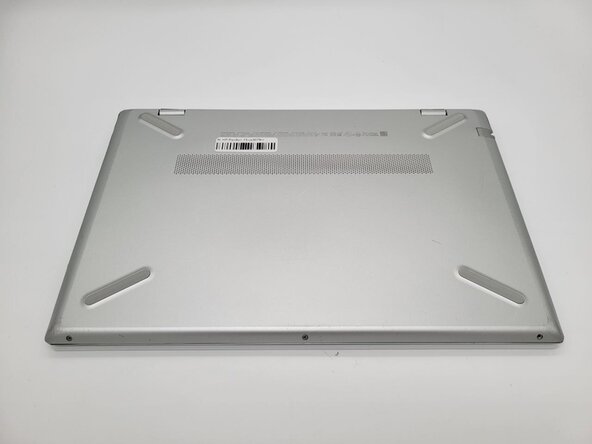
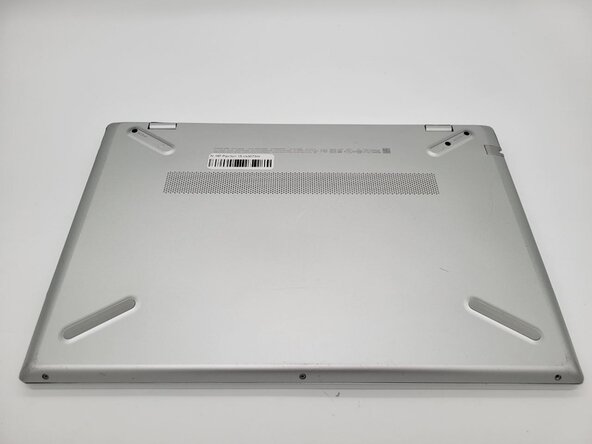
    1. HP Pavilion 15-cs3079nr Fan Replacement, Lower Case: step 1, image 1 of 3 HP Pavilion 15-cs3079nr Fan Replacement, Lower Case: step 1, image 2 of 3 HP Pavilion 15-cs3079nr Fan Replacement, Lower Case: step 1, image 3 of 3
      • Power the device off before disassembly.

      • Close the device and flip it so the bottom panel faces up.

      Ask FixBot

      Add Comment

    2. HP Pavilion 15-cs3079nr Fan Replacement: step 2, image 1 of 2 HP Pavilion 15-cs3079nr Fan Replacement: step 2, image 2 of 2
      • Remove the two silicon feet near the hinges with a spudger.

      • If you intend to reuse the feet, heat them with a hairdryer prior to removal and take care not to bend, warp, or stretch them.

      Ask FixBot

      Add Comment

    3. HP Pavilion 15-cs3079nr Fan Replacement: step 3, image 1 of 1
      • Use a Phillips #0 screwdriver to remove the three 7 mm screws from the recesses.

      Ask FixBot

      Add Comment

    4. HP Pavilion 15-cs3079nr Fan Replacement: step 4, image 1 of 1
      • Use a Phillips #0 screwdriver to remove the three silver 5 mm case screws from the front of the device.

      Ask FixBot

      Add Comment

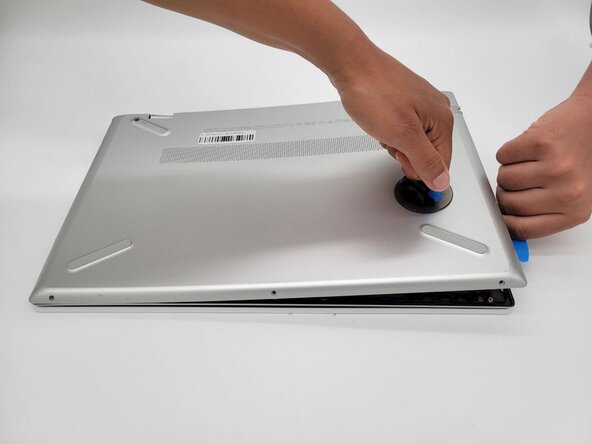
    5. HP Pavilion 15-cs3079nr Fan Replacement: step 5, image 1 of 3 HP Pavilion 15-cs3079nr Fan Replacement: step 5, image 2 of 3 HP Pavilion 15-cs3079nr Fan Replacement: step 5, image 3 of 3
      • Place the suction handle on the case.

      • Insert an opening pick between the case sections and work around the perimeter of the device to separate the lower case from the chassis.

      Ask FixBot

      Add Comment

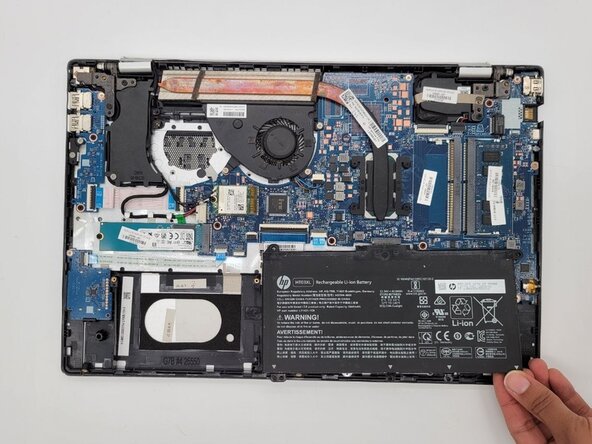
    1. HP Pavilion 15-cs3079nr Fan Replacement, Battery: step 6, image 1 of 3 HP Pavilion 15-cs3079nr Fan Replacement, Battery: step 6, image 2 of 3 HP Pavilion 15-cs3079nr Fan Replacement, Battery: step 6, image 3 of 3
      • Use a Phillips #0 screwdriver to remove the three 4.5 mm screws securing the battery.

      • The number of screws on your device might differ from the example images. Ensure all screws are removed before moving on.

      • Carefully lift and remove the battery.

      Ask FixBot

      Add Comment

    1. HP Pavilion 15-cs3079nr Fan Replacement, Fan: step 7, image 1 of 1
      • Use a Phillips #0 screwdriver to remove the three 5 mm screws securing the fan.

      Ask FixBot

      Add Comment

    2. HP Pavilion 15-cs3079nr Fan Replacement: step 8, image 1 of 2 HP Pavilion 15-cs3079nr Fan Replacement: step 8, image 2 of 2
      • Lift and rotate the fan so the connecting wires are straight.

      • Disconnect the fan connector from the motheboard.

      • Remove the fan.

      Ask FixBot

      Add Comment

Conclusion

To reassemble your device, follow the above steps in reverse order.
Take your e-waste to an R2 or e-Stewards certified recycler.
Repair didn’t go as planned? Try some basic troubleshooting or ask our Answers community for help.

Cancel: I did not complete this guide.

0 Guide Comments

Add Comment

View Statistics:

Past 24 Hours: 2

Past 7 Days: 9

Past 30 Days: 33

All Time: 94