Free Shipping on Domestic Orders $75+

HP Pavilion 15-cs3065cl M.2 NVME SSD Install

What you need

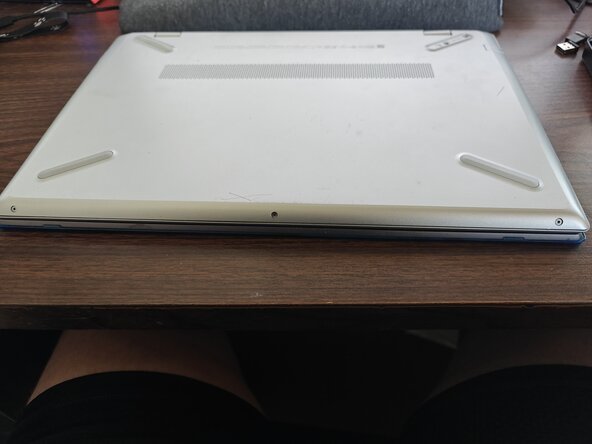
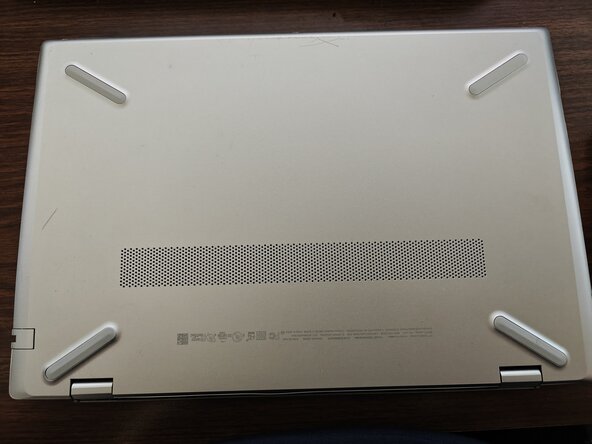
    1. HP Pavilion 15-cs3065cl  M.2 NVME SSD Install, Flip it over: step 1, image 1 of 1
      • First thing you'll do is flip it over, remove any SD cards, USBs, and remove your case if you have one.

      Ask FixBot

      Add Comment

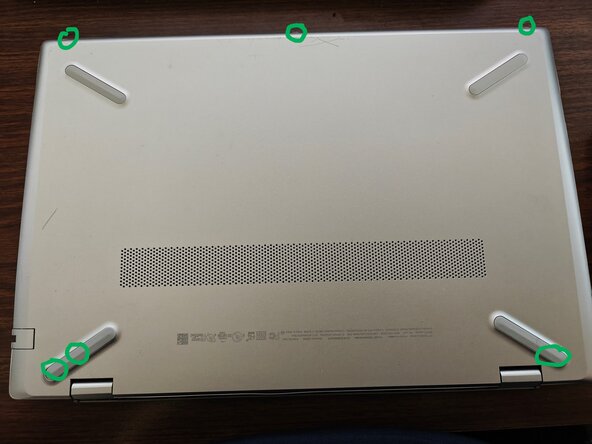
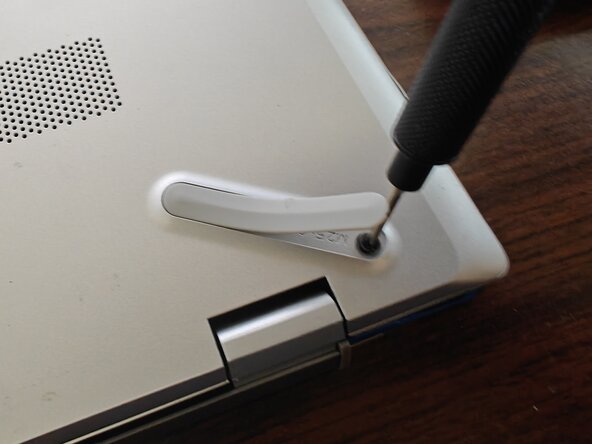
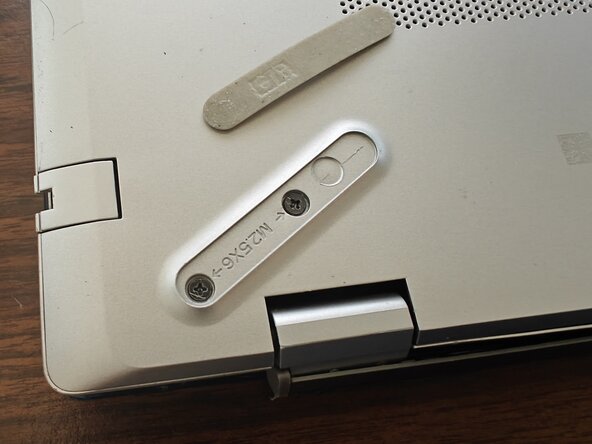
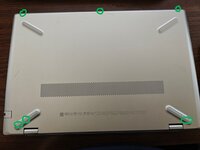
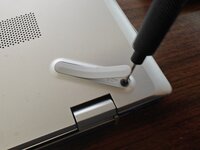
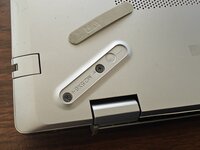
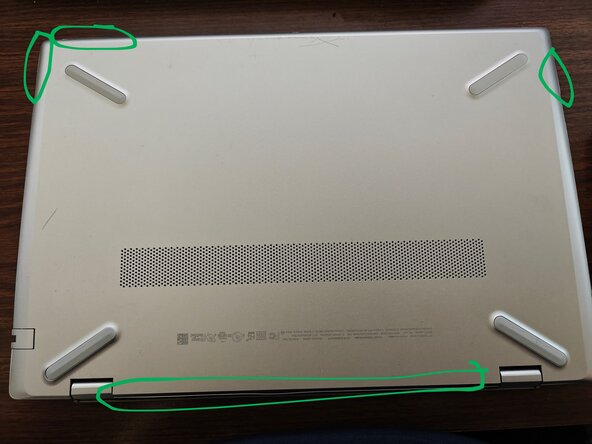
    2. HP Pavilion 15-cs3065cl  M.2 NVME SSD Install, Remove screws: step 2, image 1 of 3 HP Pavilion 15-cs3065cl  M.2 NVME SSD Install, Remove screws: step 2, image 2 of 3 HP Pavilion 15-cs3065cl  M.2 NVME SSD Install, Remove screws: step 2, image 3 of 3
      • There will be about 6 screws you'll need to remove.

      • You will have to at least partially remove the rubber feet to access 3 of the screws.

      • The screws are really tiny, so I recommend putting them in a Tupperware or Ziploc if you don't have a magnetic screw tray.

      Ask FixBot

      Add Comment

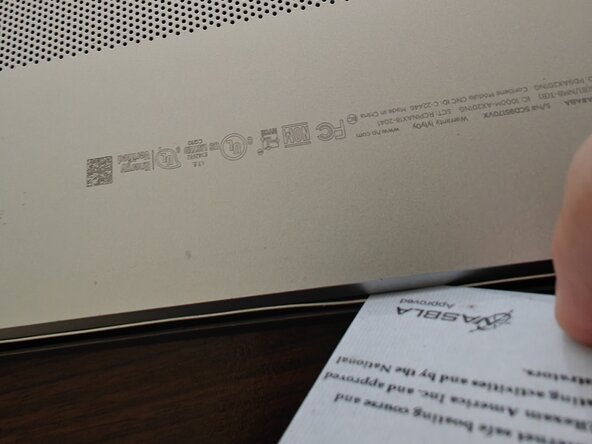
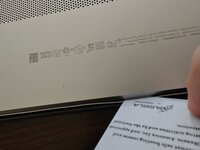
    3. HP Pavilion 15-cs3065cl  M.2 NVME SSD Install, Credit Card or Pry Tool Step: step 3, image 1 of 2 HP Pavilion 15-cs3065cl  M.2 NVME SSD Install, Credit Card or Pry Tool Step: step 3, image 2 of 2
      • You'll use a credit card, ID card, or pry tool to separate the bottom of the laptop from the rest of it. Make sure it's plastic, not metal.

      • You might want to use multiple to hold sections open as you work your way around.

      Ask FixBot

      Add Comment

    4. HP Pavilion 15-cs3065cl  M.2 NVME SSD Install, Pop That Sucker Off: step 4, image 1 of 1
      • You remove the bottom to reveal the guts.

      Ask FixBot

      Add Comment

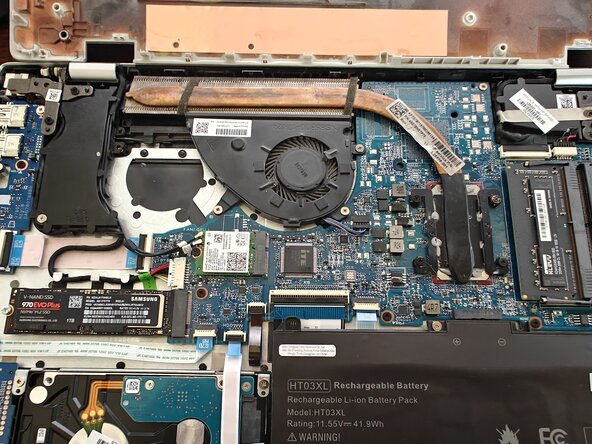
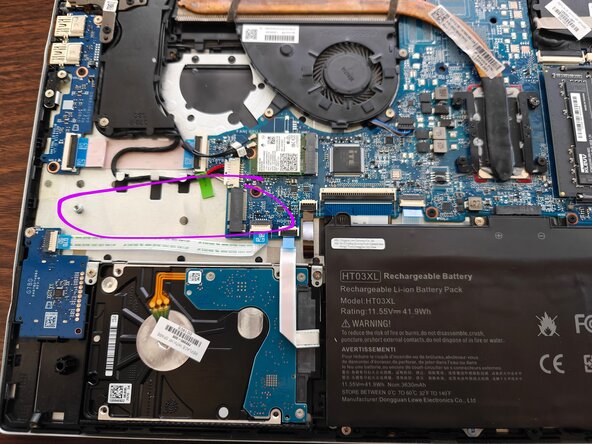
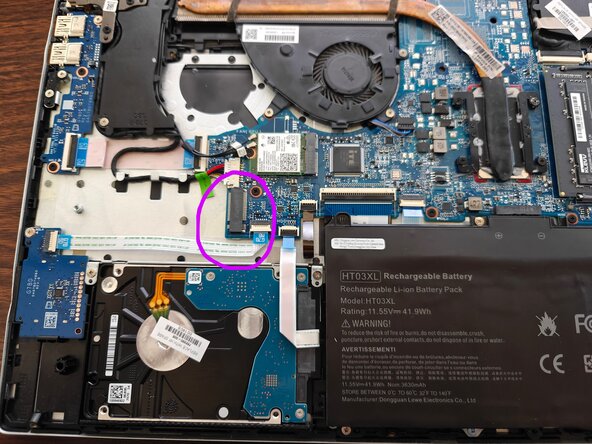
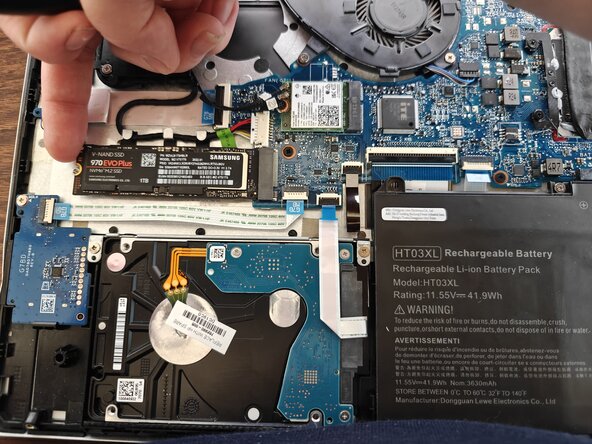
    5. HP Pavilion 15-cs3065cl  M.2 NVME SSD Install, Where's Waldo?: step 5, image 1 of 2 HP Pavilion 15-cs3065cl  M.2 NVME SSD Install, Where's Waldo?: step 5, image 2 of 2
      • Find the M.2 slot.

      Ask FixBot

      Add Comment

    6. HP Pavilion 15-cs3065cl  M.2 NVME SSD Install: step 6, image 1 of 1
      • Push the NVME into the slot.

      Ask FixBot

      Add Comment

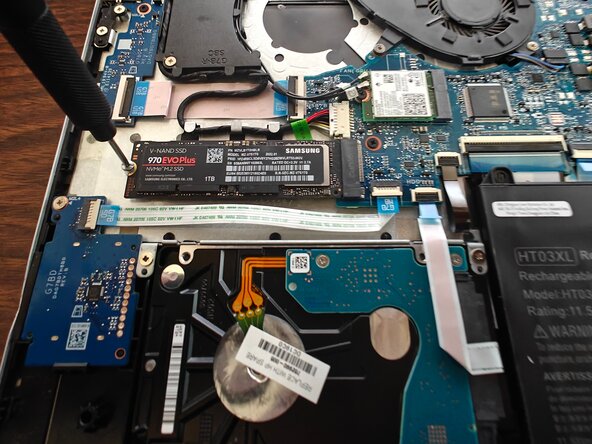
    7. HP Pavilion 15-cs3065cl  M.2 NVME SSD Install: step 7, image 1 of 1
      • Screw it down.

      Ask FixBot

      Add Comment

    8. HP Pavilion 15-cs3065cl  M.2 NVME SSD Install, Close it up!: step 8, image 1 of 1
      • Snap the lid back on

      • Put the lid screws back in

      • Stick the sticky rubber feetsies back on

      • Plug back in any SD cards, USBs, and put your case back on if you have one

      Ask FixBot

      Add Comment

Conclusion

If you want to make your NVME your new boot drive, you'll need a different, more difficult guide. Otherwise, you're set!

Cancel: I did not complete this guide.

Quinn Enestvedt

Member since: 09/05/25

568 Reputation

3 Guides authored

0 Guide Comments

Add Comment

View Statistics:

Past 24 Hours: 5

Past 7 Days: 11

Past 30 Days: 28

All Time: 175