
HP Pavilion 15-cd040wm Back Cover Disassembly

Joe Krawczyk and 2 other contributors
Last updated on Dec 30, 2019
Views: 12K
View statistics:
- Past 24 Hours:
- 3
- Past 7 Days:
- 33
- Past 30 Days:
- 146
- All Time:
- 12,008
Comments: 5
2 comments on steps, 3 guide comments.
Go to guide commentsCompleted: 3 4
3 people have marked this guide "completed." Will you be next?
4 people have marked this guide "completed." Including you — great job!
Favorites: 0 1
No one has favorited (and subscribed to) this guide. Will you be the first?
1 person has favorited (and subscribed to) this guide — and that's you!
Introduction
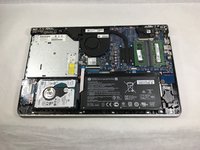
Go to step 1 ↓In order to replace any faulty or outdated component (such as the battery, hard drive, CD drive, RAM, or screen), you will need to open your HP Pavilion 15-cd040wm by disassembling its back cover.
Before beginning, make sure to power off your laptop completely and disconnect it from any external power source.
What you need
Tools
-
Spudger4.9


-
-
-
The first step is to remove the four rubber non-slip pads on the bottom of the laptop to expose screws hidden underneath them. Peel off each tab with your fingers.
 Ask FixBot
-
-
-
-
3x 10mm Phillips scews
-
2x 5mm Phillips screws
-
6x 6mm Phillips screws
-
Remove all screws using a size Phillips #0 screwdriver.
-
-
-
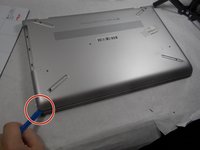
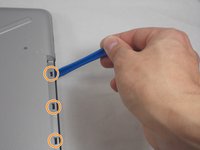
Using the iFixit opening tool, carefully pry along the sides of the back cover.
-
After all of the edges of the back cover have been freed, use your opening tool to carefully unclip the tabs holding the back cover to the CD drive.
-
After everything is unclipped, you can safely remove the back cover from the rest of the device.
-
-


To reassemble your device, follow these instructions in reverse order.
Cancel: I did not complete this guide.
3 other people completed this guide.

Team

UMass Dartmouth, Team S1-G1, Botvin Fall 2019 Member of UMass Dartmouth, Team S1-G1, Botvin Fall 2019
UMASSD-BOTVIN-F19S1G1
4 Members
84 Guides authored
3 Guide Comments
I’m trying to remove my backing and it seems to have a lip that goes over the edge, so I’m having a hard time getting it apart. Any suggestions?
Is this the same process for the HP Pavilion 15-cc055od? Do I pull out the disk drive as well? How would I remove the hard drive?
