Free Shipping on Domestic Orders $75+

HP Pavilion 15-b109wm Keyboard Replacement

What you need

    1. HP Pavilion 15-b109wm Keyboard Replacement, Battery: step 1, image 1 of 1
      • Power off the device and disconnect from any power source.

      Ask FixBot
      Add Comment

    2. HP Pavilion 15-b109wm Keyboard Replacement: step 2, image 1 of 1
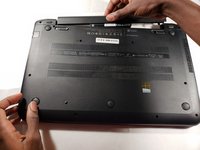
      • Turn the device upside down and ensure the back of the device is facing you.

      Ask FixBot
      Add Comment

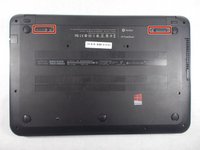
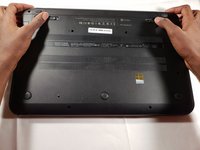
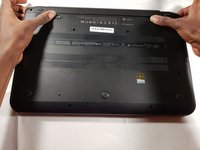
    3. HP Pavilion 15-b109wm Keyboard Replacement: step 3, image 1 of 3 HP Pavilion 15-b109wm Keyboard Replacement: step 3, image 2 of 3 HP Pavilion 15-b109wm Keyboard Replacement: step 3, image 3 of 3
      • Push both buttons towards one another simultaneously. The battery slightly pops out.

      Ask FixBot
      Add Comment

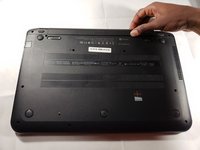
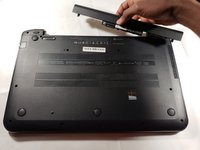
    4. HP Pavilion 15-b109wm Keyboard Replacement: step 4, image 1 of 3 HP Pavilion 15-b109wm Keyboard Replacement: step 4, image 2 of 3 HP Pavilion 15-b109wm Keyboard Replacement: step 4, image 3 of 3
      • Pull out the battery from the device's battery slot.

      Ask FixBot

      Add Comment

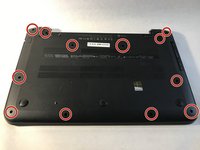
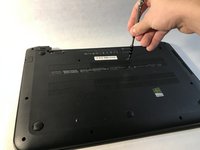
    1. HP Pavilion 15-b109wm Keyboard Replacement, Keyboard: step 5, image 1 of 2 HP Pavilion 15-b109wm Keyboard Replacement, Keyboard: step 5, image 2 of 2
      • Use JIS #1 screwdriver to remove the eleven 6 mm screws.

      Ask FixBot

      Add Comment

    2. HP Pavilion 15-b109wm Keyboard Replacement: step 6, image 1 of 1
      • Locate the two screw holes that allow access to removing the keyboard.

      • There is a keyboard sign beside both keyboard access holes.

      Ask FixBot

      Add Comment

    3. HP Pavilion 15-b109wm Keyboard Replacement: step 7, image 1 of 1
      Tool used on this step:
      Heavy-Duty Spudger
      $4.99
      Buy
      • Turn the device onto its side.

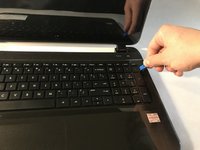
      • Using a heavy duty spudger, gently disengage the keyboard.

      Ask FixBot

      Add Comment

    4. HP Pavilion 15-b109wm Keyboard Replacement: step 8, image 1 of 2 HP Pavilion 15-b109wm Keyboard Replacement: step 8, image 2 of 2
      • Using a plastic opening tool, release the keyboard clips.

      Ask FixBot

      Add Comment

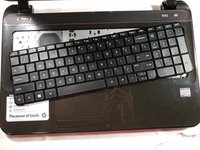
    5. HP Pavilion 15-b109wm Keyboard Replacement: step 9, image 1 of 1
      • Tilt the keyboard to expose the Zero Insertion Force connector to which the keyboard cable is attached.

      Ask FixBot

      Add Comment

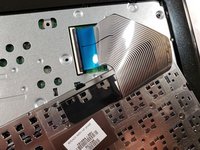
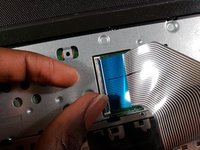
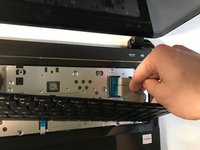
    6. HP Pavilion 15-b109wm Keyboard Replacement: step 10, image 1 of 3 HP Pavilion 15-b109wm Keyboard Replacement: step 10, image 2 of 3 HP Pavilion 15-b109wm Keyboard Replacement: step 10, image 3 of 3
      • Disconnect the keyboard cable from the motherboard by detaching the Zero Insertion Force connector.

      • To detach the connector, release by lifting the black plastic tab up.

      Ask FixBot

      Add Comment

Conclusion

To reassemble your device, follow these instructions in reverse order.

Cancel: I did not complete this guide.

David Atunlute

Member since: 10/30/18

241 Reputation

2 Guides authored

Team

0 Guide Comments

Add Comment

View Statistics:

Past 24 Hours: 0

Past 7 Days: 3

Past 30 Days: 23

All Time: 896