Free Shipping on Domestic Orders $75+

HP Pavilion 15-AB153NR RAM Replacement

What you need

    1. HP Pavilion 15-AB153NR RAM Replacement, Battery: step 1, image 1 of 1
      • Ensure computer is turned off and unplugged.

      • Slide the battery lock latch on the left to unlock. Slide from left to right to unlock.

      Ask FixBot

      Add Comment

    2. HP Pavilion 15-AB153NR RAM Replacement: step 2, image 1 of 2 HP Pavilion 15-AB153NR RAM Replacement: step 2, image 2 of 2
      • Slide the battery release latch on the right with continuous force from right to left.

      • Once battery pops, you may release latch.

      Ask FixBot

      Add Comment

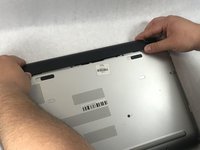
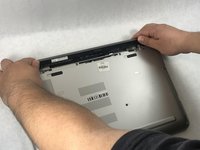
    3. HP Pavilion 15-AB153NR RAM Replacement: step 3, image 1 of 2 HP Pavilion 15-AB153NR RAM Replacement: step 3, image 2 of 2
      • Grab the battery, rotating upwards and away from you. This will remove the battery.

      Ask FixBot

      Add Comment

    1. HP Pavilion 15-AB153NR RAM Replacement, CD/DVD Drive: step 4, image 1 of 1
      • Make sure computer is powered off and unplugged.

      • Flip computer over so that the bottom is facing the ceiling and the hinges are farthest from you.

      Ask FixBot

      Add Comment

    2. HP Pavilion 15-AB153NR RAM Replacement: step 5, image 1 of 1
      • Using the Phillips #000 screwdriver, remove the 7 mm screw on the middle right.

      • There is an icon that looks like a CD stamped into the back panel near this screw.

      Ask FixBot

      Add Comment

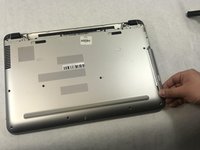
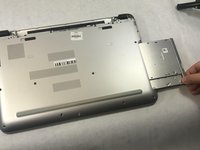
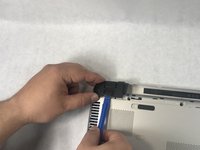
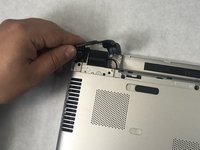
    3. HP Pavilion 15-AB153NR RAM Replacement: step 6, image 1 of 2 HP Pavilion 15-AB153NR RAM Replacement: step 6, image 2 of 2
      • Slide the drive out from the right side of the device.

      Ask FixBot

      Add Comment

    1. HP Pavilion 15-AB153NR RAM Replacement, Bottom Case Cover: step 7, image 1 of 1
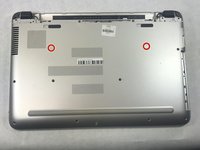
      • Using the Phillips #1 screwdriver, remove the two 12mm screws located on the hinge covers.

      Ask FixBot

      Add Comment

    2. HP Pavilion 15-AB153NR RAM Replacement: step 8, image 1 of 2 HP Pavilion 15-AB153NR RAM Replacement: step 8, image 2 of 2
      • Lift the corner covers off of the computer using a prying tool.

      Ask FixBot

      Add Comment

    3. HP Pavilion 15-AB153NR RAM Replacement: step 9, image 1 of 1
      • Remove the six 6.5mm screws using a Phillips #1 screwdriver that are located near the top of the laptop.

      Ask FixBot

      Add Comment

    4. HP Pavilion 15-AB153NR RAM Replacement: step 10, image 1 of 1
      • Remove the remaining seven 6.5mm screws using a Phillips #1 screwdriver that are securing the back cover.

      Ask FixBot

      Add Comment

    5. HP Pavilion 15-AB153NR RAM Replacement: step 11, image 1 of 1
      • Use the Phillips #0 screwdriver to remove the two 2mm screws.

      Ask FixBot

      Add Comment

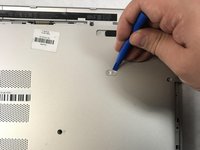
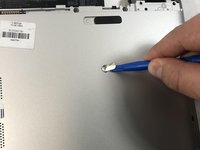
    6. HP Pavilion 15-AB153NR RAM Replacement: step 12, image 1 of 3 HP Pavilion 15-AB153NR RAM Replacement: step 12, image 2 of 3 HP Pavilion 15-AB153NR RAM Replacement: step 12, image 3 of 3
      • Use prying tools to pry the covers off of the screwholes.

      • Using the Phillips #1 screwdriver, remove the two 6.5mm screws.

      Ask FixBot

      Add Comment

    7. HP Pavilion 15-AB153NR RAM Replacement: step 13, image 1 of 1
      • Be mindful of sharp edges on computer while using prying tools.

      • Flip computer over and open so that the screen is facing you.

      • Starting at the bottom right corner, insert the prying tool and lift upwards to loosen the back panel.

      • Continue down all sides and corners of the device.

      Ask FixBot

      Add Comment

    8. HP Pavilion 15-AB153NR RAM Replacement: step 14, image 1 of 2 HP Pavilion 15-AB153NR RAM Replacement: step 14, image 2 of 2
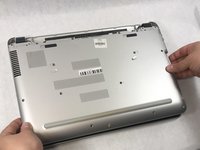
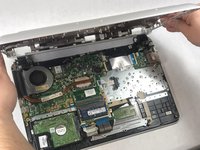
      • Flip laptop back over so that the bottom is facing up

      • After all sides are loosened, remove the back panel from the device.

      Ask FixBot

      Add Comment

    1. HP Pavilion 15-AB153NR RAM Replacement, RAM: step 15, image 1 of 1
      • Spread retaining tabs on each side of the RAM slot to release.

      • RAM should automatically tilt up.

      Ask FixBot

      Add Comment

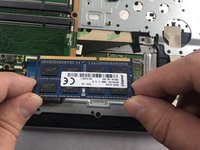
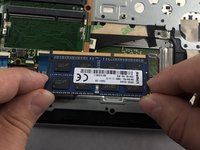
    2. HP Pavilion 15-AB153NR RAM Replacement: step 16, image 1 of 2 HP Pavilion 15-AB153NR RAM Replacement: step 16, image 2 of 2
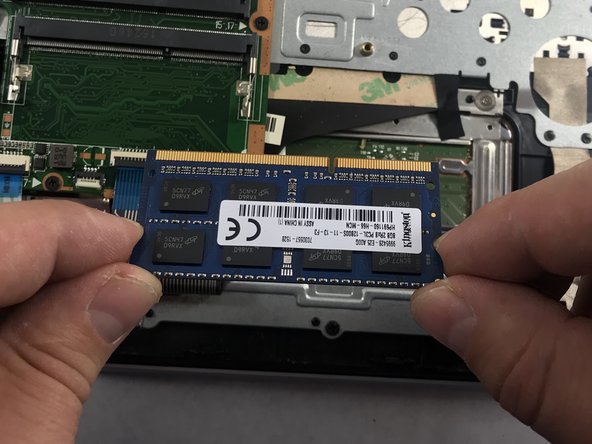
      • Remove the RAM by pulling it away from the slot at at angle.

      Ask FixBot

      Add Comment

Conclusion

To reassemble your device, follow these instructions in reverse order.

Cancel: I did not complete this guide.

2 other people completed this guide.

Nicole Vachon

Member since: 03/21/19

989 Reputation

7 Guides authored

Team

0 Guide Comments

Add Comment

View Statistics:

Past 24 Hours: 0

Past 7 Days: 3

Past 30 Days: 22

All Time: 567