Introduction
Use this guide to replace a malfunctioning or under-performing fan in your HP Pavilion 14-v062us laptop.
The fan is the device that keeps your computer running cool. A malfunctioning fan will cause the other parts to overheat. This yields drastically lower performance and can lead to serious damage of the other hardware, mainly the CPU.
In step 10 of this guide, you will have a clear view of the fan. Before you replace the fan entirely, make sure that the problem is not caused by excess amounts of dust that might be keeping the fan from running at full capacity. If there is excessive amounts of dust, clean it out and try running the laptop again. If the performance issues are gone and the laptop is within reasonable temperatures, you do not need to proceed with a replacement.
Before starting any of these steps make sure the laptop is not powered on and make sure that you have grounded yourself properly. An iFixit Anti-Static Wrist Strap would work for this purpose.
What you need
-
-
-
Push inward towards the center of laptop (it may take a lot of pressure). Battery should release once buttons are completely pushed in
 Ask FixBot
-
-
-
-
-
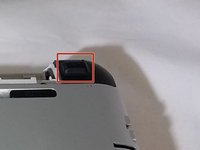
Remove rectangular rubber tops with a spudger
-
Remove the two 4.60 mm PH#1 screws located under rectangular rubber tops.
-
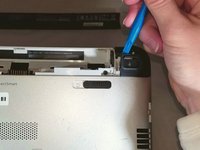
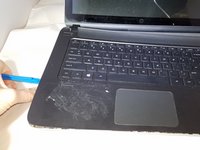
Remove plastic edge covering with the blue plastic opening tool.
-
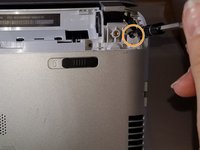
Remove two 4.63 mm PH#1 screws located under plastic edge covering.
-
-
-
Use Phillips screwdriver #1
-
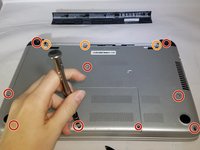
Remove all nine 7.09 mm PH#1 screw black screws including small rectangular cover.
-
Remove the three 7.14 mm PH#1 screws.
-
Remove the one 7.09 mm PH#1 screw that will be underneath the small rectangular cover
-
-
-
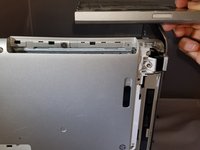
Remove disc tray
-
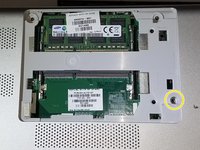
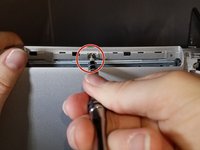
Locate screw within computer that is inside of where the disc tray was
-
Using a Phillips #1 screwdriver, unscrew the screw
-
Set laptop down and open laptop so the keyboard is facing you
-
-
-
-
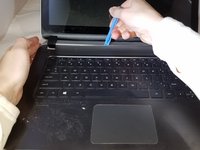
Using a spudger or plastic opening tool, pry along siding of keyboard, where it connects to the rest of the laptop
-
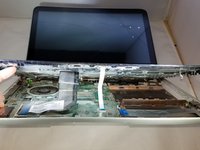
Pry until you are able to lift entire face and keyboard
-
Only cables should be connecting it underneath
-
-
-
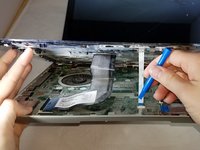
Disconnect/ unplug cables using plastic opening tool.
-
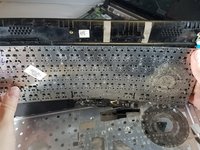
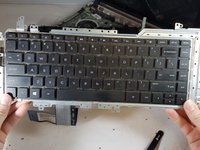
Separate the keyboard panel from the laptop with your hands.
-
Turn around the laptop and lay it flat.
-
-
-
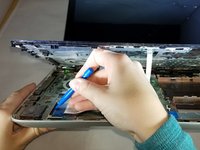
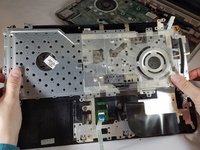
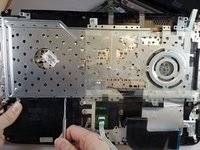
Use a spudger to pry around the first layer of the silver panel until you are able to remove it
-
-
-
Using a spudger tool, start prying around the second layer of the silver panel until you are able to remove it
-
-
-
-
Tool used on this step:Tweezers$4.99
-
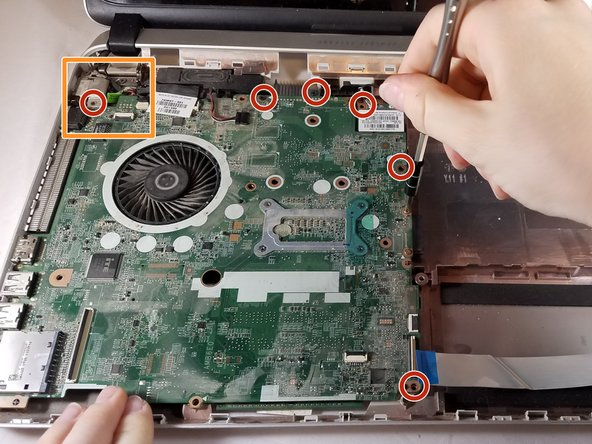
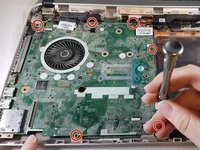
Remove all 6 screws (5.65 mm) from the motherboard, using Phillips screwdriver J0
-
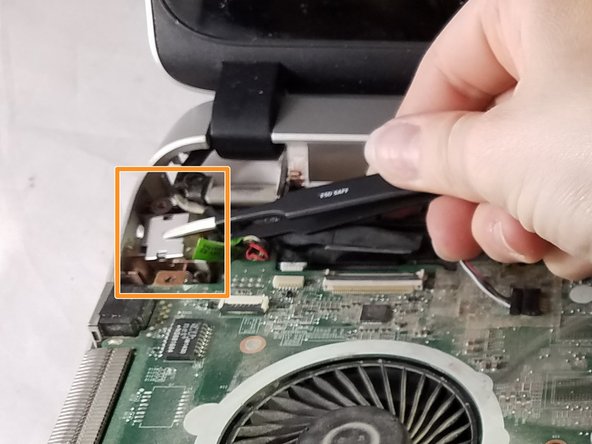
There will be a silver covering (in a z shape) that needs to be removed using black tweezers or a plastic opening tool
-
-
-
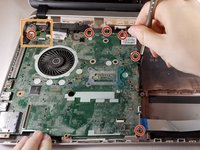
Remove the two 5.66mm screws from the motherboard using Phillips head screwdriver J0
-
-
-
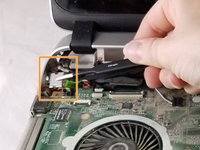
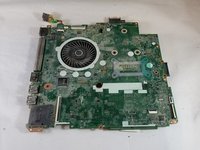
Remove entire motherboard from the laptop
-
Turn over and remove the single 5.63mm screw using a Phillips head screwdriver J0.
-
-


















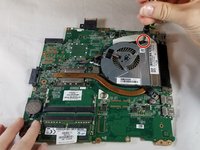


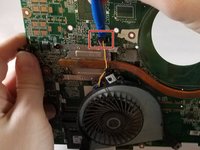
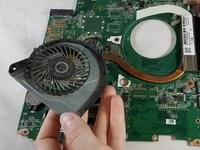
To reassemble your device, follow these instructions in reverse order.

Team

Eastern Washington University, Team S1-G4, Carnegie Fall 2017 Member of Eastern Washington University, Team S1-G4, Carnegie Fall 2017
EWU-CARNEGIE-F17S1G4
3 Members
48 Guides authored
