
HP Pavilion 14-bk061st Fan Replacement

Stefano Lo Re and 4 other contributors
Last updated on May 7, 2024
Views: 1.2K
View statistics:
- Past 24 Hours:
- 2
- Past 7 Days:
- 19
- Past 30 Days:
- 74
- All Time:
- 1,178
Comments: 1
1 comment on steps.
Completed: 1 2
1 person has marked this guide "completed." Will you be next?
2 people have marked this guide "completed." Including you — great job!
Favorites: 0 1
No one has favorited (and subscribed to) this guide. Will you be the first?
1 person has favorited (and subscribed to) this guide — and that's you!
Introduction
Go to step 1 ↓Use this guide to replace the fan in your HP Pavilion 14-bk061st laptop.
The computer fan as a core component that is used for active cooling inside a computer. It is important because it prevents a computer from overheating, as well as maintains better performance of computer parts by keeping them cool.
Before using this guide, confirm that the issue is that fan itself and not something else like dust buildup. This is a very common issue among computers that do not get cleaned out regularly. To find out more about this as well as other common fan issues visit the Troubleshooting page for more details.
Remember to power off the computer, as well as disconnecting all external components that are plugged into it.
What you need
Tools


-
-
-
Remove the three 5.7 JIS #1 screws from the bottom of the laptop.
-
Remove the two 6.7mm JIS #1 screws from underneath the feet of the laptop close to the exhaust vent.
 Ask FixBot
-
-
-
-
-
-
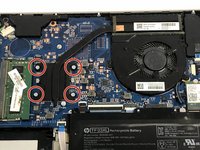
Remove the four 2.9mm JIS #1 screws from each of the four corners of the fan.
-
-
-
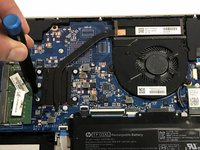
Carefully grab the heat sink from any side and lift straight up while trying to avoid touching other components.
-
-
-
-
Tool used on this step:Tweezers$4.99
-
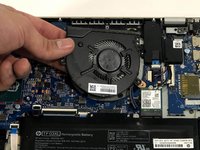
Carefully lift up the fan without tugging out the attached wire, and lay it on the motherboard.
-
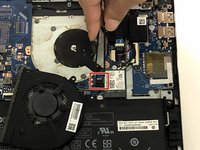
Use tweezers to gently unplug the power connector wire.
-
Remove the fan from the laptop.
-




To reassemble your device, follow these instructions in reverse order.
Cancel: I did not complete this guide.
One other person completed this guide.

Team

York University, Team S8-G3, Turner Winter 2020 Member of York University, Team S8-G3, Turner Winter 2020
YORK-TURNER-W20S8G3
4 Members
108 Guides authored
