
HP Pavilion 14-b120dx Keyboard Replacement

Joshua Carberry and 6 other contributors
Last updated on Jul 2, 2025
Views: 1.6K
View statistics:
- Past 24 Hours:
- 4
- Past 7 Days:
- 26
- Past 30 Days:
- 106
- All Time:
- 1,570
Comments: 3
3 comments on steps.
Completed: 0 1
No one has marked this guide "completed." Will you be the first?
1 person has marked this guide "completed." It's you — great job!
Favorites: 0 1
No one has favorited (and subscribed to) this guide. Will you be the first?
1 person has favorited (and subscribed to) this guide — and that's you!
Introduction
Go to step 1 ↓If your HP Pavilion 14-b120dx laptop has sticky keys, missing components, or an overall malfunctioning keyboard, it might be time to replace the keyboard. This operation isn’t as hard as one may think. In fact, with the right materials, you can tackle this job in just a few steps. For precise instructions, use this guide to replace the keyboard.
Before starting, make sure your device is turned off and disconnected from any power sources. Transfer your laptop to a stable, dry, working surface to begin the operation.
The installation process is just the reverse order of the removal process.
What you need
Tools

-
-
-
Flip the laptop upside down so that the bottom is facing you.
-
Push the slide on the right toward the center of the laptop, releasing the battery latch.
-
Lift the battery up and away from the laptop.
-
-
-
-
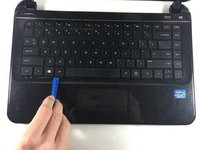
Insert the plastic opening tool between the keyboard and the palm rest.
-
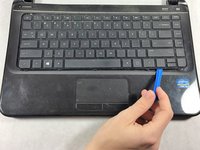
Pry upwards until the keyboard section detaches from the laptop.
-
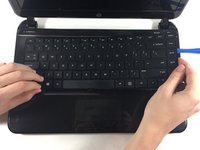
Repeat this around the edge of the entire keyboard.
-
-
-
-
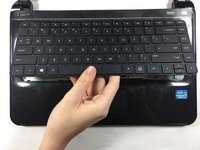
Lift the keyboard slowly up until the connecting cable is exposed.
-
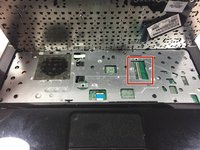
Carefully lift the flap on the ZIF connector using a fingernail or plastic opening tool. This will release the cable.
-
Detach the cable.
-
-

 Ask FixBot




To reassemble your device, follow these instructions in reverse order.

Team

UMass Dartmouth, Team 4-4, Catania Fall 2016 Member of UMass Dartmouth, Team 4-4, Catania Fall 2016
UMASSD-CATANIA-F16S4G4
3 Members
72 Guides authored
