Introduction
This guide will instruct a user on how to remove the fan in order to replace a potentially faulty piece of hardware. Be sure the device is turned off and disconnected from all power sources.
What you need
-
-
-
Use the nylon spudger to remove the rubber pads near the hinge of the screen, then remove the screws under the pads.
-
Use the Phillips #0 to remove four 9mm screws.
-
Use the Phillips #0 to remove seven 6mm screws.
 Ask FixBot
-
-
-
Use the nylon spudger to pry the back casing near the hinges for the screen.
-
Continue to pry along the edge of the back case until the back is ready to be removed.
-
-
-
Use the blue plastic opening tool to lift up on the white tab that is holding the cable in place on the motherboard.
-
Now carefully pull the cable out of place and remove the entire back casing.
-
-
-
-
Remove the five 6mm screws that hold the battery in place using the Phillips #0.
-
-
-
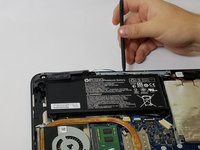
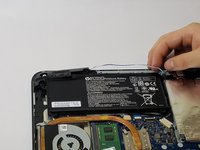
Use the nylon spudger to pry away the blue/white wire that is positioned near your battery.
-
-
-
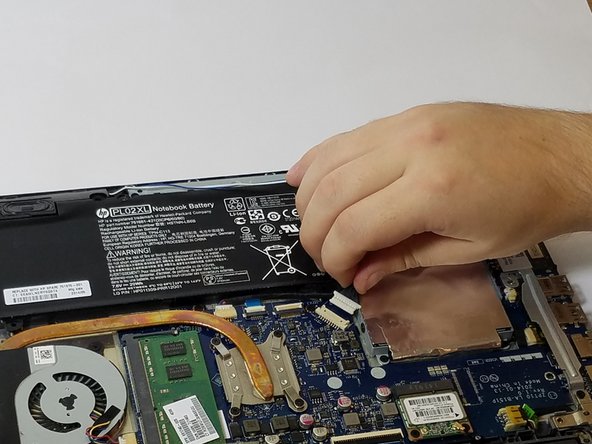
Disconnect the battery cable from the motherboard by carefully pulling on the black wire at the point closest to the white tab.
-
-
-
-
-
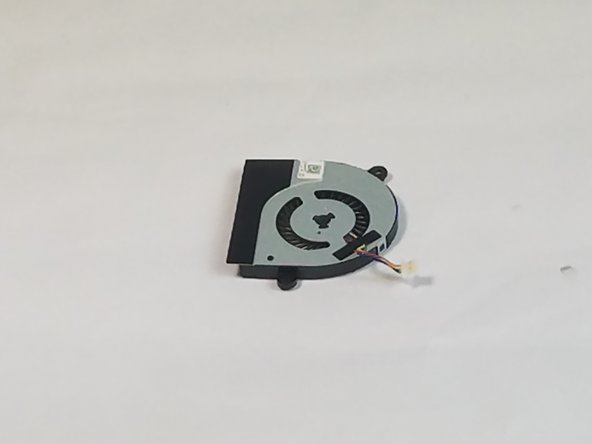
Use the Phillips #0 to remove the two 3mm screws holding the fan in place.
-
-
-
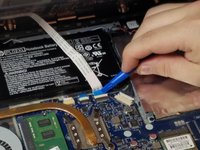
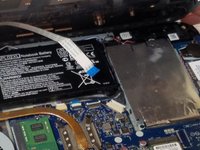
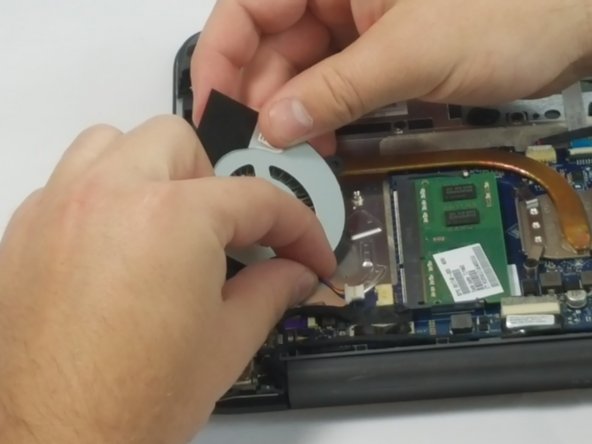
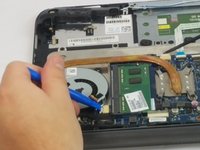
Use the plastic opening tool to slowly loosen the connection cable.
-
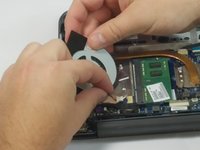
Once the connector is loose enough, grab the cable and carefully pull it free from your device.
-
-







To reassemble your device, follow these instructions in reverse order.
Cancel: I did not complete this guide.
2 other people completed this guide.

Team

USF Tampa, Team 11-5, Blackwell Fall 2016 Member of USF Tampa, Team 11-5, Blackwell Fall 2016
USFT-BLACKWELL-F16S11G5
3 Members
60 Guides authored
