Introduction
This guide will walk you through the process of replacing the battery and speakers in an HP Omni 10 tablet. Before beginning, power off the device and unplug all cables. You will need a Phillips #00 screwdriver and a plastic opening tool for this repair.
During the procedure, be careful when removing the back cover and disconnecting wire circuits. Several of the components are secured with extremely delicate connectors. When instructed, pull the wire circuit out and down gently to avoid damaging the board or cable ends.
Follow the steps below to safely remove and replace the battery, micro card reader, and speakers.
What you need
-
-
-
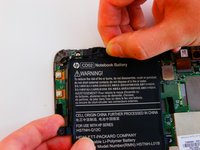
Push the black plastic security flaps into an upward position.
-
Lift the small tab on the security strips up and peel them across the battery. They will be attached via adhesive.
-
Lift the tab on the strip up and pull it across the battery.
-
-
-
-
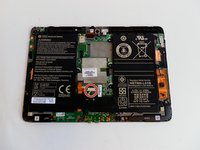
Unscrew the ten 3.3 mm screws securing the battery using a 00 Phillip's head screwdriver.
-
-
-
Unhook the cord from the edge of the battery.
-
Pull the wire circuit out and down.
-
-
-
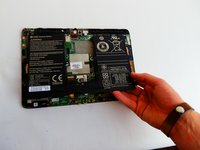
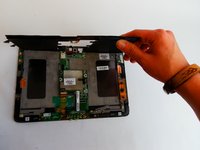
Lift the battery up by its edges and remove it carefully. There will be adhesive holding the battery down.
-

 Ask FixBot




To reassemble your device, follow these instructions in reverse order.
Cancel: I did not complete this guide.
3 other people completed this guide.

Team

USF Tampa, Team 1-1, Leahy Fall 2016 Member of USF Tampa, Team 1-1, Leahy Fall 2016
USFT-LEAHY-F16S1G1
3 Members
60 Guides authored
