Free Shipping on Domestic Orders $75+

HP Officejet Pro 8625 CMOS Battery Replacement

What you need

  1. HP Officejet Pro 8625 CMOS Battery Replacement, Left Side Panel: step 1, image 1 of 3 HP Officejet Pro 8625 CMOS Battery Replacement, Left Side Panel: step 1, image 2 of 3 HP Officejet Pro 8625 CMOS Battery Replacement, Left Side Panel: step 1, image 3 of 3
    • Remove the two 11.6 mm T9 screws from the right side of the back of the printer.

    Ask FixBot

    Add Comment

  2. HP Officejet Pro 8625 CMOS Battery Replacement: step 2, image 1 of 3 HP Officejet Pro 8625 CMOS Battery Replacement: step 2, image 2 of 3 HP Officejet Pro 8625 CMOS Battery Replacement: step 2, image 3 of 3
    • Pull down the front panel to expose the screws on the front.

    • Remove the one 11.6 mm T9 screw on the left side of the front face.

    Ask FixBot

    Add Comment

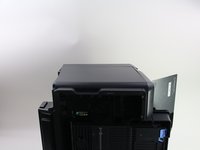
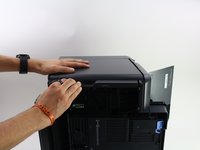
  3. HP Officejet Pro 8625 CMOS Battery Replacement: step 3, image 1 of 2 HP Officejet Pro 8625 CMOS Battery Replacement: step 3, image 2 of 2
    • Remove the side panel by pushing down and towards the back.

    • This step may be easier if the printer is laid on its side with the left side panel facing up.

    Ask FixBot

    Add Comment

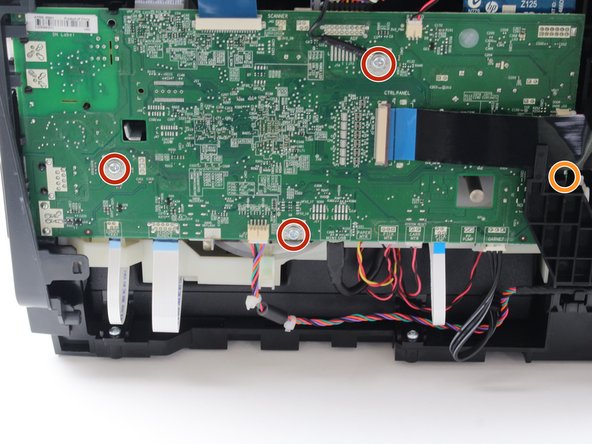
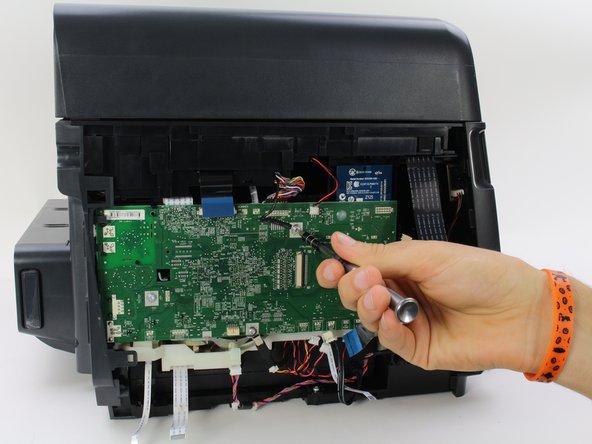
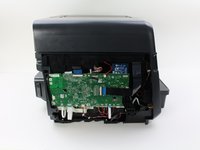
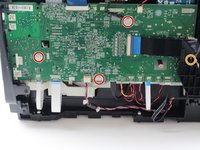
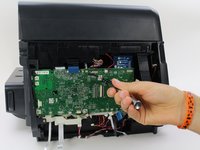
  4. HP Officejet Pro 8625 CMOS Battery Replacement, Motherboard: step 4, image 1 of 3 HP Officejet Pro 8625 CMOS Battery Replacement, Motherboard: step 4, image 2 of 3 HP Officejet Pro 8625 CMOS Battery Replacement, Motherboard: step 4, image 3 of 3
    • Remove the three 5.3 mm T9 screws from the motherboard.

    • Remove the one 6.7 mm T9 screw from the motherboard.

    Ask FixBot

    Add Comment

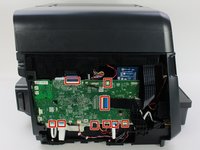
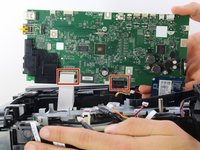
  5. HP Officejet Pro 8625 CMOS Battery Replacement: step 5, image 1 of 2 HP Officejet Pro 8625 CMOS Battery Replacement: step 5, image 2 of 2
    • Remove the connectors from the front and sides of the motherboard by pulling straight away from the connection.

    Ask FixBot

    Add Comment

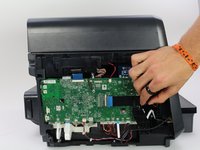
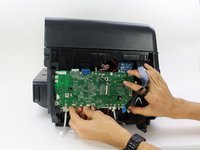
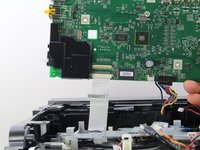
  6. HP Officejet Pro 8625 CMOS Battery Replacement: step 6, image 1 of 3 HP Officejet Pro 8625 CMOS Battery Replacement: step 6, image 2 of 3 HP Officejet Pro 8625 CMOS Battery Replacement: step 6, image 3 of 3
    • Lift the bottom of the motherboard and remove the connectors from the back.

    • Remove the motherboard.

    • There are two white connectors underneath the motherboard, remove them separately.

    Ask FixBot

    Add Comment

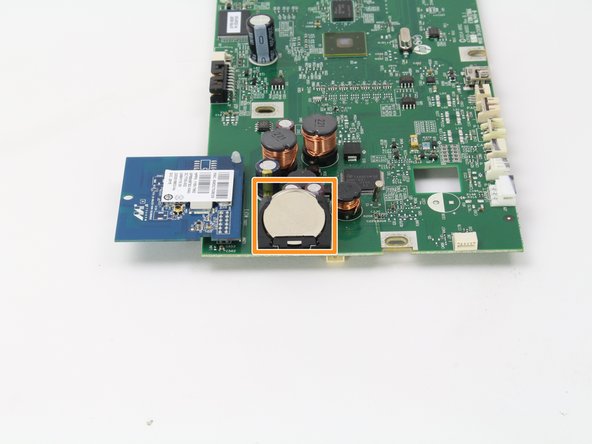
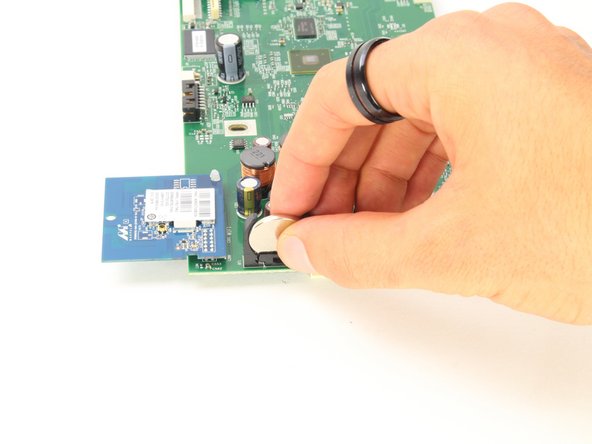
  7. HP Officejet Pro 8625 CMOS Battery Replacement, CMOS Battery: step 7, image 1 of 3 HP Officejet Pro 8625 CMOS Battery Replacement, CMOS Battery: step 7, image 2 of 3 HP Officejet Pro 8625 CMOS Battery Replacement, CMOS Battery: step 7, image 3 of 3
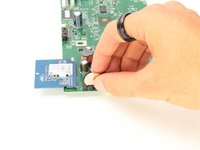
    • Locate the CMOS battery on the motherboard.

    • Remove the CMOS battery by pinching the top and pulling away from the motherboard.

    Ask FixBot

    Add Comment

Conclusion

To reassemble your device, follow these instructions in reverse order.

Cancel: I did not complete this guide.

Cam Engle

Member since: 10/08/18

555 Reputation

3 Guides authored

Team

Cal Poly, Team S13-G3, White Fall 2018 Member of Cal Poly, Team S13-G3, White Fall 2018

CPSU-WHITE-F18S13G3

3 Members

14 Guides authored

0 Guide Comments

Add Comment

View Statistics:

Past 24 Hours: 1

Past 7 Days: 5

Past 30 Days: 27

All Time: 951