Free Shipping on Domestic Orders $75+

HP Officejet Pro 8620 Power Button Replacement

What you need

  1. HP Officejet Pro 8620 Power Button Replacement, Power Button: step 1, image 1 of 3 HP Officejet Pro 8620 Power Button Replacement, Power Button: step 1, image 2 of 3 HP Officejet Pro 8620 Power Button Replacement, Power Button: step 1, image 3 of 3
    • Locate the power button on the bottom left side of the device.

    • Wedge the opening tool into the small gap between the power button panel and printer.

    • Apply pressure on the opening tool and open the power button panel.

    • Gently remove the power button panel assembly from the printer to access the power button.

    Ask FixBot

    Add Comment

  2. HP Officejet Pro 8620 Power Button Replacement: step 2, image 1 of 2 HP Officejet Pro 8620 Power Button Replacement: step 2, image 2 of 2
    • Press on the power button from the front of the panel to release it.

    Ask FixBot

    Add Comment

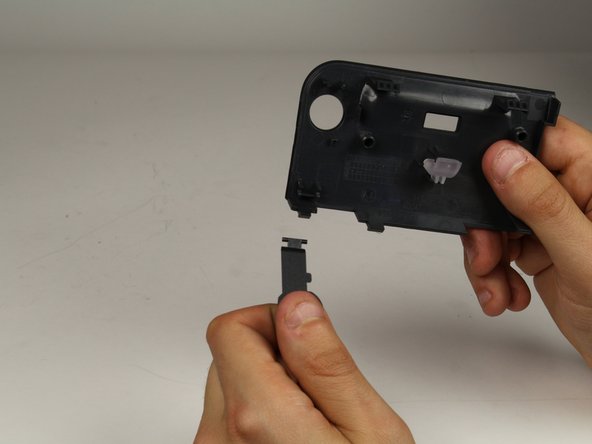
  3. HP Officejet Pro 8620 Power Button Replacement: step 3, image 1 of 2 HP Officejet Pro 8620 Power Button Replacement: step 3, image 2 of 2
    • Turn the panel around so you are viewing the back of it.

    • Disconnect the power button from the panel by gently pulling the button out (toward your body).

    • Be careful not to crack the connector of the button panel when pulling the power button

    Ask FixBot

    Add Comment

Conclusion

To reassemble your device, follow these instructions in reverse order.

Cancel: I did not complete this guide.

Scott

Member since: 01/24/18

656 Reputation

3 Guides authored

Team

Cal Poly, Team S19-G2, Livingston Spring 2018 Member of Cal Poly, Team S19-G2, Livingston Spring 2018

CPSU-LIVINGSTON-S18S19G2

1 Member

6 Guides authored

0 Guide Comments

Add Comment

View Statistics:

Past 24 Hours: 1

Past 7 Days: 2

Past 30 Days: 25

All Time: 3,162