
HP Officejet 100 Top Panel Replacement

Blake Johnson and one other contributor
Last updated on Dec 26, 2024
Views: 248
View statistics:
- Past 24 Hours:
- 2
- Past 7 Days:
- 16
- Past 30 Days:
- 62
- All Time:
- 248
Comments: 0
No one has left comments on this guide. Will you be first?
Go to guide commentsCompleted: 1 2
1 person has marked this guide "completed." Will you be next?
2 people have marked this guide "completed." Including you — great job!
Favorites: 0 1
No one has favorited (and subscribed to) this guide. Will you be the first?
1 person has favorited (and subscribed to) this guide — and that's you!
Introduction
Go to step 1 ↓HP Officejet 100
Model Number: SNPRC-1003-01
Replacing the Top Panel of HP Officejet 100
The top panel of the HP Officejet 100 closes the printer and allows you to put paper and ink in when you open it. In some cases, the top panel can be cracked, shattered, or even be hard to open because the hinges are too tight.
-
-
-
Hold the panel from the bottom corner and push it inwards and pull upwards to take it off.
 Ask FixBot
-
-
-

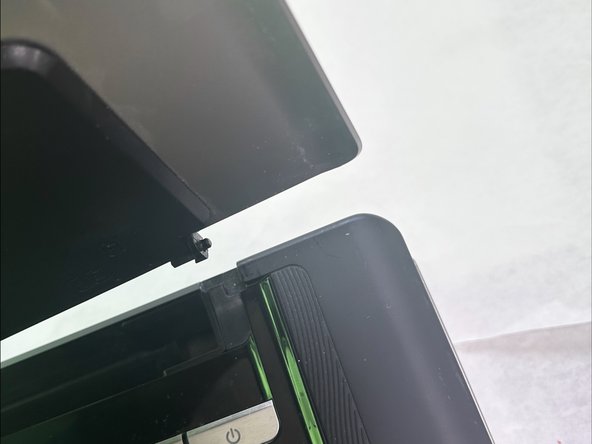
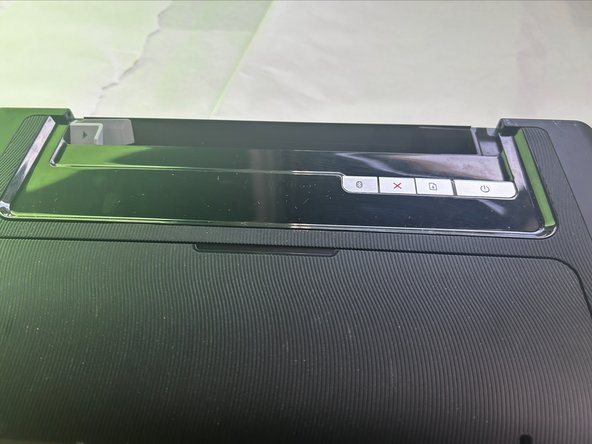




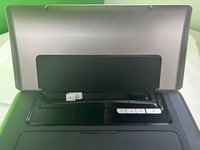
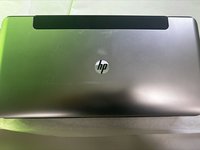
To reassemble your device, follow these instructions in reverse order.
Cancel: I did not complete this guide.
One other person completed this guide.

Team

University of North Texas, Team 5-5, Kilpatrick Fall 2024 Member of University of North Texas, Team 5-5, Kilpatrick Fall 2024
UNT-KILPATRICK-F24S5G5
3 Members
60 Guides authored
