
HP Mobile Thin Client mt41 Optical Disc Drive Replacement

Hassan Almunasif and 2 other contributors
Last updated on May 10, 2019
Views: 936
View statistics:
- Past 24 Hours:
- 2
- Past 7 Days:
- 15
- Past 30 Days:
- 76
- All Time:
- 936
Comments: 0
No one has left comments on this guide. Will you be first?
Go to guide commentsCompleted: 0 1
No one has marked this guide "completed." Will you be the first?
1 person has marked this guide "completed." It's you — great job!
Favorites: 1 2
1 person has favorited (and subscribed to) this guide. Will you be next?
2 people have favorited (and subscribed to) this guide — including you!
Better Introduction
Improve this guide by completing or revising its introduction.
Missing Details
Some of this guide's details are missing. Help users by adding tools, difficulty, or time.
What you need
Tools

-
-
-
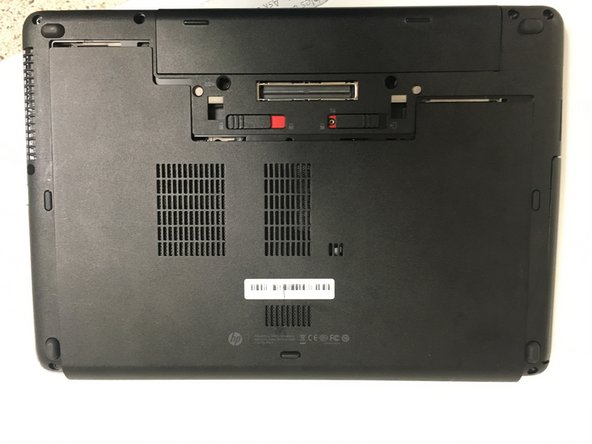
After that, slide the two switches to the indicated directions in order to remove the battery and the back cover.
 Ask FixBot
-
-
-
Slide the service cover downward.
-
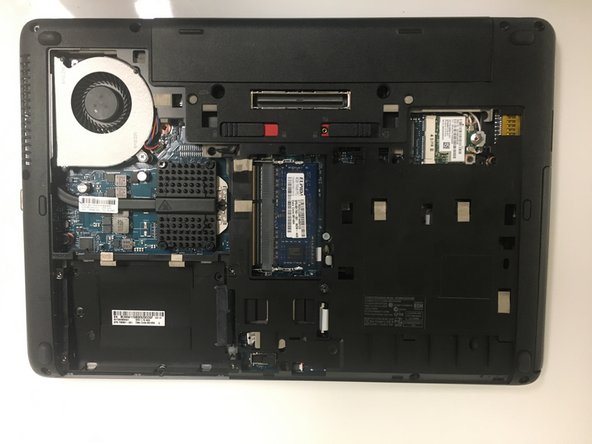
After that, lift the back cover to remove it.
-
-
-
-
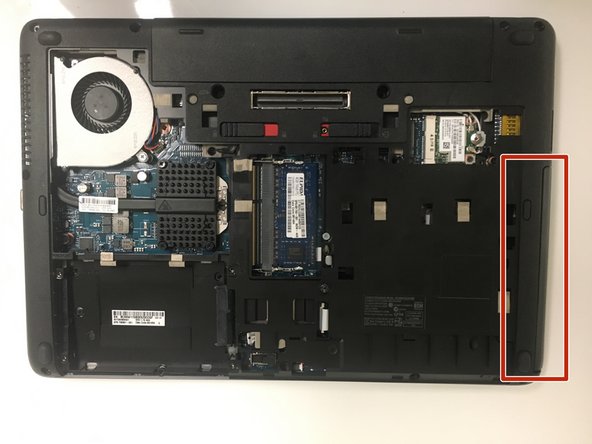
Unlock the indicated screw in order to remove the optical drive.
-
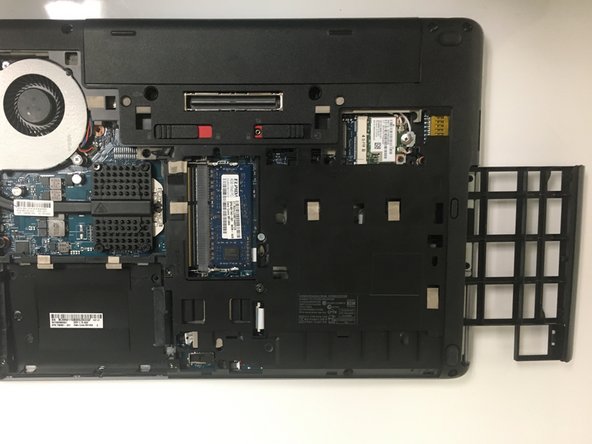
Slide the optical drive to completely remove it from the laptop.
-
-






To reassemble your device, follow these instructions in reverse order.

Team

University of North Texas, Team S2-G5, Thomas Spring 2018 Member of University of North Texas, Team S2-G5, Thomas Spring 2018
UNT-THOMAS-S18S2G5
5 Members
72 Guides authored
