Free Shipping on Domestic Orders $75+

HP Mini 110-3735dx Hard Drive Cage Replacement

What you need

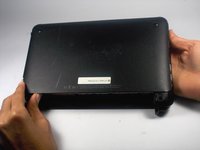
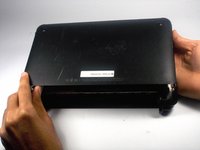
    1. HP Mini 110-3735dx Hard Drive Cage Replacement, Battery: step 1, image 1 of 3 HP Mini 110-3735dx Hard Drive Cage Replacement, Battery: step 1, image 2 of 3 HP Mini 110-3735dx Hard Drive Cage Replacement, Battery: step 1, image 3 of 3
      • With the bottom of the HP Mini facing up, slide both switches inward towards each other.

      Ask FixBot

      Add Comment

    2. HP Mini 110-3735dx Hard Drive Cage Replacement: step 2, image 1 of 2 HP Mini 110-3735dx Hard Drive Cage Replacement: step 2, image 2 of 2
      • With the left switch still pushed inward, pull the battery towards you to remove it from the computer.

      Ask FixBot

      Add Comment

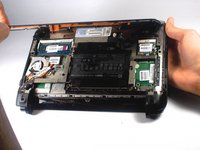
    1. HP Mini 110-3735dx Hard Drive Cage Replacement, Backcover: step 3, image 1 of 3 HP Mini 110-3735dx Hard Drive Cage Replacement, Backcover: step 3, image 2 of 3 HP Mini 110-3735dx Hard Drive Cage Replacement, Backcover: step 3, image 3 of 3
      • Pull upward from under the back cover via the missing battery area.

      • Best to start from one of the corners.

      Ask FixBot

      Add Comment

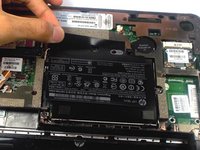
    1. HP Mini 110-3735dx Hard Drive Cage Replacement, Hard Drive Cage: step 4, image 1 of 1
      • Remove the three 5.0 mm screws holding the hard drive cage in place using a Phillips #1 screw driver.

      Ask FixBot

      Add Comment

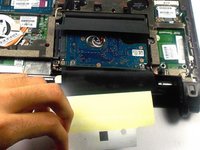
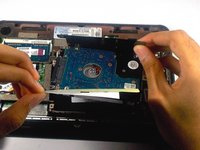
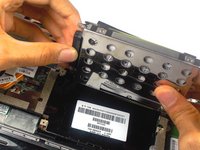
    2. HP Mini 110-3735dx Hard Drive Cage Replacement: step 5, image 1 of 3 HP Mini 110-3735dx Hard Drive Cage Replacement: step 5, image 2 of 3 HP Mini 110-3735dx Hard Drive Cage Replacement: step 5, image 3 of 3
      • Lift the hard drive cage by pulling the tape upward.

      • Start by pulling the tape from the side with the keyboard symbol.

      Ask FixBot

      Add Comment

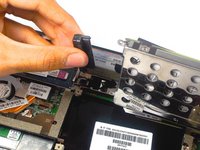
    3. HP Mini 110-3735dx Hard Drive Cage Replacement: step 6, image 1 of 2 HP Mini 110-3735dx Hard Drive Cage Replacement: step 6, image 2 of 2
      • Unplug the cable connecting to the hard drive.

      Ask FixBot

      Add Comment

Conclusion

To reassemble your device, follow these instructions in reverse order.

Cancel: I did not complete this guide.

Tyrone Williams

Member since: 03/10/16

923 Reputation

7 Guides authored

Team

0 Guide Comments

Add Comment

View Statistics:

Past 24 Hours: 0

Past 7 Days: 3

Past 30 Days: 22

All Time: 549