Free Shipping on Domestic Orders $75+

HP HDX 16-1160US Wifi Card Replacement

What you need

    1. HP HDX 16-1160US Wifi Card Replacement, Battery: step 1, image 1 of 1
      • Turn the device over so that the bottom side is facing up and the battery is facing away from you.

      Ask FixBot

      Add Comment

    2. HP HDX 16-1160US Wifi Card Replacement: step 2, image 1 of 3 HP HDX 16-1160US Wifi Card Replacement: step 2, image 2 of 3 HP HDX 16-1160US Wifi Card Replacement: step 2, image 3 of 3
      • Locate the slider under the right side of the battery.

      • Using your thumb, slide it all the way to the left until the front of the battery lifts up.

      Ask FixBot

      Add Comment

    3. HP HDX 16-1160US Wifi Card Replacement: step 3, image 1 of 1
      • With your thumb still holding the slider to the left, use the opposite hand to lift the battery out, removing it from the computer.

      Ask FixBot

      Add Comment

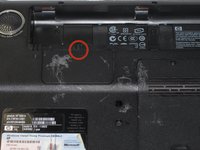
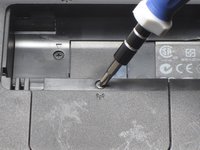
    1. HP HDX 16-1160US Wifi Card Replacement, Wifi Card: step 4, image 1 of 2 HP HDX 16-1160US Wifi Card Replacement, Wifi Card: step 4, image 2 of 2
      • Use the Phillips #1 Screw Driver to unscrew the 6mm screw from the Wi-Fi Card Panel.

      • The 6mm screw will remain in the Wi-Fi card panel and will not fall out.

      • Lift off the Wi-Fi card panel off using the opposite hand.

      Ask FixBot

      Add Comment

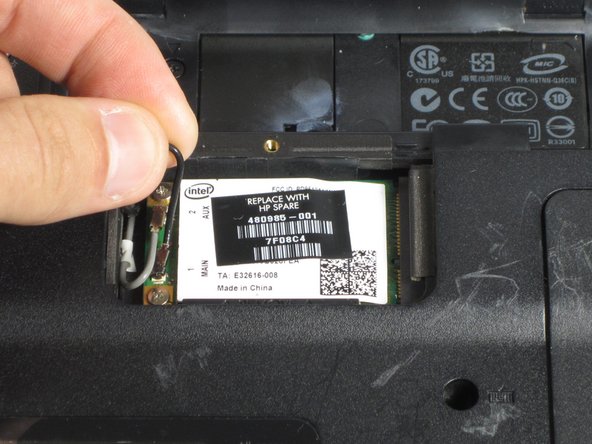
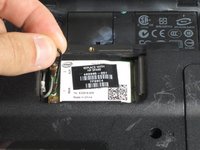
    2. HP HDX 16-1160US Wifi Card Replacement: step 5, image 1 of 2 HP HDX 16-1160US Wifi Card Replacement: step 5, image 2 of 2
      • Remove the gray and black wires by gently pulling up on them so that they "unsnap" from the Wi-Fi card.

      Ask FixBot

      Add Comment

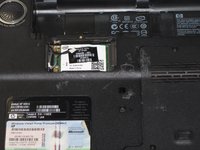
    3. HP HDX 16-1160US Wifi Card Replacement: step 6, image 1 of 1
      • Remove the two 4mm screws with the Phillips #1 screw driver.

      Ask FixBot

      Add Comment

    4. HP HDX 16-1160US Wifi Card Replacement: step 7, image 1 of 1
      • Carefully use the plastic opening tools to lift the Wi-Fi card up on the left side.

      • Using the opposite hand, pull the Wi-Fi card to the left.

      • Do not lift the Wi-Fi card straight up, this will damage or break the Wi-Fi card.

      Ask FixBot

      Add Comment

Conclusion

To reassemble your device, follow these instructions in reverse order.

Cancel: I did not complete this guide.

2 other people completed this guide.

Marshall Reid

Member since: 04/14/14

527 Reputation

3 Guides authored

Team

Cal Poly, Team 12-38, Maness Spring 2014 Member of Cal Poly, Team 12-38, Maness Spring 2014

CPSU-MANESS-S14S12G38

4 Members

60 Guides authored

0 Guide Comments

Add Comment

View Statistics:

Past 24 Hours: 2

Past 7 Days: 4

Past 30 Days: 27

All Time: 1,466