Free Shipping on Domestic Orders $75+

HP G62-223CL Wireless Card Replacement

What you need

    1. HP G62-223CL Wireless Card Replacement, Battery Removal: step 1, image 1 of 2 HP G62-223CL Wireless Card Replacement, Battery Removal: step 1, image 2 of 2
      • Removing the battery while the laptop is still on may corrupt your files.

      • Turn the device over to expose the bottom of the device.

      • Slide the battery release all the way to the left.

      • There will be a click and the battery will be released from its compartment.

      Ask FixBot

      Add Comment

    2. HP G62-223CL Wireless Card Replacement: step 2, image 1 of 1
      • Carefully remove the battery from its compartment.

      Ask FixBot

      Add Comment

    1. HP G62-223CL Wireless Card Replacement, Wireless Card: step 3, image 1 of 2 HP G62-223CL Wireless Card Replacement, Wireless Card: step 3, image 2 of 2
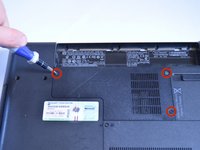
      • Locate three Phillips head retaining screws which secure the compartment.

      • Use a Phillips #0 screwdriver to loosen the retaining screws.

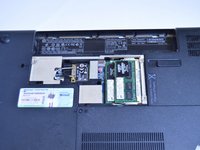
      • Remove the panel covering the compartment.

      • Ground yourself before attempting to touch any components. To ground yourself, touch a conductive metal to eliminate any static buildup in your body, which can damage computer components.

      Ask FixBot

      Add Comment

    2. HP G62-223CL Wireless Card Replacement: step 4, image 1 of 3 HP G62-223CL Wireless Card Replacement: step 4, image 2 of 3 HP G62-223CL Wireless Card Replacement: step 4, image 3 of 3
      Tool used on this step:
      Tweezers
      $4.99
      Buy
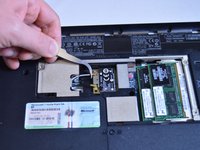
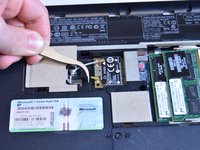
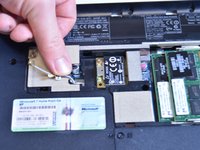
      • Use tweezers to disconnect the gray cable and the black cable from the wireless card.

      Ask FixBot

      Add Comment

    3. HP G62-223CL Wireless Card Replacement: step 5, image 1 of 1
      • Use a Phillips #0 screwdriver to remove the single 4mm screw from the corner of the wireless card.

      Ask FixBot

      Add Comment

    4. HP G62-223CL Wireless Card Replacement: step 6, image 1 of 1
      • Carefully lift and pull wireless card. It is removed!

      Ask FixBot

      Add Comment

Conclusion

To reassemble your device, follow these instructions in reverse order.

Cancel: I did not complete this guide.

Garret Layton

Member since: 01/13/15

687 Reputation

5 Guides authored

Team

USF Tampa, Team 1-4, Sullivan Winter 2015 Member of USF Tampa, Team 1-4, Sullivan Winter 2015

USFT-SULLIVAN-W15S1G4

4 Members

60 Guides authored

0 Guide Comments

Add Comment

View Statistics:

Past 24 Hours: 3

Past 7 Days: 29

Past 30 Days: 108

All Time: 1,596