Free Shipping on Domestic Orders $75+

HP G62-144DX Keyboard Replacement

What you need

    1. HP G62-144DX Keyboard Replacement, Battery: step 1, image 1 of 2 HP G62-144DX Keyboard Replacement, Battery: step 1, image 2 of 2
      • Make sure to turn off the laptop before removing the battery.

      • Slide the lock to the right, located slightly above the battery location.

      • While pulling the lock, pull the battery out, keeping it flat and parallel to the laptop so that it slides out easily.

      Ask FixBot

      Add Comment

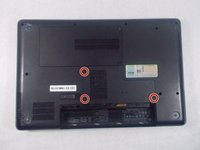
    1. HP G62-144DX Keyboard Replacement, Keyboard: step 2, image 1 of 1
      • Remove the 3 Phillips 2.5x5 screws (closest to the battery slot) and the 2 Phillips 2.5x6.5 screws with a Phillips #1 screwdriver.

      • This screws will have a keyboard symbol inscribed next to them.

      Ask FixBot

      Add Comment

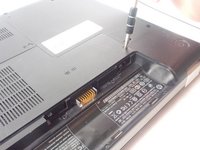
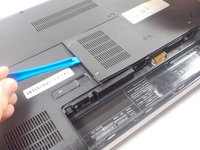
    2. HP G62-144DX Keyboard Replacement: step 3, image 1 of 3 HP G62-144DX Keyboard Replacement: step 3, image 2 of 3 HP G62-144DX Keyboard Replacement: step 3, image 3 of 3
      • Use the Phillips # 1 screwdriver to unscrew the 2.5x6 Phillips screws holding the L-shaped back panel.

      • Screws should stay in panel, but come free of the laptop body.

      • Gently use a plastic opening tool to remove the panel.

      Ask FixBot

      Add Comment

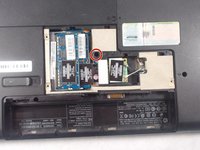
    3. HP G62-144DX Keyboard Replacement: step 4, image 1 of 2 HP G62-144DX Keyboard Replacement: step 4, image 2 of 2
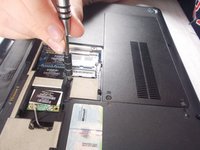
      • Unscrew the final Phillips 2.5x5 keyboard screw with a Phillips #1 screwdriver.

      Ask FixBot

      Add Comment

    4. HP G62-144DX Keyboard Replacement: step 5, image 1 of 2 HP G62-144DX Keyboard Replacement: step 5, image 2 of 2
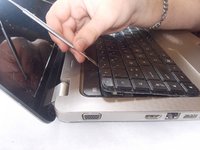
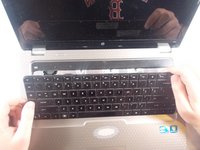
      • Flip the laptop so the top is facing up again and open the cover.

      • Use a metal spudger to pry the keyboard up and pull it back.

      • Be sure to pry up the board itself and not an individual key.

      • This process has the risk of breaking keys.

      Ask FixBot

      Add Comment

    5. HP G62-144DX Keyboard Replacement: step 6, image 1 of 2 HP G62-144DX Keyboard Replacement: step 6, image 2 of 2
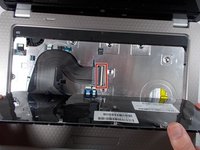
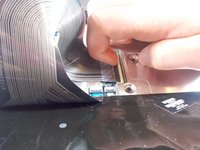
      • Pull up the latch that connects the keyboard connector the the motherboard.

      Ask FixBot

      Add Comment

Conclusion

To reassemble your device, follow these instructions in reverse order.

Cancel: I did not complete this guide.

2 other people completed this guide.

Cameron Moran

Member since: 10/18/17

623 Reputation

5 Guides authored

Team

0 Guide Comments

Add Comment

View Statistics:

Past 24 Hours: 1

Past 7 Days: 9

Past 30 Days: 30

All Time: 978