Introduction
This guide will show users how to replace the keyboard for an HPG62-347NR laptop. You will need a Phillips #1 screwdriver and a prying tool.
What you need
-
-
-
Turn the device over so the bottom is facing up.
-
Slide the battery release to the left until you hear a click.
-
Once you hear a click, the battery will have been released from the battery compartment.
 Ask FixBot
-
-
-
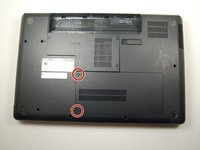
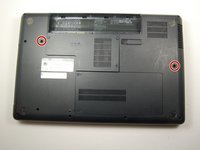
Find the hard drive compartment with two Phillips head screws.
-
Use the PH1 screwdriver to loosen and remove both screws.
-
Gently remove the hard drive compartment.
-
-
-
-
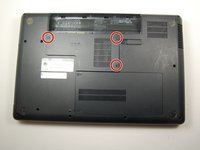
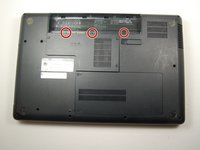
Locate the three Phillips head screws on the compartment with the wifi and keyboard logos.
-
Using the Phillips #1 screwdriver, remove the three screws.
-
-
-
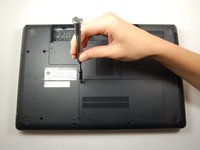
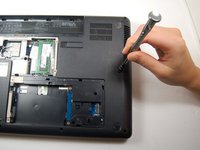
Locate the two keyboard logos on back of the computer.
-
Find the Phillips head screws in the hole next to the logo.
-
Remove the two screws using a Phillips #1 screwdriver.
-
-
-
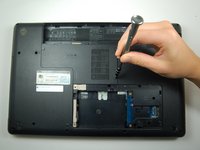
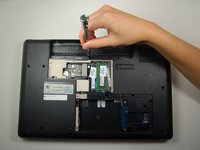
In the battery compartment, locate the three keyboard logos.
-
Find the Phillips head screws next to each logo.
-
Remove the three screws using the Phillips #1 screwdriver.
-
-
-
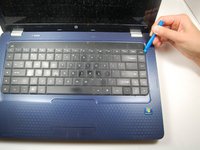
Place the plastic opening tool between the keyboard and the motherboard.
-
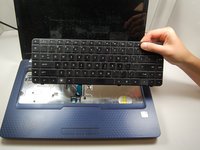
Gently pry the entire keyboard up and away from the laptop's motherboard.
-
Once you have part of the keyboard separated, run your fingers around the edge of the keyboard to separate the entire thing.
-
-










To reassemble your device, follow these instructions in reverse order.
Cancel: I did not complete this guide.
4 other people completed this guide.

Team

Texas Tech, Team 6-1, Bennett Fall 2016 Member of Texas Tech, Team 6-1, Bennett Fall 2016
TTU-BENNETT-F16S6G1
3 Members
36 Guides authored
