Introduction
We will show step by step progression of how to unlock the battery and remove it. This guide will help you understand the fundamentals of a battery replacement with this HP laptop. This guide is useful if you have a new battery and are looking to swap it out with the old one.
-
-
-
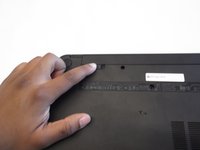
On the underside of the laptop towards the hinge for the screen there are two rectangular slide switches located inside of rectangular tracks.
-
-
-
-
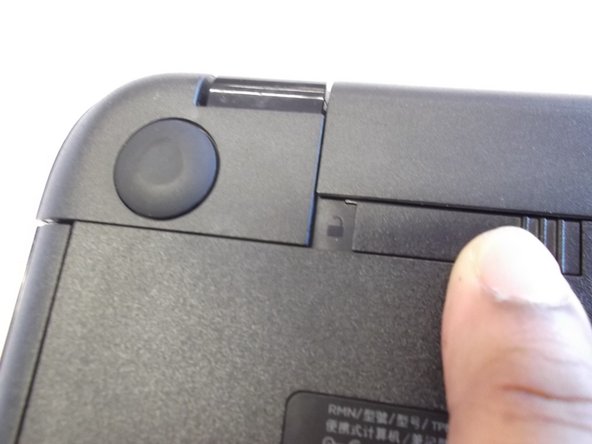
The left switch is the battery unlock switch.
-
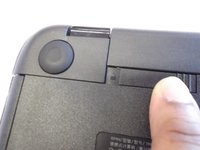
Inside the rectangular track of this switch there is an image of a closed lock that should be visible. Push this switch to the other end of the track and an image of an open lock should be visible.
-
-
-
Then take and slide the other switch to the other end of its track which will pop out the battery.
-
Grab the battery and pull it out of the slot.
-


 Ask FixBot



To reassemble your device, follow these instructions in reverse order.
Cancel: I did not complete this guide.
7 other people completed this guide.

1 Guide Comment
What do you do when the battery not charging but the laptop is working when directly plugged on power
