Free Shipping on Domestic Orders $75+

HP Envy j-100 RAM Replacement

What you need

    1. HP Envy j-100 RAM Replacement, Battery: step 1, image 1 of 1
      • Slide the battery clip and remove the battery.

      Ask FixBot

      Add Comment

    2. HP Envy j-100 RAM Replacement, Access door: step 2, image 1 of 2 HP Envy j-100 RAM Replacement, Access door: step 2, image 2 of 2
      • Unscrew the single access door screw.

      • Pop out the access door to reveal the RAM, wifi card, and hard disks.

      Ask FixBot

      Add Comment

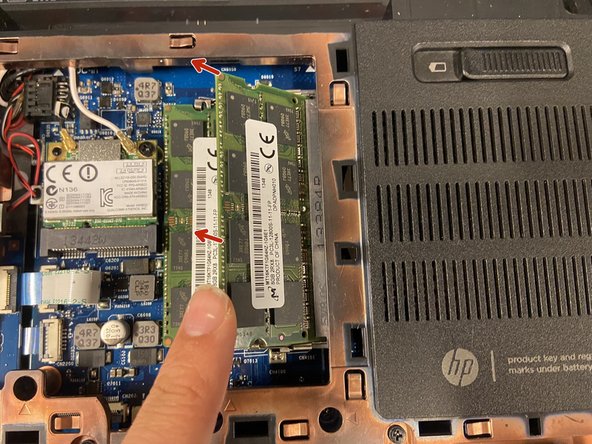
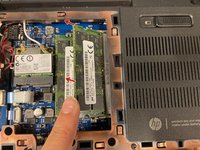
    3. HP Envy j-100 RAM Replacement, RAM Removal: step 3, image 1 of 2 HP Envy j-100 RAM Replacement, RAM Removal: step 3, image 2 of 2
      • Push the 2 clips out gently to pop the SODIMM up.

      • Pull the SODIMM out of the socket.

      Ask FixBot

      Add Comment

    4. HP Envy j-100 RAM Replacement, RAM Insertion: step 4, image 1 of 1
      • Insert as shown in the diagram.

      • Make sure the SODIMM is fully inserted before laying it flat.

      Ask FixBot

      Add Comment

      • Make sure its fully inserted, or try a different SODIMM

      • Make sure the ram is DDR3L

      Ask FixBot

      Add Comment

Conclusion

To reassemble your device, follow these instructions in reverse order.

Cancel: I did not complete this guide.

tmg86

Member since: 03/10/22

654 Reputation

4 Guides authored

0 Guide Comments

Add Comment

View Statistics:

Past 24 Hours: 1

Past 7 Days: 8

Past 30 Days: 26

All Time: 492