Free Shipping on Domestic Orders $75+

HP Envy dv6-7363cl Fan Replacement

What you need

    1. HP Envy dv6-7363cl Fan Replacement, Battery: step 1, image 1 of 1
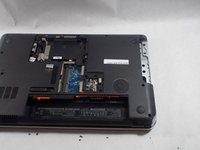
      • Flip the device upside-down so that its bottom is facing up.

      Ask FixBot
      Add Comment

    2. HP Envy dv6-7363cl Fan Replacement: step 2, image 1 of 1
      • Push the lever underneath the battery to the left.

      Ask FixBot

      Add Comment

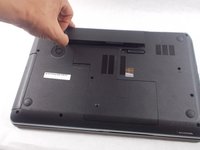
    3. HP Envy dv6-7363cl Fan Replacement: step 3, image 1 of 2 HP Envy dv6-7363cl Fan Replacement: step 3, image 2 of 2
      • Lift the battery up out of its socket.

      Ask FixBot
      Add Comment

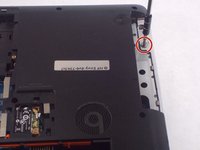
    1. HP Envy dv6-7363cl Fan Replacement, Fan: step 4, image 1 of 1
      • Remove the circled screws from the back panel.

      Ask FixBot

      Add Comment

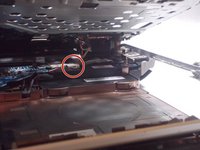
    2. HP Envy dv6-7363cl Fan Replacement: step 5, image 1 of 1
      • Lift and remove the back panel of the device.

      Ask FixBot
      Add Comment

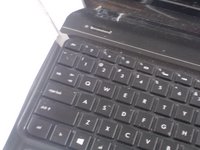
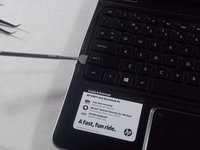
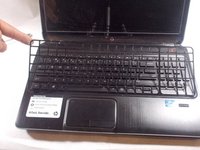
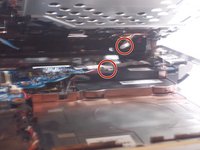
    3. HP Envy dv6-7363cl Fan Replacement: step 6, image 1 of 3 HP Envy dv6-7363cl Fan Replacement: step 6, image 2 of 3 HP Envy dv6-7363cl Fan Replacement: step 6, image 3 of 3
      • Flip the laptop back over and carefully pry the keyboard frame out of the device.

      Ask FixBot
      Add Comment

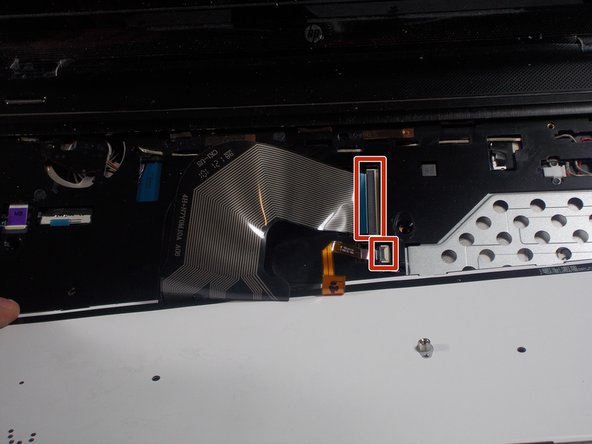
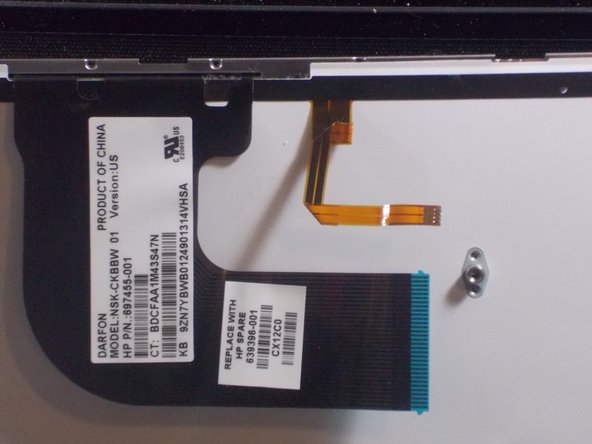
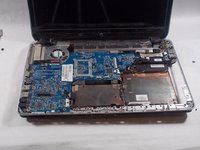
    4. HP Envy dv6-7363cl Fan Replacement: step 7, image 1 of 3 HP Envy dv6-7363cl Fan Replacement: step 7, image 2 of 3 HP Envy dv6-7363cl Fan Replacement: step 7, image 3 of 3
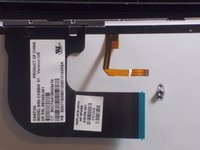
      • Lift the keyboard out of the device

      • Carefully remove ribbon cables.

      Ask FixBot
      Add Comment

    5. HP Envy dv6-7363cl Fan Replacement: step 8, image 1 of 3 HP Envy dv6-7363cl Fan Replacement: step 8, image 2 of 3 HP Envy dv6-7363cl Fan Replacement: step 8, image 3 of 3
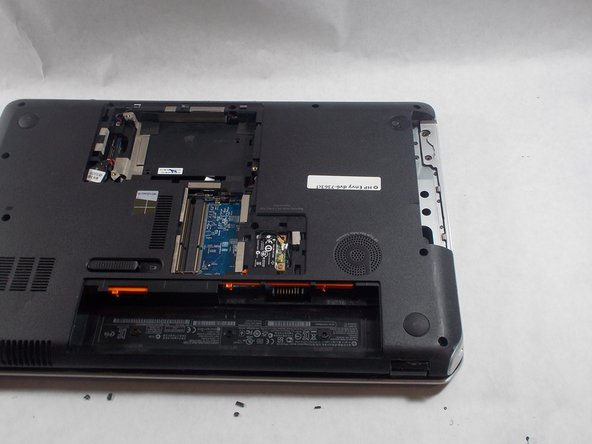
      • Flip device onto its back

      • Remove disk tray and circled screw.

      Ask FixBot

      Add Comment

    6. HP Envy dv6-7363cl Fan Replacement: step 9, image 1 of 2 HP Envy dv6-7363cl Fan Replacement: step 9, image 2 of 2
      • Flip device right-side-up and remove ribbon cables from plastic cover beneath keyboard. Remove plastic cover from device.

      Ask FixBot

      Add Comment

    7. HP Envy dv6-7363cl Fan Replacement: step 10, image 1 of 3 HP Envy dv6-7363cl Fan Replacement: step 10, image 2 of 3 HP Envy dv6-7363cl Fan Replacement: step 10, image 3 of 3
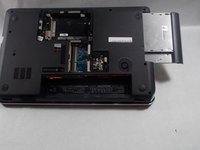
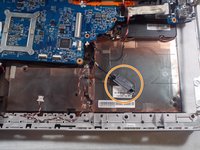
      • Disconnect red cord from DVD drive and remove DVD drive.

      Ask FixBot

      Add Comment
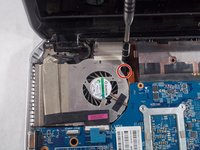
    8. HP Envy dv6-7363cl Fan Replacement: step 11, image 1 of 3 HP Envy dv6-7363cl Fan Replacement: step 11, image 2 of 3 HP Envy dv6-7363cl Fan Replacement: step 11, image 3 of 3
      • Remove circled screws.

      Ask FixBot

      Add Comment

    9. HP Envy dv6-7363cl Fan Replacement: step 12, image 1 of 2 HP Envy dv6-7363cl Fan Replacement: step 12, image 2 of 2
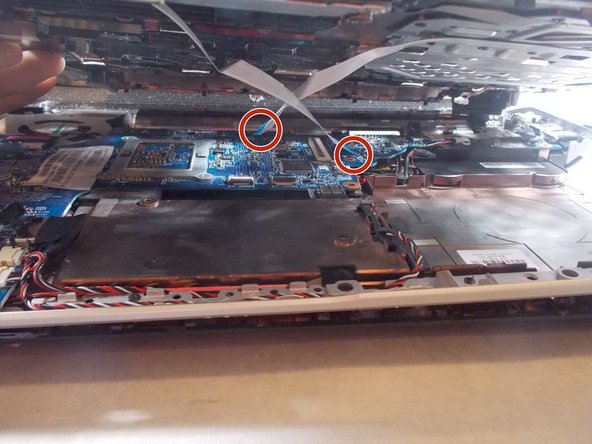
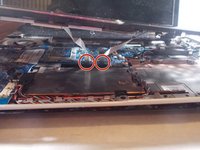
      • Disconnect red and white cords from blue circuit board.

      Ask FixBot

      Add Comment

    10. HP Envy dv6-7363cl Fan Replacement: step 13, image 1 of 3 HP Envy dv6-7363cl Fan Replacement: step 13, image 2 of 3 HP Envy dv6-7363cl Fan Replacement: step 13, image 3 of 3
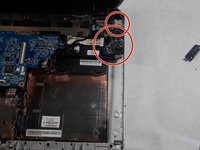
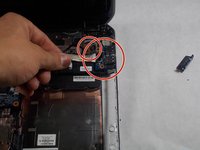
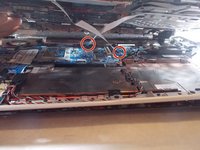
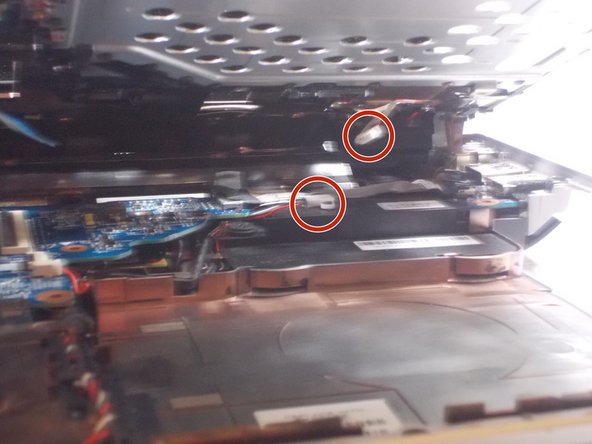
      • Gently pull circled pieces from their holsters.

      Ask FixBot

      Add Comment

    11. HP Envy dv6-7363cl Fan Replacement: step 14, image 1 of 2 HP Envy dv6-7363cl Fan Replacement: step 14, image 2 of 2
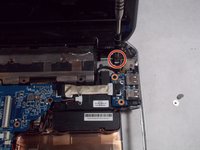
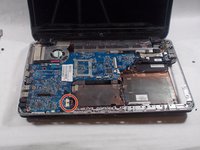
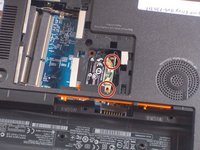
      • Turn device onto its back and remove circled screws from Wi-Fi card.

      • Flip device back over and unscrew disk reader

      Ask FixBot

      Add Comment

    12. HP Envy dv6-7363cl Fan Replacement: step 15, image 1 of 1
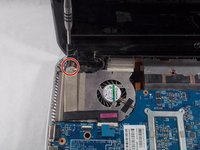
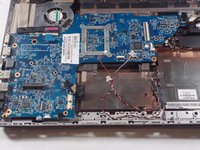
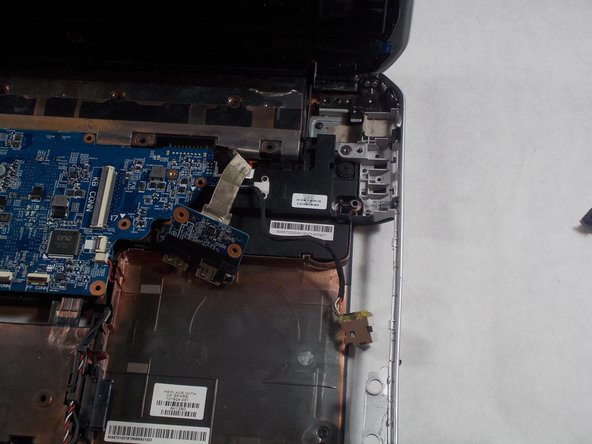
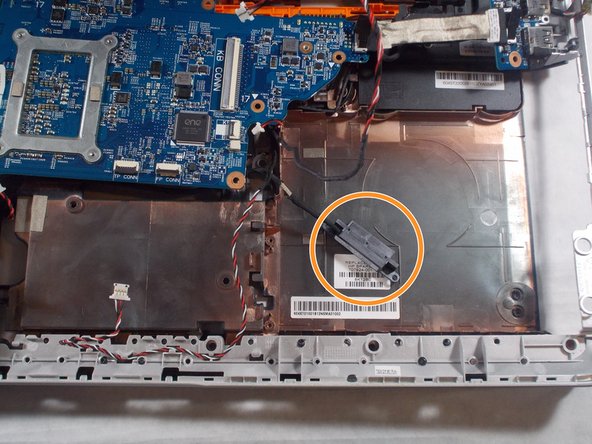
      • Remove circled screws from blue circuit board and lift fan assembly out of device.

      Ask FixBot

      Add Comment

Conclusion

To reassemble your device, follow these instructions in reverse order.

Cancel: I did not complete this guide.

One other person completed this guide.

dylananthony

Member since: 10/20/16

564 Reputation

3 Guides authored

Team

2 Guide Comments

My laptop is a slightly different model and everything provided by the author is likely accurate for their model. I only mention this to caution that your repair may be slightly different depending on your specific model. Mine was different in a few areas though held mostly true with my dv6t-7000. Cheers!

zabadoo - Reply Share

Salom menga shu modeldagi kompyuterni ustgi qopqogʻini topib pochta qila olasizmi iloji boʻlsa iltimos nomerim +998991768069 shu nomerga telfon qib bogʻlanishiz mumkin men bilan

Shamsullo Quzratov - Reply Share

Add Comment

View Statistics:

Past 24 Hours: 3

Past 7 Days: 13

Past 30 Days: 58

All Time: 5,199