Introduction
This guide is used to help you replace RAM for HP Envy Ultrabook 4-1043cl. It can be time to change the RAM when your laptop works unexpectedly slow. This guide provides detailed step by step instructions to ensure your success replacement. You may need an Ifixit PRO TECH TOOLKIT to remove the screws and unwarp the bottom enclosure. Before you start, make sure the charger is DISCONNECTED and the laptop is shut down for safety reasons. And always remember to remove the battery before trying to disconnect hard disk drive. Meanwhile, it is highly recommended to use different containers to place the removed screws from different parts in case you may forget where some screws belong to. If the laptop goes blue-screen after you replace it, this means the new-replaced RAM is poorly-connected and you should reconnect it.
What you need
-
-
-
-
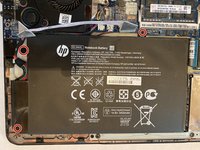
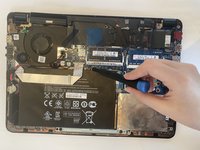
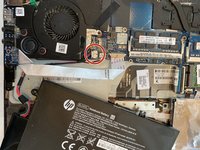
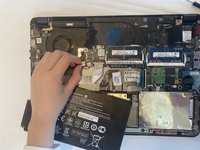
Disconnect the battery cable from the motherboard and remove the battery from the device.
-
-
-
-
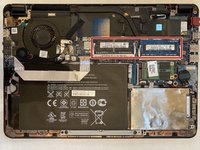
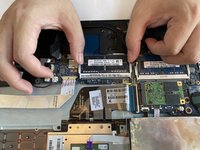
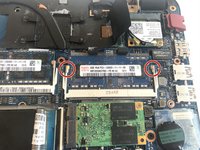
The RAM lies in the middle-right side of the device.
-
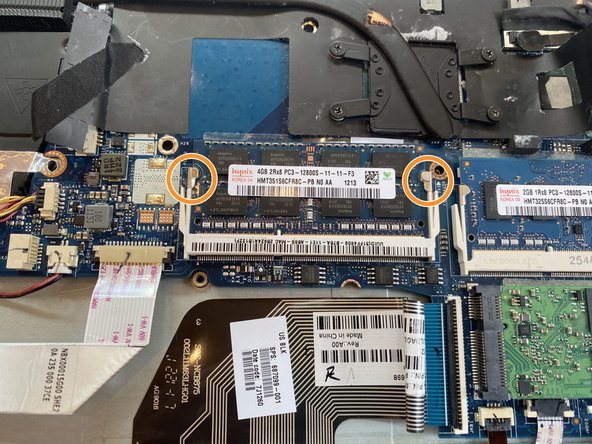
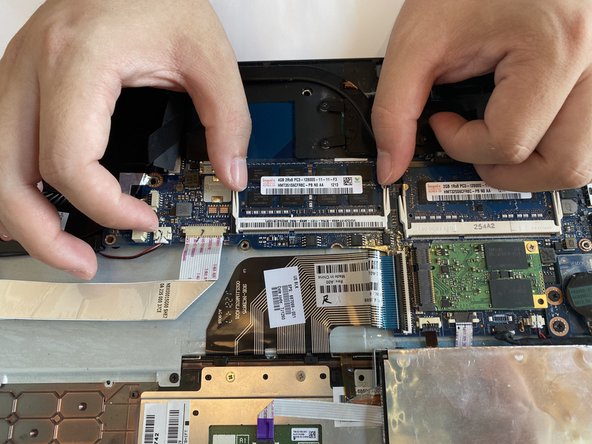
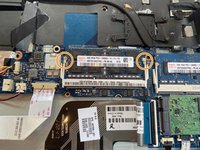
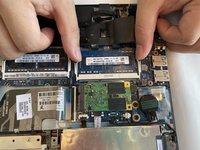
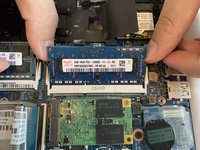
Use your fingers and push the two clips outwards to release the RAM stick.
-
-

 Ask FixBot







To reassemble your device, follow these instructions in reverse order.
Cancel: I did not complete this guide.
One other person completed this guide.

Team

Duke University Pratt School of Engineering, Team S5-G1, Matos-Garner Fall 2019 Member of Duke University Pratt School of Engineering, Team S5-G1, Matos-Garner Fall 2019
DUKEPSE-MATOS-GARNER-F19S5G1
5 Members
48 Guides authored
