Free Shipping on Domestic Orders $75+

HP Envy Ultrabook 4-1015dx Bluetooth Module Replacement

What you need

  1. HP Envy Ultrabook 4-1015dx Bluetooth Module Replacement, Battery: step 1, image 1 of 1
    • Make sure that the device is turned off and that all external devices are removed.

    Ask FixBot

    Add Comment

  2. HP Envy Ultrabook 4-1015dx Bluetooth Module Replacement: step 2, image 1 of 1
    • Flip the device over so that the back plate is facing upwards.

    Ask FixBot

    Add Comment

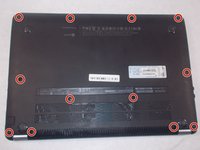
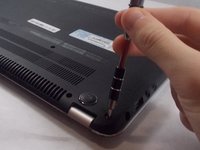
  3. HP Envy Ultrabook 4-1015dx Bluetooth Module Replacement: step 3, image 1 of 2 HP Envy Ultrabook 4-1015dx Bluetooth Module Replacement: step 3, image 2 of 2
    • Using a small (size 0) Phillips head screwdriver, remove the twelve 5.5 mm external Phillips head screws that connect the back plate to the device.

    • Make sure to set the screws aside in a safe place so that you do not lose them, as they will be needed to reattach the backplate later.

    Ask FixBot

    Add Comment

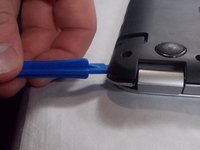
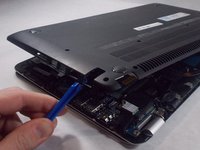
  4. HP Envy Ultrabook 4-1015dx Bluetooth Module Replacement: step 4, image 1 of 2 HP Envy Ultrabook 4-1015dx Bluetooth Module Replacement: step 4, image 2 of 2
    • Using the plastic opening tool, gently pry off the back plate from the device.

    Ask FixBot

    Add Comment

  5. HP Envy Ultrabook 4-1015dx Bluetooth Module Replacement: step 5, image 1 of 2 HP Envy Ultrabook 4-1015dx Bluetooth Module Replacement: step 5, image 2 of 2
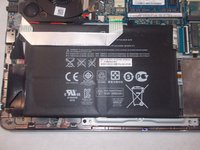
    • The large black box with the white warning images is the battery.

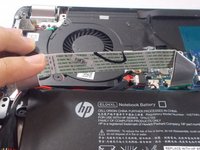
    • Move the ribbon cable so that it is no longer on top of the battery.

    Ask FixBot

    Add Comment

  6. HP Envy Ultrabook 4-1015dx Bluetooth Module Replacement: step 6, image 1 of 2 HP Envy Ultrabook 4-1015dx Bluetooth Module Replacement: step 6, image 2 of 2
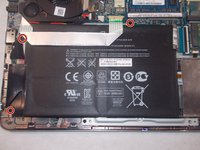
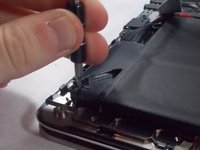
    • Using a small (size 0) Phillips head screwdriver, remove the three 3.5 mm Phillips head internal screws that hold the battery in place.

    • Make sure not to lose these internal screws; they will later be used to reattach the battery.

    Ask FixBot

    Add Comment

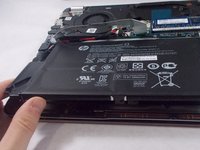
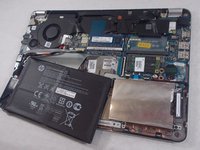
  7. HP Envy Ultrabook 4-1015dx Bluetooth Module Replacement: step 7, image 1 of 2 HP Envy Ultrabook 4-1015dx Bluetooth Module Replacement: step 7, image 2 of 2
    • Lift up the battery and remove it from the slot as shown.

    Ask FixBot

    Add Comment

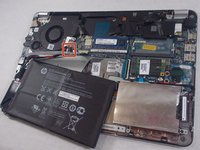
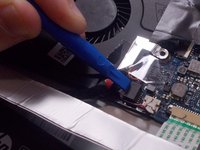
  8. HP Envy Ultrabook 4-1015dx Bluetooth Module Replacement: step 8, image 1 of 3 HP Envy Ultrabook 4-1015dx Bluetooth Module Replacement: step 8, image 2 of 3 HP Envy Ultrabook 4-1015dx Bluetooth Module Replacement: step 8, image 3 of 3
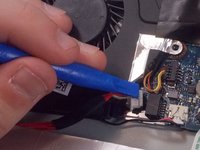
    • Use the plastic opening tool to disconnect the battery cable.

    Ask FixBot

    Add Comment

  9. HP Envy Ultrabook 4-1015dx Bluetooth Module Replacement: step 9, image 1 of 1
    • Lift up the battery and remove it from the device.

    Ask FixBot

    Add Comment

  10. HP Envy Ultrabook 4-1015dx Bluetooth Module Replacement, Bluetooth Module: step 10, image 1 of 2 HP Envy Ultrabook 4-1015dx Bluetooth Module Replacement, Bluetooth Module: step 10, image 2 of 2
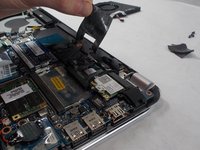
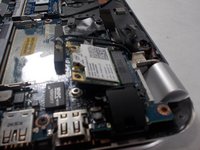
    • Remove the tape holding the power connector cable and loosen the cable from the routing channel to gain access to the bluetooth module.

    Ask FixBot

    Add Comment

  11. HP Envy Ultrabook 4-1015dx Bluetooth Module Replacement: step 11, image 1 of 1
    Tool used on this step:
    Tweezers
    $4.99
    Buy
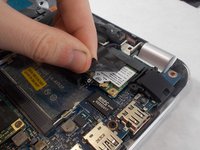
    • Use a pair of small needle nose pliers or tweezers to disconnect the antenna of the bluetooth module.

    Ask FixBot

    Add Comment

  12. HP Envy Ultrabook 4-1015dx Bluetooth Module Replacement: step 12, image 1 of 1
    • Using a #0 Phillips head screwdriver, remove the two 3 mm size 0 screws securing the Bluetooth module in place.

    Ask FixBot

    Add Comment

  13. HP Envy Ultrabook 4-1015dx Bluetooth Module Replacement: step 13, image 1 of 2 HP Envy Ultrabook 4-1015dx Bluetooth Module Replacement: step 13, image 2 of 2
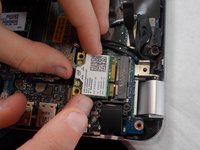
    • Grasp the bluetooth module by its sides and remove it from the computer by wiggling gently. Then place the bluetooth module in an anti-static bag.

    Ask FixBot

    Add Comment

Conclusion

To reassemble your device, follow these instructions in reverse order.

Cancel: I did not complete this guide.

One other person completed this guide.

Michael Horton

Member since: 10/17/18

130 Reputation

1 Guide authored

Team

0 Guide Comments

Add Comment

View Statistics:

Past 24 Hours: 3

Past 7 Days: 12

Past 30 Days: 39

All Time: 664