Free Shipping on Domestic Orders $75+

HP Envy TouchSmart 15 CMOS Battery Replacement

What you need

    1. HP Envy TouchSmart 15 CMOS Battery Replacement, Battery: step 1, image 1 of 1
      • Press the battery release tab and the battery will pop up.

      Ask FixBot

      Add Comment

    2. HP Envy TouchSmart 15 CMOS Battery Replacement: step 2, image 1 of 1
      • Remove the battery from the laptop, it will come out easily.

      Ask FixBot

      Add Comment

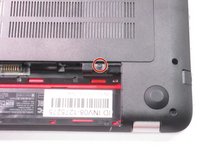
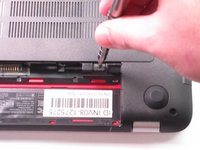
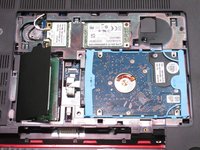
    1. HP Envy TouchSmart 15 CMOS Battery Replacement, Accessory Plate: step 3, image 1 of 2 HP Envy TouchSmart 15 CMOS Battery Replacement, Accessory Plate: step 3, image 2 of 2
      • Remove the single screw holding the accessory plate. This is a PH0 2.0x2.5 screw.

      Ask FixBot

      Add Comment

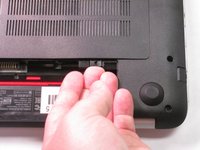
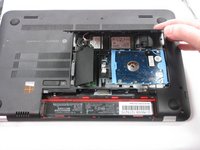
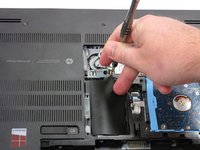
    2. HP Envy TouchSmart 15 CMOS Battery Replacement: step 4, image 1 of 3 HP Envy TouchSmart 15 CMOS Battery Replacement: step 4, image 2 of 3 HP Envy TouchSmart 15 CMOS Battery Replacement: step 4, image 3 of 3
      • Pry the accessory plate up from the back of the laptop by applying force upwards where the screw was removed.

      Ask FixBot

      Add Comment

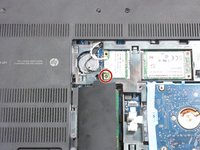
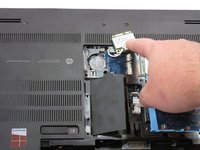
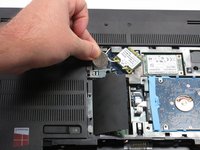
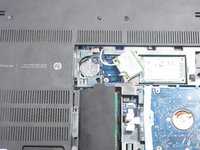
    1. HP Envy TouchSmart 15 CMOS Battery Replacement, CMOS Battery: step 5, image 1 of 3 HP Envy TouchSmart 15 CMOS Battery Replacement, CMOS Battery: step 5, image 2 of 3 HP Envy TouchSmart 15 CMOS Battery Replacement, CMOS Battery: step 5, image 3 of 3
      • Remove the screw from the wireless adapter with a PH0 screwdriver then move the adapter out of the way to access the CMOS battery.

      Ask FixBot

      Add Comment

    2. HP Envy TouchSmart 15 CMOS Battery Replacement: step 6, image 1 of 1
      • Use a plastic or metal spudger to release the CMOS battery from the clips.

      Ask FixBot

      Add Comment

    3. HP Envy TouchSmart 15 CMOS Battery Replacement: step 7, image 1 of 2 HP Envy TouchSmart 15 CMOS Battery Replacement: step 7, image 2 of 2
      • Remove the battery from the device.

      Ask FixBot

      Add Comment

Conclusion

To reassemble your device, follow these instructions in reverse order.

Cancel: I did not complete this guide.

One other person completed this guide.

Robert Patterson

Member since: 09/04/15

1,494 Reputation

5 Guides authored

Team

USF Tampa, Team 2-6, Sullivan Fall 2015 Member of USF Tampa, Team 2-6, Sullivan Fall 2015

USFT-SULLIVAN-F15S2G6

4 Members

120 Guides authored

0 Guide Comments

Add Comment

View Statistics:

Past 24 Hours: 3

Past 7 Days: 9

Past 30 Days: 46

All Time: 8,354