
HP Envy 4-1105dx Keyboard Replacement

KC Armstrong and one other contributor
Last updated on Jan 4, 2018
Views: 4.1K
View statistics:
- Past 24 Hours:
- 2
- Past 7 Days:
- 19
- Past 30 Days:
- 90
- All Time:
- 4,138
Comments: 3
3 guide comments.
Go to guide commentsCompleted: 3 4
3 people have marked this guide "completed." Will you be next?
4 people have marked this guide "completed." Including you — great job!
Favorites: 1 2
1 person has favorited (and subscribed to) this guide. Will you be next?
2 people have favorited (and subscribed to) this guide — including you!
Introduction
Go to step 1 ↓Replacing the keyboard may be necessary if the keyboard becomes nonresponsive. In order to reach the keyboard, you will have to remove the battery, hard drive, and motherboard first.
What you need
Tools
-
Spudger4.9
-


-
-
-
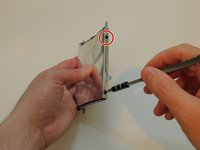
Unscrew and remove the one 7.5 mm Phillips-head screw using Phillips #1 screwdriver.
-
-
-
Use the plastic opening tool (which is short and has a thin end for prying open device parts) to pry open the back case of the device.
-
-
-
Use the flat end of a plastic spudger to disconnect the battery cable from its socket in the motherboard.
-
-
-
Unscrew and remove the three 4.0 mm Phillips-head screws that hold the battery in place, using a Phillips #1 screwdriver.
-
-
-
-
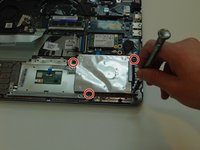
Remove the four 4.0 mm screws that hold down the hard drive case using a Philips #1 Screwdriver.
-
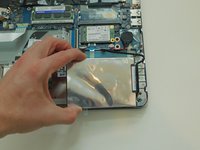
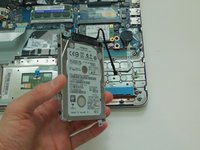
Move the hard drive case and hard drive so that you can easily reach the hard drive cable.
-
-
-
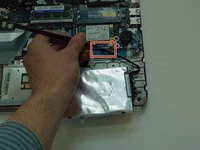
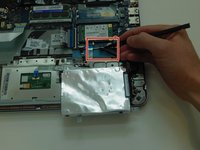
Use the plastic spudger tool to loosen the hard drive SATA cable connection by pushing it away from the motherboard.
-
Once it is loose, pull the hard drive out of the socket.
-
Remove the hard drive from the device.
-
-
-
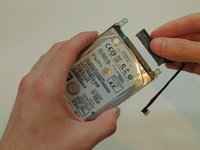
Pull out the hard drive cable from the hard drive, and set it aside.
-
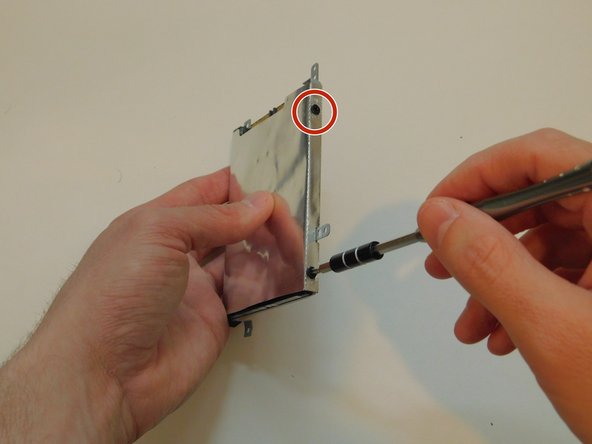
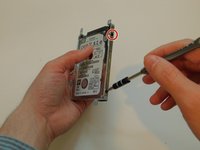
Remove the four 3.0 mm screws that attach the hard drive case to the hard drive using a Philips #1 Screwdriver. If the screwdriver is too big, try #0 sized screwdriver.
-
-
-
-
-
-
Prepare to disconnect the motherboard from any components you have not already removed, including the screen, touchpad, and keyboard.
-
-
-
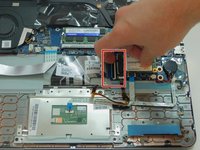
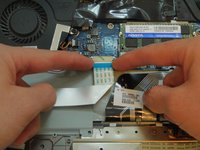
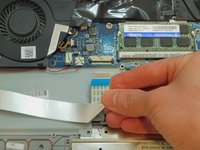
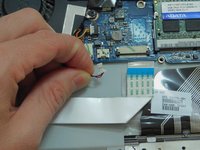
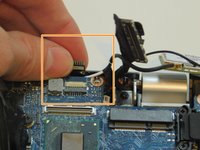
Remove the ribbon cable running from under the motherboard by undoing the latch mechanism with your fingernail, and pulling out on the edge of the connector. (This is the keyboard cable).
-
-
-
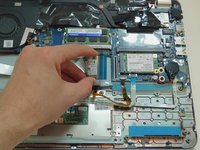
Flip up the black connector with your fingernail or using the plastic spudger.
-
Unplug the trackpad by pulling up on the touchpad board cable.
-
-
-
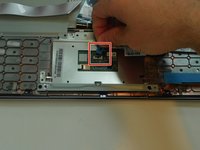
Use the plastic spudger to gently pry out the small chip next to the touchpad.
-
-
-
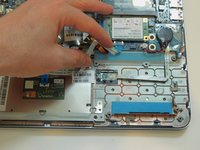
Disconnect the ribbon cable running to the ports on the right-hand side of the laptop.
-
-
-
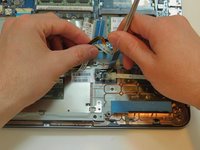
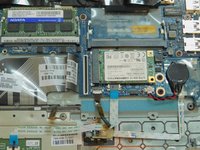
Disconnect the two small ribbon cables in front of the hard drive. The larger one is the touchpad board cable, and the smaller one is the keyboard light cable.
-
-
-
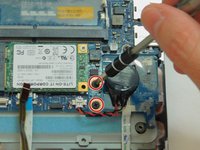
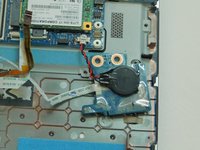
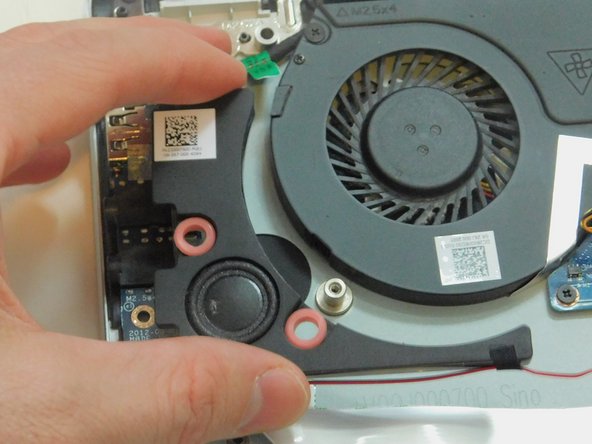
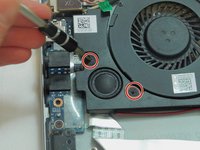
Using a Phillips #0 screwdriver, remove the two 3.0 mm screws holding the speaker and motherboard to the plastic frame.
-
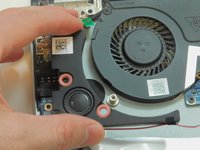
Move the speaker out of the way. It will stay attached to the motherboard. The cord connection cannot be disconnected.
-
-
-
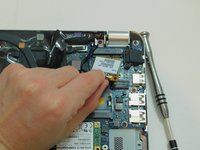
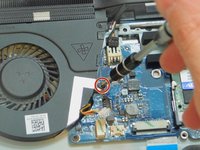
Using a Phillips #0 screwdriver, remove the 3.0 mm screw securing the wireless LAN adapter.
-
Detach the wireless LAN adapter from the board.
-
-
-
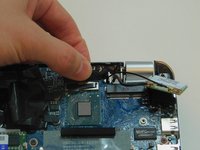
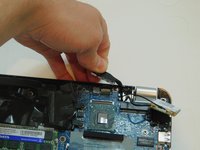
Using your fingers, locate the display panel cable under the hinge and disconnect it.
-
-
-
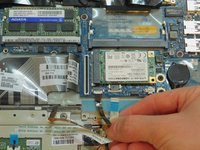
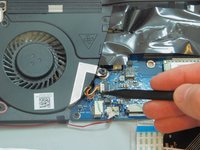
Disconnect the multicolored power connector for the USB/audio board by first probing it gently with a plastic spudger, then pulling it free.
-
-
-
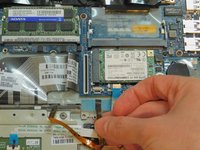
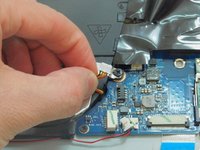
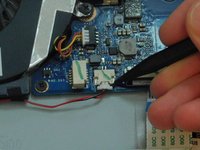
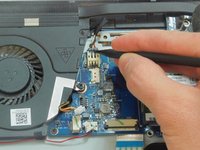
Disconnect the red and black power connector for the subwoofer by first probing it gently with a plastic spudger, then pulling it free with your fingernails.
-
-
-
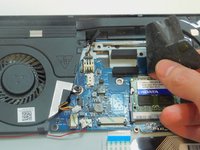
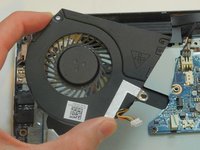
Peel back more of the black plastic to reveal the multicolored power connector for the cooling fan.
-
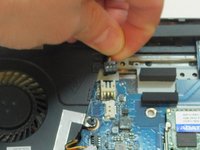
Disconnect the power connector for the cooling fan by probing it with the spudger, then pulling it free.
-
-
-
Using a Phillips #0 screwdriver, remove the two 2.0 mm screws holding the right speaker in place.
-
Remove the right speaker.
-
-
-
Using a Phillips #0 screwdriver, remove the 2.5 mm screw holding the cooling fan in place.
-
Lift out the cooling fan.
-
-
-
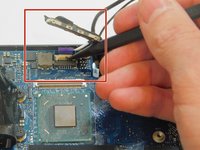
Using the plastic spudger, remove the power button cable. This is the small, purple ribbon cable at the back of the motherboard.
-
-
-
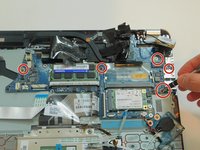
Using a Phillips #0 screwdriver, remove any remaining screws attaching the motherboard to the rest of the laptop.
-
-
-
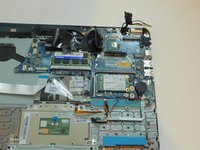
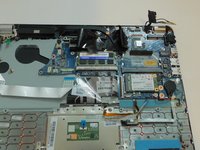
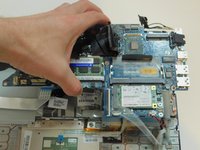
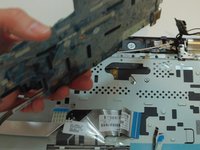
Gently lift out the motherboard and heat sink. If the motherboard has been fully disconnected from other components, it will lift free easily.
-
If the motherboard seems stuck, do not force it. Instead, return to previous steps to see if there is a connection or screw you have missed. Also check for tape, glue, or similar materials that may be attached to the motherboard.
-
-
-
-
-
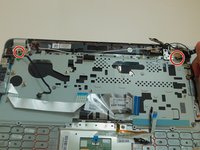
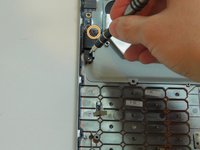
Unscrew the two 3 mm screws from the 2 silver metal hinges using a Philips #1 Screwdriver.
-
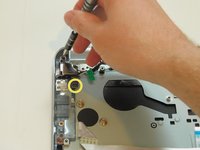
Unscrew the two 2.5 mm screws from the black metal anti-theft locking component using a Philips #1 Screwdriver.
-
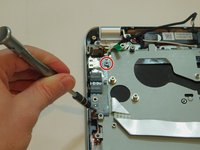
Unscrew the two 3.0 mm screws from the silver metal port using a Philips #1 Screwdriver.
-
-
-
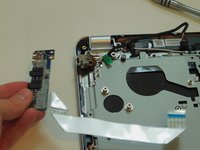
Unscrew the 2 3.0 mm screws holding the chip with the multiple ports using a Philips #1 Screwdriver.
-
Move the chip with multiple ports to the side.
-
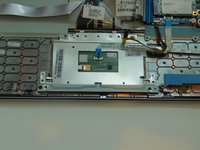
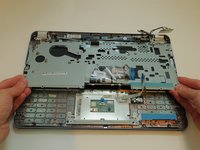
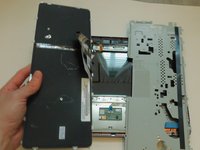
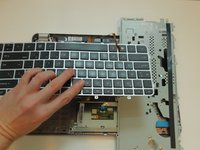
Use your fingers or a plastic or metal spudger tool to start prying up the metal case to reveal the keyboard.
-
-
-
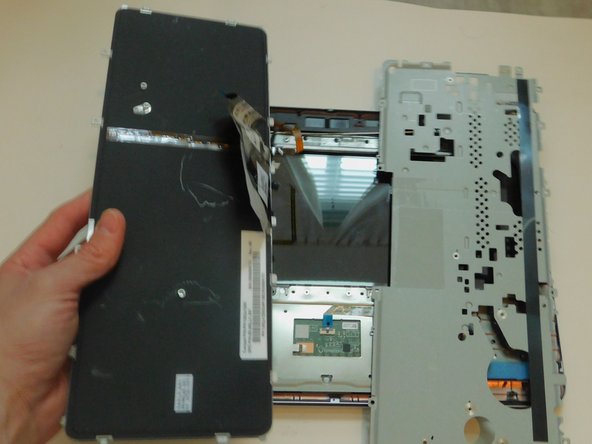
Separate the metal case from the keyboard by peeling off the tape that connects them.
-
-

 Ask FixBot












































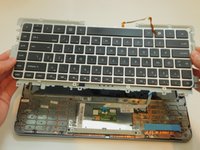
To reassemble your device, follow these instructions in reverse order.
Cancel: I did not complete this guide.
3 other people completed this guide.

3 Guide Comments
Thanks for the guide, it help me a lot with an other Hp Envy 14 model.
Nice mate
What technique is used on step 4 to remove the bottom? I need to remove mine but want to be careful not to break tabs or damage the edge.
Seems no one highlights this… its always unscrew then magically they show it with the bottom off.
Hi Neccros,
It has been a while since I have performed that procedure (step 4). However, I remember that I used the plastic prying tool to loosen as many parts of the bottom that I could before using my hands. I don’t remember it being easy to damage the bottom as long as you loosen each part slowly and then pull with your hands slowly. If you feel too much resistance, stop prying and double-check you have removed all screws. I also recommend watching a youtube video where someone takes a laptop apart. That might help you visualize the process before you start. Best of luck!
