
HP Envy 4-1030us Wireless Card Replacement

Christopher Luna and one other contributor
Last updated on Jan 4, 2018
Views: 670
View statistics:
- Past 24 Hours:
- 1
- Past 7 Days:
- 18
- Past 30 Days:
- 92
- All Time:
- 670
Comments: 1
1 comment on steps.
Completed: 1 2
1 person has marked this guide "completed." Will you be next?
2 people have marked this guide "completed." Including you — great job!
Favorites: 0 1
No one has favorited (and subscribed to) this guide. Will you be the first?
1 person has favorited (and subscribed to) this guide — and that's you!
Introduction
Go to step 1 ↓Replacing the wireless (WLAN) card may be necessary for resolving wireless network issues. The card is small with delicate wires clipped to it. Be gentle when wiggling the wires and card free from the system since the contacts are delicate and can affect wireless performance.
When working with electronic components, we recommend wearing an electrostatic wristband, it is possible for the static electricity present on you to discharge onto one of the components, wearing one of these wristbands and clipping it to a piece of metal will prevent this from happening.
What you need
Tools


-
-
-
Using the Philips #0 screwdriver, remove the 12 7.5mm screws from the bottom cover.
 Ask FixBot
-
-
-
Using the plastic opening tool, carefully work the tool between the bottom cover and bottom chassis to loosen the connection.
-
Lift the bottom cover off of the system.
-
-
-
-
-
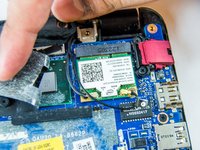
After removing the bottom cover, the wireless card is accessible toward the rear of the system.
-
-
-
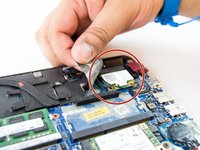
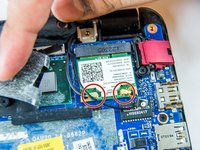
Disconnect the wires from the wireless card by lifting them up from the metal studs they are set on.
-
-
-
-
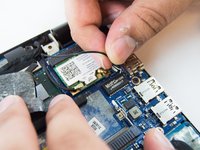
Using the Phillips #0 screwdriver unscrew the single 2.5mm screw holding the card to the motherboard.
-
-






To reassemble your device, follow these instructions in reverse order.
Cancel: I did not complete this guide.
One other person completed this guide.

Team

USF Tampa, Team S1-G1, Thompson Fall 2017 Member of USF Tampa, Team S1-G1, Thompson Fall 2017
USFT-THOMPSON-F17S1G1
4 Members
72 Guides authored
