Introduction
Follow this guide if you wish to replace or upgrade the RAM of your HP Envy 15-u001dx.
RAM (Random Access Memory) is where your computer stores the information that it is currently using. This allows it to access it much quicker than if it had to retrieve that information from the drives every time. There are a variety of reasons that you may want to remove/replace the RAM on your HP Envy 15-u001dx. First, the RAM itself could be going bad. There are a couple of signs that your RAM is going bad:
- if you lose recently created files, or they become corrupted
- if your computer reboots itself, or goes to the BSOD (Blue Screen of Death)
- if your computer runs progressively slower the longer it is on
You may also want to upgrade your RAM to improve the performance and longevity of the device.
Once the motherboard is removed, replacing the RAM is a fairly simple process, and requires no tools. Still, it is important to be careful when working with electronic components because they are semi-fragile.
What you need
-
-
-
Flip the device over so the bottom is is facing up.
-
Peel up the two rubber feet closest to the hinge using the metal spudger to reveal two 6.6 mm Phillips #0 screws.
 Ask FixBot
-
-
-
Peel up the small plastic coverings in the middle of the device with the spudger to reveal two more 6.6 mm Phillips #0 screws.
-
-
-
Remove each of the fourteen 6.6 mm Phillips #0 screws with the Philips #0 screwdriver.
-
-
-
Flip the device over and open it to reveal the keyboard.
-
Use the metal spudger to pry the chassis apart and reveal the inside of the device.
-
-
-
Disconnect the T/P cable by flipping up the black plastic piece on the connector and pulling the cable out of the connector.
-
-
-
Disconnect the keyboard cable by flipping up the black plastic piece on the connector and pulling the cable out of the connector.
-
-
-
Disconnect the battery cable by flipping up the black plastic piece on the connector and pulling the cable out of the connector.
-
-
-
-
Disconnect the AUX/USB cable by flipping up the black plastic piece on the connector and pulling the cable out of the connector.
-
-
-
Disconnect the cable by flipping up the black plastic piece on the connector and pulling the cable out of the connector.
-
-
-
Disconnect the cable by flipping up the black plastic piece on the connector and pulling the cable out of the connector.
-
-
-
Disconnect the cable by flipping up the black plastic piece on the connector and pulling the cable out of the connector.
-
-
-
Disconnect the cable by gently pulling it out. The spudger may be used to help loosen it.
-
-
-
Remove the three 4.0 mm Phillips #0 screws with the Phillips #0 screwdriver on the fan.
-
Disconnect the cable by gently pulling it out.
-
Remove the fan by pulling it out of the chassis.
-
-
-
Disconnect the cable by gently pulling it out. The spudger may be used to help loosen it.
-
-
-
Remove each of the three 4.0 mm screws around the fan with the Philips #0 screwdriver.
-
The fan will now be loose, and easy to lift out.
-
-
-
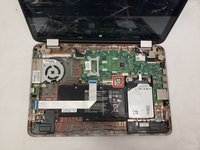
Disconnect the wifi card from the motherboard and remove the motherboard from the rest of the device.
-
-
-
-
-
Flip the motherboard over after removing it from the chassis. This will allow you to see th RAM itself (the blue rectangles in this picture).
-
-
-
Press the metal locks on each side to release the RAM card.
-
The RAM should pop out a little, and can then be removed.
-
-




To reassemble your device, follow these instructions in reverse order.

Team

IUPUI, Team S1-G1, Henning Fall 2019 Member of IUPUI, Team S1-G1, Henning Fall 2019
IUPUI-HENNING-F19S1G1
3 Members
36 Guides authored
