
HP Elitebook Folio 9470m RAM Replacement

Kenneth Bowers and 4 other contributors
Last updated on Dec 21, 2022
Views: 7.9K
View statistics:
- Past 24 Hours:
- 2
- Past 7 Days:
- 20
- Past 30 Days:
- 120
- All Time:
- 7,908
Comments: 1
1 guide comment.
Go to guide commentsCompleted: 7 8
7 people have marked this guide "completed." Will you be next?
8 people have marked this guide "completed." Including you — great job!
Favorites: 0 1
No one has favorited (and subscribed to) this guide. Will you be the first?
1 person has favorited (and subscribed to) this guide — and that's you!
Introduction
Go to step 1 ↓RAM, or random access memory, is short-term storage for your HP Elitebook Folio 9470m. RAM is used by your processor for immediate use as-needed, unlike long-term files written to a hard disk drive. If your computer has slowed considerably or you’re looking for a boost, replacing/upgrading the RAM is a fairly simple and inexpensive first step. The HP Elitebook Folio 9470m laptop comes standard with 16GB of RAM and can be upgraded to a maximum of 16GB with its two (DDR3) slots.
What you need
Tools

-
-
-
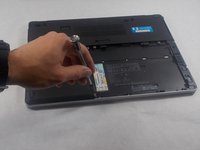
Unscrew 2 Phillips head screws, lift slightly up and out to remove hard drive cover.
-
-
-
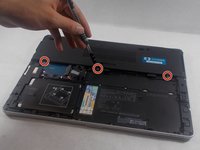
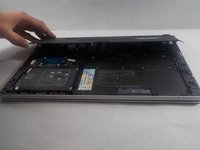
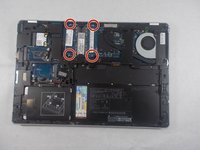
Remove the three Phillips screws from the back plate. Pull slightly up and out to remove the plate.
-
-
-
-
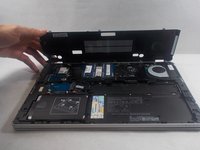
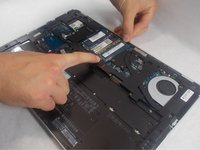
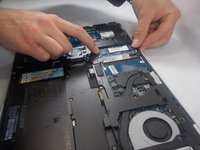
Gently push out the small tabs on either side.
-
The RAM should pop up and easily be taken out from there.
-

 Ask FixBot






To reassemble your device, follow these instructions in reverse order.
Cancel: I did not complete this guide.
7 other people completed this guide.

Team

UMass Dartmouth, Team S1-G1, Valliere Fall 2018 Member of UMass Dartmouth, Team S1-G1, Valliere Fall 2018
UMASSD-VALLIERE-F18S1G1
4 Members
84 Guides authored
1 Guide Comment
There are 2 black Philips screws more you have to loose, before you can open the back plate. One on the left side (near wifi card), and on right side.
