Introduction
When the optical drive goes bad, the only way to fix the problem usually is to replace it. However, before completely replacing the optical drive in the HP Elitebook 8460p, attempt to clean the optical drive with a special cleaning disk.
If the cleaning disk does not solve the problem with the optical drive, use this guide to quickly and easily change the optical drive so you can go back to listening to music and watching movies.
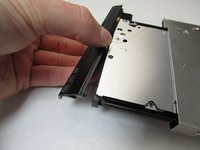
The hardest part of the guide is removing a plastic component and putting it on the new optical drive. Take your time and remove the plastic piece carefully to avoid breaking it. Additionally, before opening up the bottom panel to the laptop, make sure you are properly grounded with an ESD grounding strap to prevent electrostatic discharges from damaging other electrical components of the laptop.
To complete this guide, you will need a Phillips #0 screw driver, a T2 Torx screw driver, an ESD strap, and a thin pry tool.
What you need
-
-
-
On the back of the computer, slide the left switch towards the outside of the laptop until you hear a click.
 Ask FixBot
-
-
-
Slide the battery away from the switches until it can be lifted away from the laptop.
-
Lift the battery away from the laptop.
-
-
-
-
-
On the back of the laptop, slide the right switch toward the outside of the laptop until you hear a click.
-
-
-
-
Slide the back shell of the laptop away from the switches until it can be lifted up.
-
Lift the shell straight up.
-
-
-
-
-
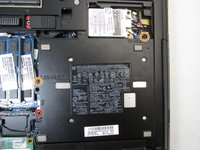
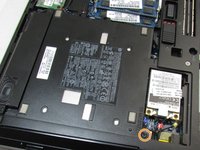
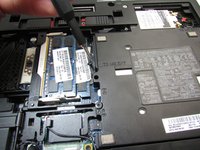
Using a Phillips #0 bit, unscrew the one Phillips head screw.
-
Using a T2 Torx screwdriver, remove the two 8.0mm Torx screws.
-
-
-
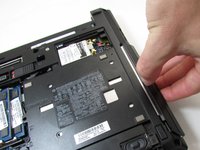
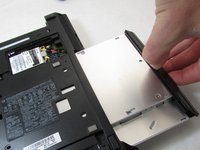
With your fingernail, pry the edge of the optical drive away from the chassis of the laptop and pull it straight out.
-
-
-
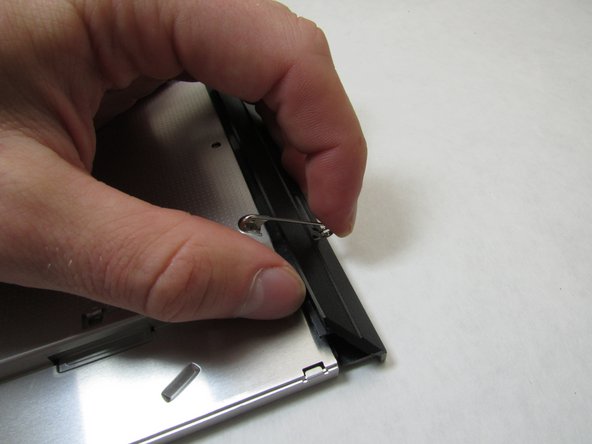
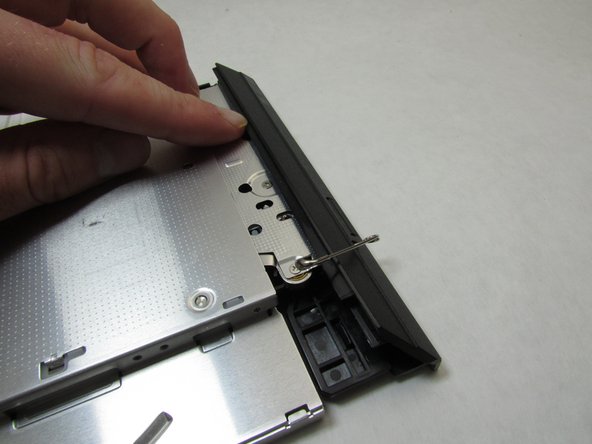
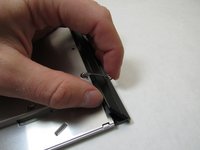
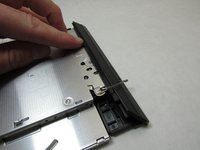
Using a small paper clip, push the paper clip straight in to open the optical drive.
-
-
-
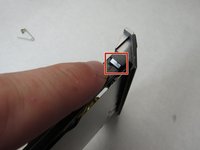
Using a small point, pop the tab out.
-
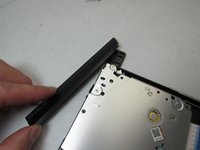
Rotate the plastic cover clockwise to release the tab on the left hand side of the optical drive.
-
-







To reassemble your device, follow these instructions in reverse order.
Cancel: I did not complete this guide.
4 other people completed this guide.

Team

Embry-Riddle Aeronautical University, Team S12-G1, Lamothe Fall 2019 Member of Embry-Riddle Aeronautical University, Team S12-G1, Lamothe Fall 2019
ERAU-LAMOTHE-F19S12G1
4 Members
120 Guides authored
