Introduction
If the keyboard is bad or malfunctioning, use this guide to replace the keyboard or check the keyboard connections on the inside of the laptop.
This guide requires a bit of prying to unsnap the keyboard from the laptop chassis. Following the instructions, pry carefully and do not force anything to avoid breaking any components.
The keyboard has two electrical connectors that attach to the motherboard. Before touching the connectors, make sure you are properly grounded to avoid damaging the motherboard itself.
To complete this guide you will need a Phillips #0 screw driver; an ESD strap; and a thin, sturdy plastic pry tool.
What you need
-
-
-
On the back of the computer, slide the left switch towards the outside of the laptop until you hear a click.
 Ask FixBot
-
-
-
Slide the battery away from the switches until it can be lifted away from the laptop.
-
Lift the battery away from the laptop.
-
-
-
-
-
On the back of the laptop, slide the right switch toward the outside of the laptop until you hear a click.
-
-
-
Slide the back shell of the laptop away from the switches until it can be lifted up.
-
Lift the shell straight up.
-
-
-
-
-
-
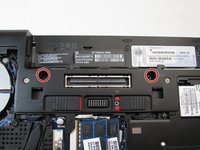
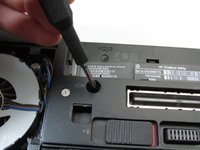
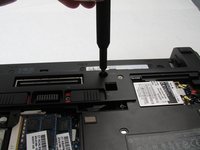
Using a Phillips #0 bit, unscrew the two screws in front of the battery slot located on the bottom of the laptop.
-
-
-
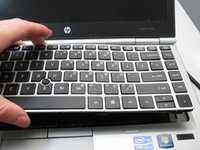
Using a spudger, work around the edge of the keyboard and pry it up from the device.
-
-
-
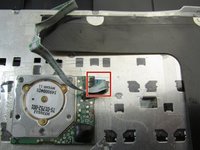
Disconnect the keyboard cable on the laptop using a thin pry tool to open the connection.
-
-
-
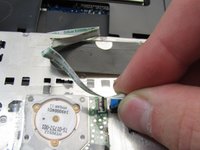
Using the spudger again, disconnect the thin ribbon strip on the back of the keyboard.
-
-









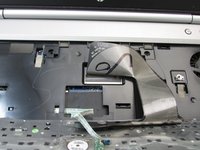

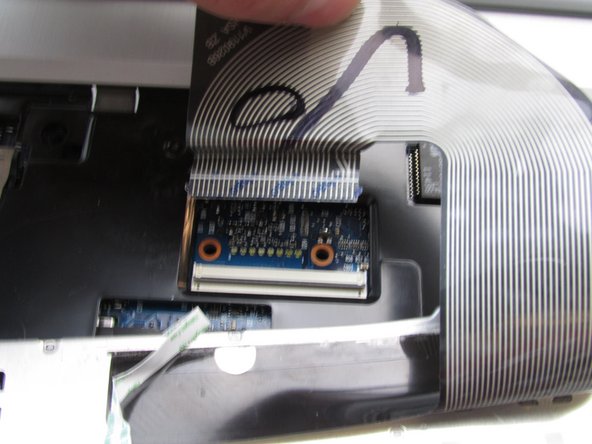
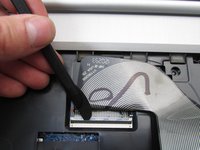
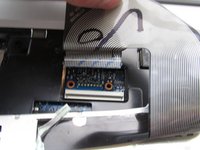


To reassemble your device, follow these instructions in reverse order.
Cancel: I did not complete this guide.
3 other people completed this guide.

Team

Embry-Riddle Aeronautical University, Team S12-G1, Lamothe Fall 2019 Member of Embry-Riddle Aeronautical University, Team S12-G1, Lamothe Fall 2019
ERAU-LAMOTHE-F19S12G1
4 Members
120 Guides authored
2 Guide Comments
There's a third keyboard screw right beside the fan
yeah just wanted to say this ...
Also the screws are PH1 not PH0
